
How Driver Booster Fixed the Crashes I’d Been Living With for Months
For months, I had gotten used to my PC crashing. Not every day, thankfully. Sometimes it would happen once a week. Other times, I could go several days without seeing a problem. But eventually, something would go wrong. A game would suddenly freeze, the screen would go black for a few seconds, or Windows would simply restart without much warning.
At first, I blamed everything except the drivers.
I thought maybe my graphics card was getting old. Then I suspected Windows. After that, I wondered if one of the programs I had installed recently was causing conflicts. I even spent quite a bit of time cleaning up unnecessary files and checking whether I had enough free storage.
Nothing really changed. The frustrating part was that my PC usually worked perfectly. I could browse the web, watch videos, work on documents, and play games for hours. Then, completely out of nowhere, it would crash.
Eventually, I started looking more seriously at my device drivers.
The Problem Wasn’t as Obvious as I Thought
I knew drivers were important, but I honestly didn’t pay much attention to them.
Windows updates would occasionally install something automatically, and I assumed that was enough. I also knew that graphics card manufacturers released driver updates, but manually checking every component in my PC sounded like a chore I didn’t want to deal with.
My computer has a graphics card, motherboard, audio devices, network adapters, USB controllers, and plenty of other hardware. Trying to identify which drivers were outdated or causing conflicts manually felt like looking for a needle in a haystack.
That’s when I decided to try Driver Booster. What caught my attention was how straightforward the process was. Instead of making me search for drivers one device at a time, Driver Booster could scan the system and identify outdated, missing, or faulty drivers automatically.
And that was exactly what I needed.
My First Scan Was an Eye-Opener
After installing Driver Booster, I ran a scan expecting to find maybe one or two outdated drivers. I was wrong.
There were more drivers that needed attention than I expected.
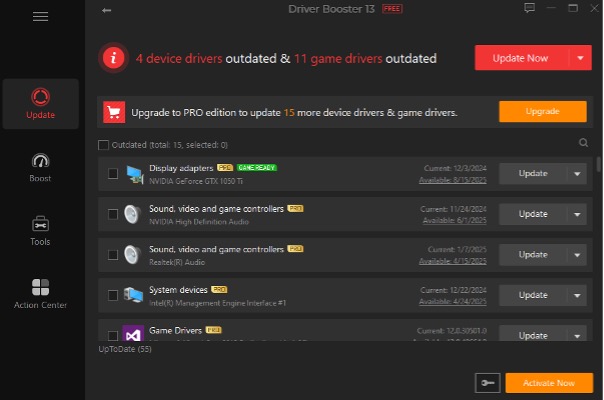
Some belonged to hardware I rarely thought about, which made me realize how easy it is to overlook drivers when everything appears to be working normally.
I started with the most important ones, particularly the graphics and chipset-related drivers. Driver Booster supports drivers from more than 1,200 major hardware brands, including Intel, AMD, and NVIDIA. The drivers are also checked through Microsoft WHQL certification and an IObit security scan, which gave me more confidence about what I was installing.
I didn’t have to open several manufacturer websites, compare driver versions, download installers, and figure out which package was actually right for my system.
Driver Booster handled the searching for me. That alone saved me a lot of time.
I Also Discovered How Important Graphics Drivers Were
Gaming was one of the situations where I noticed my crashes most often.
There were times when a game would run smoothly for 30 minutes and then suddenly freeze. On other occasions, I would experience stuttering or a brief black screen before the game recovered.
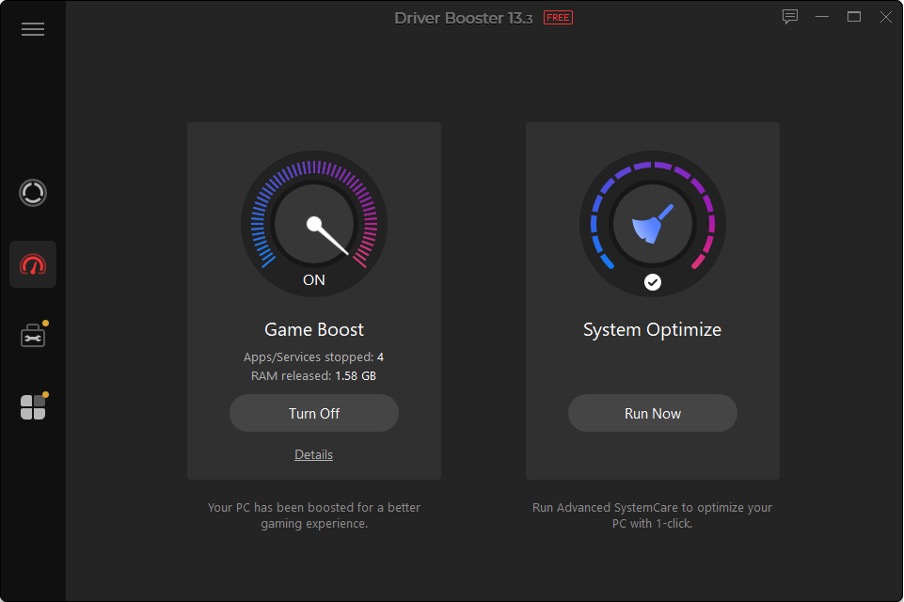
Updating my graphics driver was one of the first things I tried. Driver Booster supports Game Ready drivers for NVIDIA GeForce, AMD Radeon Software Adrenalin Edition, and Intel Graphics. It also includes Game Boost, which can stop unnecessary apps and services to free up resources while gaming. I didn’t expect a driver update to magically transform my PC, but I did notice that some of the problems became much less frequent.
The biggest difference wasn’t that I suddenly got an enormous FPS increase. It was that my system felt more predictable. And honestly, that’s what I wanted. I would much rather have a game that runs consistently than one that performs well most of the time and randomly crashes.
It Helped With More Than Just Gaming
What surprised me most was that the driver problems weren’t limited to games.
I had also experienced occasional audio issues and network problems. Sometimes my Bluetooth headphones wouldn’t connect properly. On other occasions, my Wi-Fi connection seemed strangely unstable.
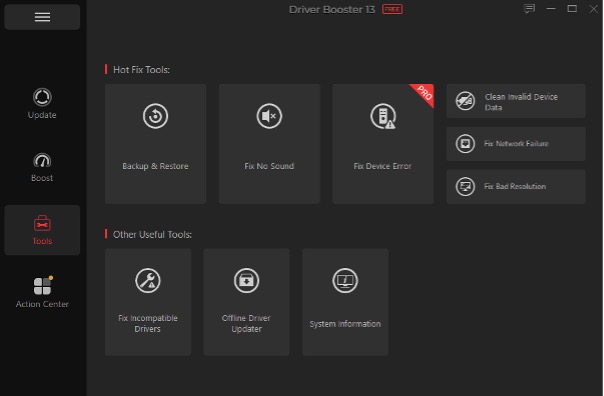
Driver Booster includes tools for common hardware problems, including fixing no sound, network failures, device errors, and bad screen resolution. It also provides offline driver updating and driver backup and restore features.
That made Driver Booster feel less like a simple “driver updater” and more like a troubleshooting tool.
Instead of thinking, “Something is wrong with my PC, but I have no idea where to start,” I had somewhere to begin.
The Backup and Restore Feature Gave Me Peace of Mind
I’ll admit that I was nervous about updating several drivers at once.
Drivers are closely connected to hardware, so I didn’t want to fix one problem and accidentally create another.
That’s why I appreciated Driver Booster’s restore options. Before installing drivers, it can create a system restore point, and users can also roll back drivers when needed. The Pro version adds automatic driver backup, which can make restoring previous versions easier.
Knowing that I had a way back made me much more comfortable with updating drivers.
It’s a small thing, but when you’ve already been dealing with unexplained crashes for months, having a safety net matters.
The Crashes Didn’t Disappear Overnight
I don’t want to make it sound like Driver Booster was some magic button that solved every problem instantly.
My PC didn’t suddenly become perfect after one click.
But after updating the outdated and problematic drivers, the crashes became noticeably less frequent. The random freezes I had learned to tolerate started disappearing. Games became more stable, and I stopped constantly wondering when the next crash was going to happen.
What I Learned From the Experience
The biggest lesson for me was that a computer can appear healthy while still having driver problems in the background. I had spent months looking at storage, software, and Windows settings while overlooking something that sits between the operating system and my hardware every day.
As a dedicated driver updater, Driver Booster didn’t just save me from manually searching for dozens of drivers. It helped me identify an area of my PC that I had completely neglected. If someone told me a few months ago that outdated drivers could be behind some of my crashes, I probably would have shrugged.
Now, whenever I experience unexplained freezes, blue screens, hardware problems, or game instability, checking my drivers is one of the first things I consider. For me, Driver Booster wasn’t about squeezing every last bit of performance out of my PC.
It was about making my computer feel reliable again. And after living with random crashes for months, reliability was exactly what I had been missing.


