
How to Save Instagram Videos and Reels Without Watermark on Your Nokia or Android Phone
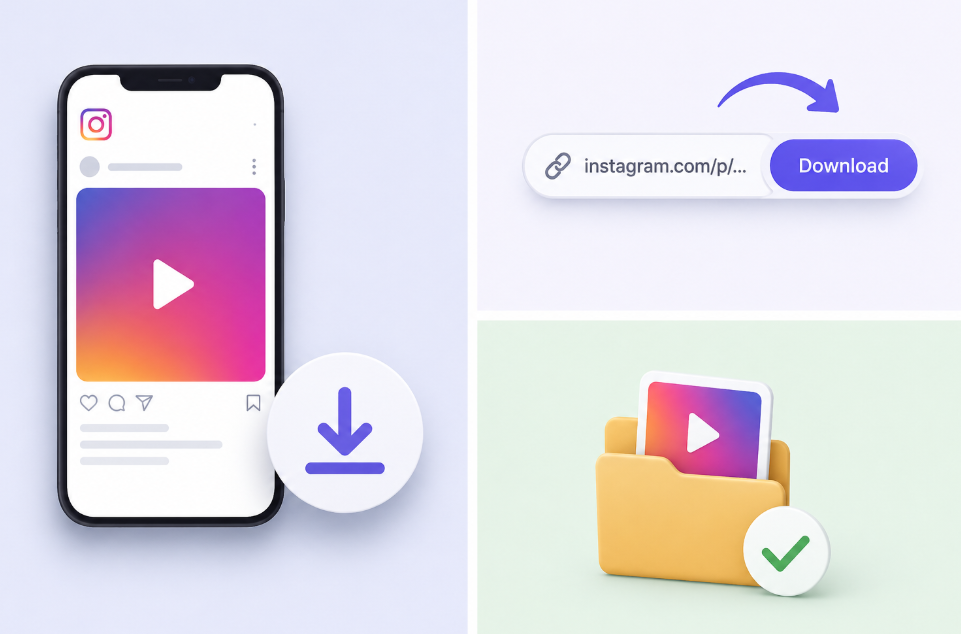
Instagram is one of the most used apps on Nokia and Android phones, but it has a gap that frustrates a lot of users. There is no straightforward built-in option to save a video from another account to your gallery. The Share button lets you send content within Instagram, but it does not create a real file on your phone. And when you do manage to save a video through Instagram’s native tools, it often comes with the platform’s watermark overlaid on the content.
Browser-based downloader tools solve both problems. They save real MP4 files directly to your phone’s storage, and they pull the original file from Instagram’s servers before any overlay is applied, which means no watermark. This guide covers how to do it on Android.
Why Instagram Videos Have Watermarks When Shared Natively
When you use Instagram’s Share feature to send a Reel to someone or repost it to your Story, Instagram adds a watermark that includes the creator’s username and the Instagram logo. This is by design. The platform wants to drive people back to Instagram when they see content circulating elsewhere.
Browser-based downloaders work differently. They retrieve the original MP4 file that Instagram stores on its servers, before any overlay is applied. The result is a clean file with no platform branding. For an instagram video download without watermark on your Nokia or Android phone, this is the approach that actually works.
Step-by-Step: Save Instagram Videos Without Watermark on Android
Step 1: Open Instagram on your Android phone and navigate to the video you want to save. Tap the three-dot menu in the upper right corner of the post and select Copy Link.
Step 2: Open Chrome or any other browser on your phone. Go to the SaveFromIns video download page.
Step 3: Tap the input field, long-press, and choose Paste to enter the link. Tap the Download button and wait a few seconds for the page to process the link.
Step 4: A download option will appear. Tap it and the video will save to your phone’s Downloads folder as a standard MP4 file with no watermark. It will appear in your Gallery app automatically on most Android phones.
If the video does not appear in your Gallery, open your file manager app, go to the Downloads folder, find the MP4 file, and move or copy it to your DCIM or Videos folder.
Step-by-Step: Download Instagram Reels Without Watermark
Reels are short vertical videos and they follow the same download process as regular videos, but using the dedicated Reels page gives slightly faster processing. To download Instagram reels without a watermark on your Android phone, copy the Reel link from Instagram the same way as above.
Open the SaveFromIns Reels page in your browser. Paste the link, tap Download, and select the download option that appears. The Reel saves as a vertical MP4 file to your Downloads folder. Because Reels are short, the download usually completes in a few seconds even on a slower connection.
The downloaded Reel plays in any video app on your phone including the default gallery player, VLC, and MX Player. It is a standard file with no DRM and no expiry.
Does This Work for All Instagram Content Types
SaveFromIns handles the main Instagram content types from the same interface. Regular video posts and Reels save as MP4 files. Photos save as JPG files. Stories from public accounts can be saved before the 24-hour timer runs out. Carousel posts that contain multiple photos or videos return each item as a separate downloadable file. IGTV videos, which are longer-form content, download the same way as regular video posts.
The one limitation that applies across all browser-based downloaders is private accounts. If an account is set to private, the content is not publicly accessible and no tool can retrieve it through a link alone.
Which Nokia and Android Phones Support This
Because the download happens through your phone’s browser rather than through an installed app, it works on any Nokia or Android phone that can run Chrome, Firefox, or another modern browser. There are no minimum hardware requirements and no Android version restrictions. Older Nokia phones running Android Go or Android One work just as well as newer flagship devices.
The downloaded files go to the standard Downloads folder on your internal storage. If your phone has an SD card, you can set your browser’s download location to the SD card in the browser settings to save space on your internal storage.
Is It Safe to Use on Your Phone
SaveFromIns does not require you to log into Instagram at any point. You only paste a public link into the site. No Instagram credentials are ever entered and the tool has no access to your account. It runs inside your browser’s environment, which means it cannot access other apps, contacts, or files on your phone.
As a general habit, using a browser with an ad blocker installed adds extra protection when using any download site. It blocks advertising content that can sometimes appear alongside legitimate download buttons and makes the experience cleaner overall.
Final Thoughts
Nokia and Android phones handle Instagram content well, but Instagram itself does not make saving that content straightforward. A browser-based downloader fills the gap without requiring any app installation, any Instagram login, or any payment. The result is a clean MP4 file in your Downloads folder that plays anywhere and stays on your phone permanently. For both regular video posts and Reels, the process takes under a minute from copying the link to having the file saved.


