
My Experience Using iTop Easy Desktop to Manage Too Many Work Documents
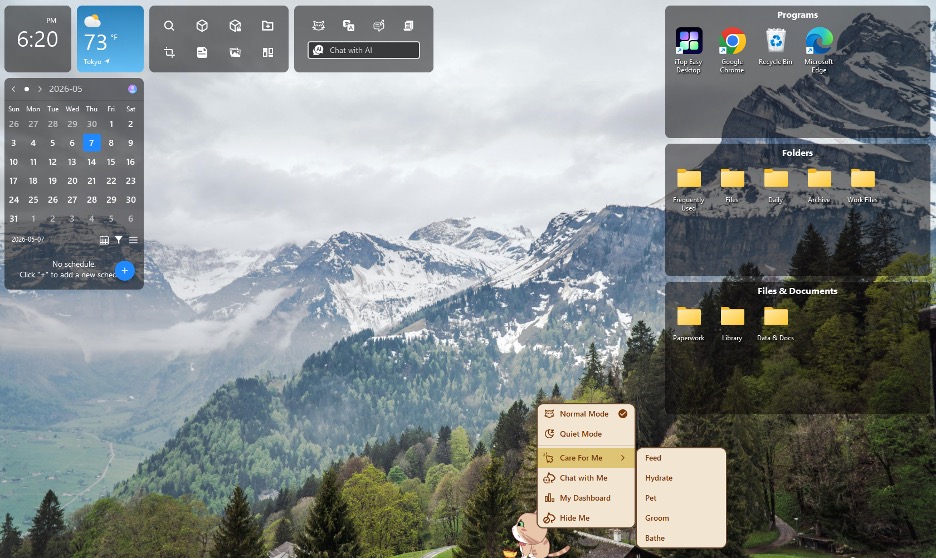
My desktop was drowning in files. Work documents are scattered everywhere. Screenshots from last week sitting next to spreadsheets from yesterday. Every time I needed to find something, I wasted minutes searching through the chaos.
I tried organizing several times manually. Created folders with logical names. Sorted everything neatly. The organization lasted maybe three days before new files started piling up again. Manual organization requires constant discipline. On a busy afternoon, the system completely falls apart.
That frustration led me to try iTop Easy Desktop, a desktop organizer software promising to solve file chaos permanently. I wanted something that would maintain organization automatically rather than requiring willpower, which I clearly did not have. I used it for more than a month every day at work, managing documents, and I discovered what was useful and what wasn’t.
What iTop Easy Desktop Actually Does
iTop Easy Desktop combines several organization tools in one package. The software runs on Windows 10 and 11. It is freeware, meaning basic features cost nothing. The download installed quickly on my work laptop without issues.
Core features I actually use:
- Folders are organized into groups of files in boxes on the desktop.
- Hides icons instantly on the desktop with one click.
- Find thousands of wallpaper options and customize them to make your computer look unique.
- A quick question, an AI Assistant named PawPal
- Private Box is a password-protected file locker.
- Widgets including notes, calendar, and Pomodoro timer
The boxes’ features became essential for managing my work documents. Everything else felt like bonus features I use occasionally.
How I Organized My Work Documents Using Desktop Boxes
The desktop boxes completely changed how I handle files. Instead of folders buried in my file system, boxes sit right on my desktop as visible containers.
Step 1: Create Boxes for Different Document Categories
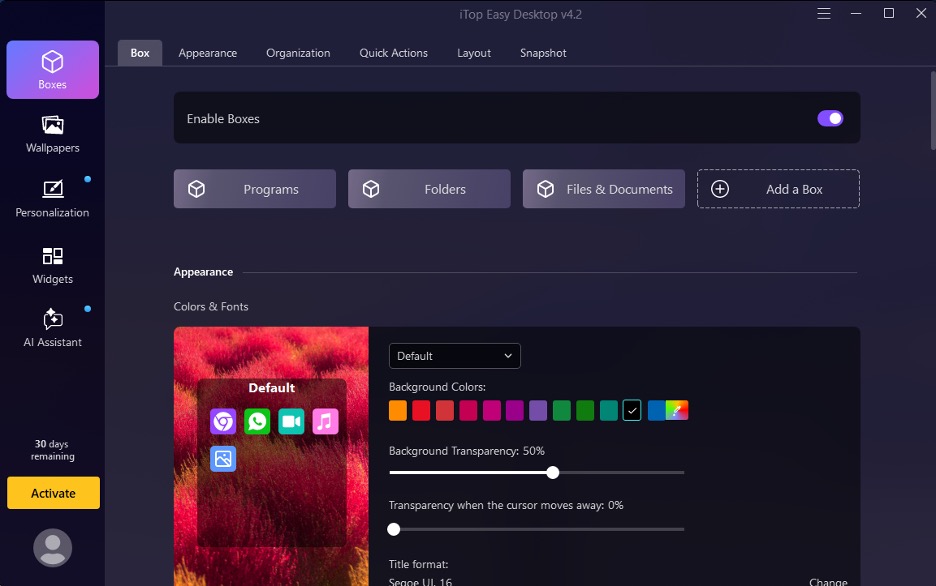
First, download it from the iTop Easy Desktop official website. Then I started by right-clicking my desktop and selecting “Create Box.” The software prompted me to choose between List Mode and Tab Mode. List Mode displays files like Windows Explorer with columns. Tab Mode creates browser-style tabs for switching between different file groups.
I chose List Mode because seeing file details, such as modification dates, helps me locate documents faster. Creating my first box took maybe thirty seconds.
I made four main boxes for my work documents:
- Active Projects for files I touch daily
- Client Documents for proposals and contracts
- Reference Materials for resources I consult occasionally
- Archive for completed work I need to keep
Naming boxes clearly matters more than I initially thought. Vague names like “Miscellaneous” defeat the purpose. Specific names like “Q1 Marketing Campaign” help me find things instantly.
Step 2: Sort Existing Files into Appropriate Boxes
After creating boxes, I dragged existing desktop files into them. The drag-and-drop functionality worked smoothly. Files disappeared from my cluttered desktop and appeared inside organised boxes.
This initial sorting took about 10 minutes for roughly 60 files. The time investment was worth it. My desktop went from chaotic to clean in an instant.
What I appreciated during this process:
- Boxes can be resized and positioned anywhere on the desktop
- Right-click options let me customize which columns display
- Moving files between boxes is simple, dragging
- Visual organization happened instantly
Minor frustrations I encountered:
- Had to manually decide organizational categories
- Some files fit multiple boxes, requiring judgment calls
Step 3: Establish a Daily Maintenance Routine
Organization software only works if you actually use it. I developed a simple daily habit that takes less than two minutes.
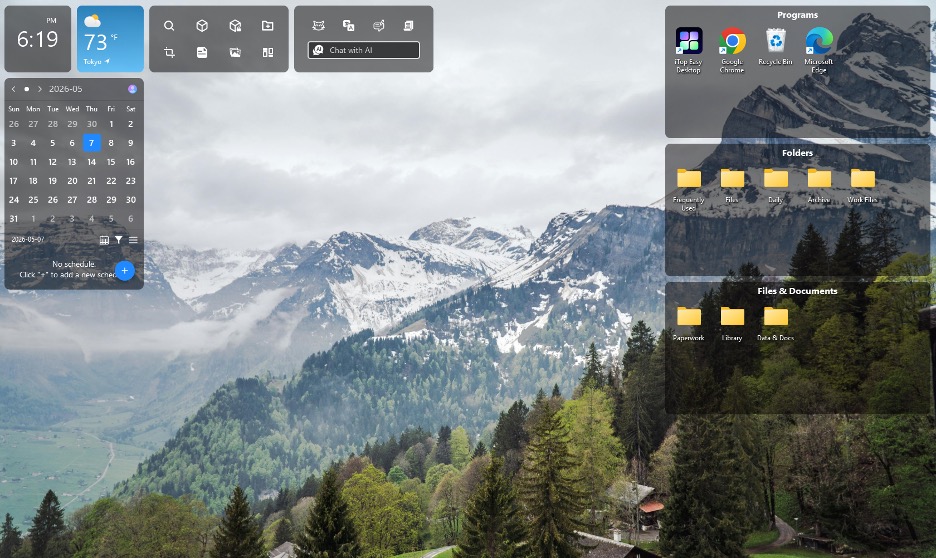
At the end of each workday, I drag any new files on my desktop into the appropriate boxes. New downloads go into their category. Screenshots get sorted or deleted. This quick cleanup prevents chaos from rebuilding.
The key is doing this daily before files accumulate. Sorting five files takes seconds. Sorting fifty files takes too long, and I will skip it.
My daily maintenance routine:
- Close all work applications at the end of the day
- Scan the desktop for new files
- Drag each file into the appropriate box
- Delete screenshots and downloads I no longer need
- Close boxes to reveal a clean desktop
This routine became automatic after the first week. The habit stuck because it requires minimal effort relative to the benefits it provides.
Step 4: Use Quick Hide Before Meetings
The one-click icon hiding feature proved surprisingly useful. Before video calls or screen sharing, I double-click to instantly hide all desktop icons. My screen shows only the wallpaper, looking professional and uncluttered.
After the meeting, double-clicking again restores everything. This small convenience happens to me multiple times a week. Client calls, team meetings, and presentations all benefit from quick desktop clearing.
What Actually Worked Well
After a month of daily use of the work document management tool, certain features proved genuinely valuable.
Desktop boxes solved my core problem.
The boxes eliminated desktop chaos without hiding files that I forget about. Everything stays accessible while looking organized. Finding documents became faster because I know which box contains what.
Quick hide saves embarrassment.
Clearing my desktop before screen sharing prevents showing clients or coworkers my messy workspace. This psychological benefit matters more than I expected.
Free version covers essential needs.
The freeware license covers all the features I use regularly. No pressure to upgrade for basic file organization.
An adorable digital pet.
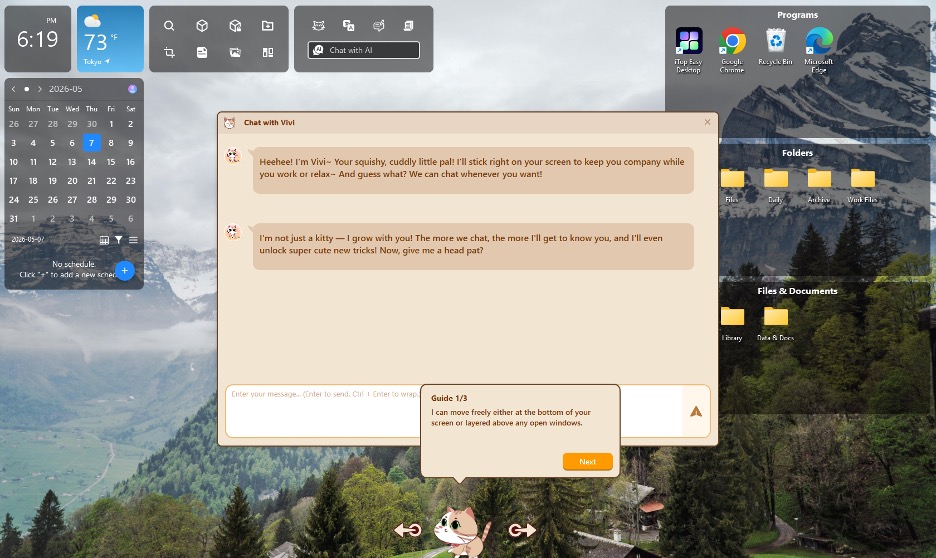
Also, I really like the extra feature in iTop Easy Desktop called PawPal. It’s a cute little virtual cat that walks around on my screen, and I can interact with it by feeding it, playing with it, bathing it, and more. I can even open the chat window to talk with the cat in real time. It’s an enjoyable feature.
My Honest Assessment After Daily Use
I am still using iTop Easy Desktop every workday, week after installation. That fact matters more than any feature list. The software solved my document organization problem in a way that manual efforts never could.
The desktop boxes alone justified downloading the software. Everything else, like wallpapers, widgets, and an AI assistant, feels like bonus features. Some I use occasionally. Others I tried once and ignored since.
The software being freeware removes financial risk from trying it. If it does not fit your workflow, uninstalling takes minutes. For me, it became an essential part of my daily work routine.
My work document chaos finally has a sustainable solution. The small effort of trying new desktop organizer software was worth the ongoing benefit of actually staying organized.


