
How to Change Location on Android Phone Safely Without Root (2026 Guide)
Your Android phone constantly uses GPS, Wi-Fi, and mobile networks to determine where you are. While this makes navigation and local recommendations more convenient, there are times when you may want your phone to report a different location instead.
Maybe you’re planning a trip and want to explore a new city before you arrive. Perhaps you’re using a dating app while relocating, testing a location-based application, or simply prefer not to share your real whereabouts with every app you install.
How to change location on Android phone? The good news is that changing your location on an Android phone is much easier than it used to be. In this guide, we’ll look at both a free method and a more convenient location changer – fake GPS software, so you can decide which approach works best for your needs.
When Changing Your Android Location Makes Sense
Contrary to popular belief, GPS location changing isn’t just for gamers. Plenty of everyday situations make it useful. For example, you might want to:
- Protect your privacy when using location-based apps
- Preview restaurants, hotels, or attractions before traveling
- Match with people in another city using dating apps
- Test how an app behaves in different regions
- Simulate movement in location-based games
- Check location-specific features before they’re available in your area
As long as you’re using your own device responsibly, changing your GPS location can be a practical tool rather than just a novelty.
Can You Change Your Android Location for Free?
Yes. Android includes developer features that allow mock GPS locations, and several free apps on Google Play can take advantage of them. If you only need to change your location occasionally, this method may be enough. However, it requires a bit of setup, and the experience varies depending on your phone brand and Android version.
Free Method: Use Developer Options and a Mock Location App
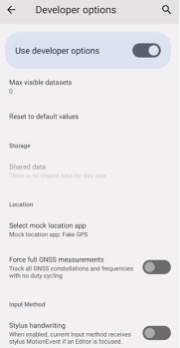
Step 1: Open Settings > About Phone, then tap Build Number several times until Developer Options are enabled.
Step 2: Return to Settings, open Developer Options, and enable the option that allows mock locations (or select a mock location app, depending on your Android version).
Step 3: Download a trusted mock location app from Google Play and set it as your default mock location provider.
Step 4: Choose a location on the map and start the simulation. Apps that rely on GPS should now recognize your virtual location.
The Downsides of the Free Method
While it’s free, this approach isn’t perfect. Some apps can detect mock locations, and the setup process differs between Samsung, Google Pixel, Xiaomi, OPPO, and other Android devices. In addition, free apps usually don’t include advanced features like joystick control, route simulation, or multi-stop movement.
If you only need to spoof your location once in a while, the free method is worth trying. But for frequent use, many people prefer a solution that requires less setup and offers more reliable results.
A Simpler Way to Change Your Android Location
If you’d rather avoid configuring Developer Options every time, desktop software like MagFone Location Changer offers a more straightforward solution. Instead of relying on separate mock location apps, everything is managed from your Windows or Mac computer. Simply connect your Android phone, choose a destination, and update your GPS location with just a few clicks—no root access required.
Besides changing your location instantly, MagFone Location Changer also includes features that aren’t typically available in free apps, including:
- One-click GPS teleport anywhere in the world
- Joystick control for precise movement
- Two-spot and multi-spot route simulation
- Adjustable movement speeds for more realistic travel
- GPX route import and export
- Support for both Android and iPhone devices
- Compatibility with popular navigation, social, and location-based apps
Whether you’re preparing for a trip, testing an application, using social platforms, or playing GPS-based games, these tools make changing your location much easier.
How to Change Your Android Location with MagFone Location Changer
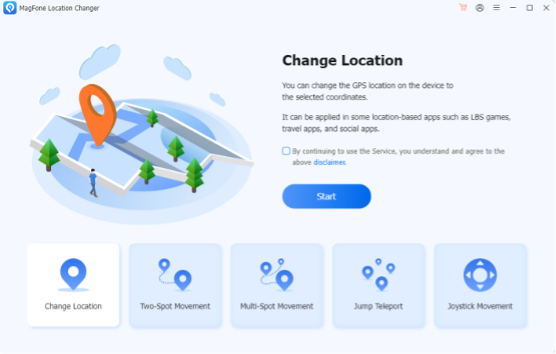
Step 1: Install MagFone Location Changer on your Windows or Mac computer and connect your Android phone with a USB cable. Click Start, then choose General Mode. Search for a city, enter an address, or click anywhere on the interactive map to select your destination.
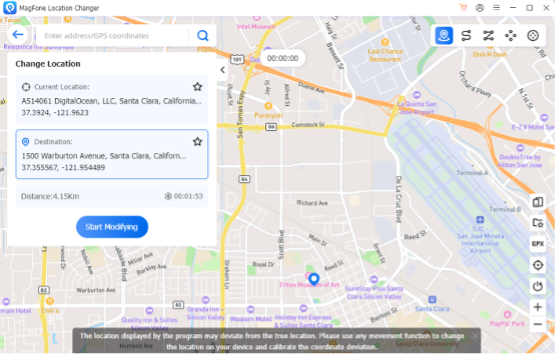
Step 2: Click Start Modifying. Your Android device will immediately begin reporting the new GPS location, and compatible apps will automatically use the updated position.
If you want to return to your actual location later, simply stop the simulation or disconnect your device.
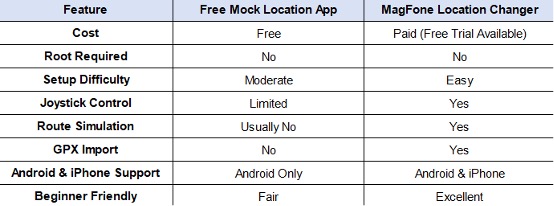
Free Method vs. MagFone Location Changer
Both options can change your Android location, but they suit different users.
If you only need to spoof your location occasionally, the free method can work. However, if you regularly change locations or want a smoother experience with more advanced controls, a dedicated desktop tool offers clear advantages.
Final Thoughts
Changing your location on an Android phone has become much easier over the past few years. Whether your goal is to protect your privacy, prepare for a trip, test location-based apps, or enjoy GPS-based games, there are several ways to get the job done.
The built-in Developer Options provide a free starting point, but they can be limited depending on your device and the apps you use. If you’re looking for a faster, more reliable solution with additional features like joystick movement and route simulation, MagFone Location Changer offers a simple way to change your Android location without rooting your phone or dealing with complicated setup steps.


