
Android Data Recovery Software for Business Phones: How to Protect Customer Chats, Orders, and Files
Business phones are not just communication tools, as they are operational assets. Every customer chat, order confirmation, and payment proof lives on that device. Small businesses run sales and supplier communication through a single Android phone. According to TechRT, around 200 million SMBs use WhatsApp Business every day.
Losing that data can stop your entire operation without any warning. Most owners later search for Android data recovery software after the damage is done. Thus, this guide will help business owners protect, recover, and manage that data.
Part 1. Why Business Phones Carry High-Value Data
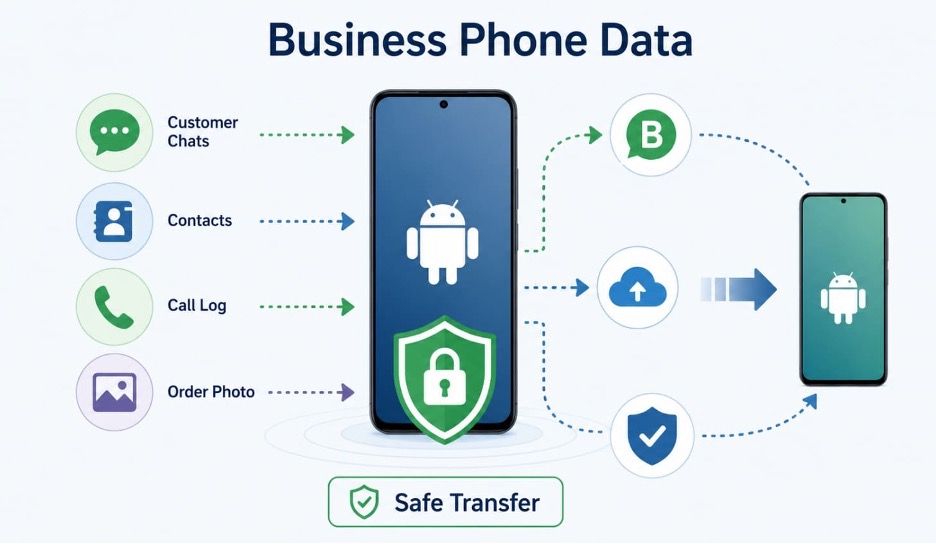
Business phones today carry much more than just simple text messages. They store customer chats, contacts, call logs, and important order photos. WhatsApp Business remains one of the most important small business apps. Many small business owners depend on it for daily customer service.
Nonetheless, losing this data can hurt your sales and service quality. Moreover, business owners then need a smooth WhatsApp Business transfer process too. This step helps preserve customer history during phone upgrades when completed successfully.
Part 2. Common Android Data Loss Scenarios for Small Businesses
Small business Android phones face many common data loss risks. Below are the most frequent scenarios business owners should always watch for:
- Deletion by Mistake: It happens when staff members delete business files by mistake. This simple mistake can erase customer chats or order records.
- Broken Screen: A broken screen can block access to all your business data. People may lose contact with files until the device gets repaired.
- Failed Update: An interrupted update may corrupt files and business app data. Such corruption can affect chats, contacts, photos, and other key data.
- System Crash: A system crash may also wipe out stored business information. This sudden failure often happens without any clear prior warning sign.
- WhatsApp Business Chat Loss: Chat history may disappear because of deletion or corruption. Lost chats can interrupt customer support and ongoing business activities.
- Phone Replacement: Rushed phone upgrades sometimes leave important business data behind. Missing backups increases risks during device replacement and migration.
Part 3. Why WhatsApp Business Data Deserves Special Attention
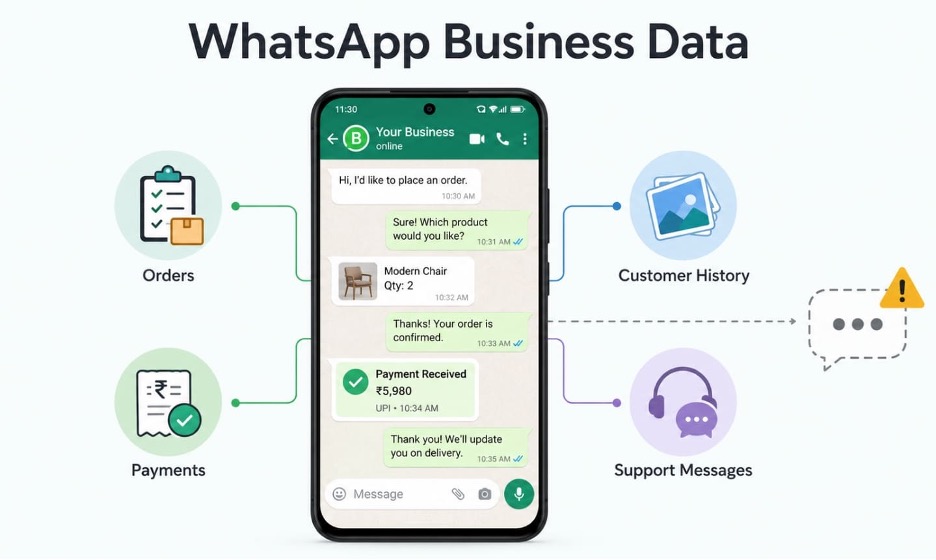
For businesses, WhatsApp Business data is never just casual everyday chat content. It often holds full customer history, order details, and payment proof together. Product photos and support commitments also live inside these chats. After losing such data, it can affect ongoing customer relationships and trust.
A missing chat thread may delay payment confirmation or order processing. This is why reliable broken Android data recovery software may matter so much here. Therefore, business owners need recovery tools built for sensitive WhatsApp Business data specifically.
Part 4. What to Look for in Android Data Recovery Software
Not every Android data recovery software offers the same reliable features. The table below highlights the key features every buyer should check:
| Feature | Why It Matters |
| Data Scanning | Scans the device to locate recoverable files. |
| Preview Before Recovery | Lets you review files before restoring them. |
| Selective Recovery | Restores only the data you need. |
| WhatsApp Business Support | Recovers chats, media, and business records. |
| Broad File Support | Supports photos, videos, documents, contacts, and messages. |
| Broken Android Recovery | Helps retrieve data from damaged or unresponsive phones. |
| Privacy and Local Processing | Keeps business data secure during recovery. |
Part 5. Recovery Workflow for Business Users
Business data recovery works best when you follow a clear and simple process. Each step below helps you recover the right files without making things worse:
Step 1. Stop Using the Phone
Put the phone aside as soon as you notice any data loss. Using it further can overwrite files that are still recoverable on the storage.
Step 2. Check Your Backups First
Access Google Drive and check whether a recent backup already exists. A cloud backup is always the fastest and safest recovery option available.
Step 3. Scan the Device for Recovery
Connect your phone to a computer and run a full storage scan. The scan will locate files that are still present on the device.
Step 4. Preview Recoverable Data
Review all detected files before you decide what to restore. Previewing helps you confirm which business files are actually worth recovering.
Step 5. Recover Business Files First
Start with customer chats, order records, and payment screenshots first. These files have the most direct impact on your daily business operations.
Step 6. Export Recovered Files Safely
Save all recovered files in a secure folder on your computer. Store copies in at least 2 locations to prevent losing them again.
Step 7. Verify Customer Conversations
Open recovered WhatsApp Business threads and check each important conversation. Confirm that key customer chats and order details arrived correctly.
Part 6. How Dr.Fone – Data Recovery (Android) Supports Business Recovery Needs
Many SMB owners lose WhatsApp Business chats with no cloud backup available. Here, Dr.Fone – Data Recovery (Android) is built to handle these difficult recovery situations. To recover data, the tool supports over 6,000 Android devices, including Samsung, Xiaomi, Mi, OPPO, and Huawei. It can also recover disappearing messages on WhatsApp Business in some cases.
Business users can scan, preview, and selectively restore only the files they need. Moreover, it even works on broken Android phones that cannot respond to normal commands. Yet, recovery results depend on device condition, so outcomes will always vary by case.
Part 7. A Basic Android Data Recovery Workflow for Business Users
Android data recovery software works best when business users follow a structured process. The steps below show how to scan, preview, and recover files using Dr.Fone:
Step 1. Open Software to Recover WhatsApp Business Data
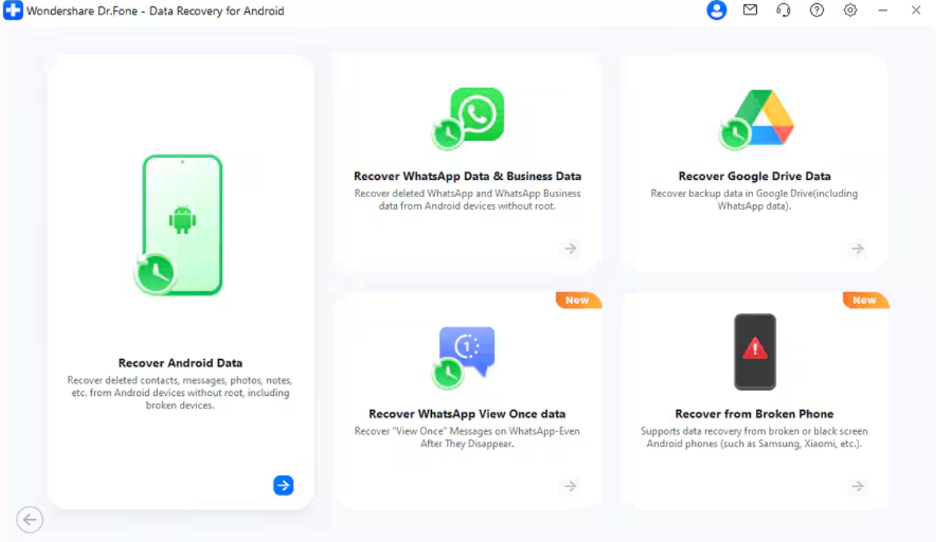
As you access the “Toolbox” tab, click “Data Recovery” for “Android.” Then, opt for “Recover Android Data” and connect your phone to the PC. You can also opt for “Recover WhatsApp Data & Business Data” or other options according to your requirement.
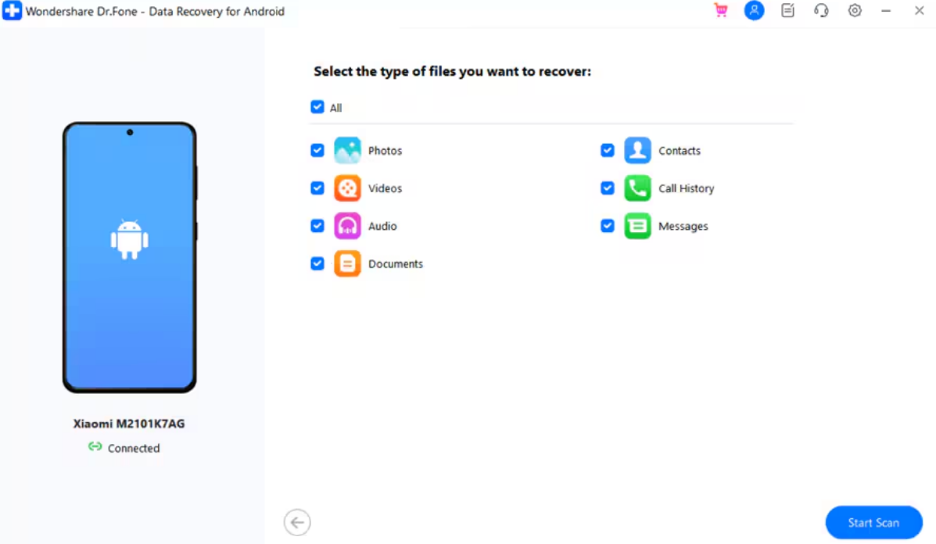
Step 2. Start Scanning Your Android
After a few moments, press “Next” and the tool will then initiate analyzing your device. Upon prompting, check your required data types and press “Start Scan.”
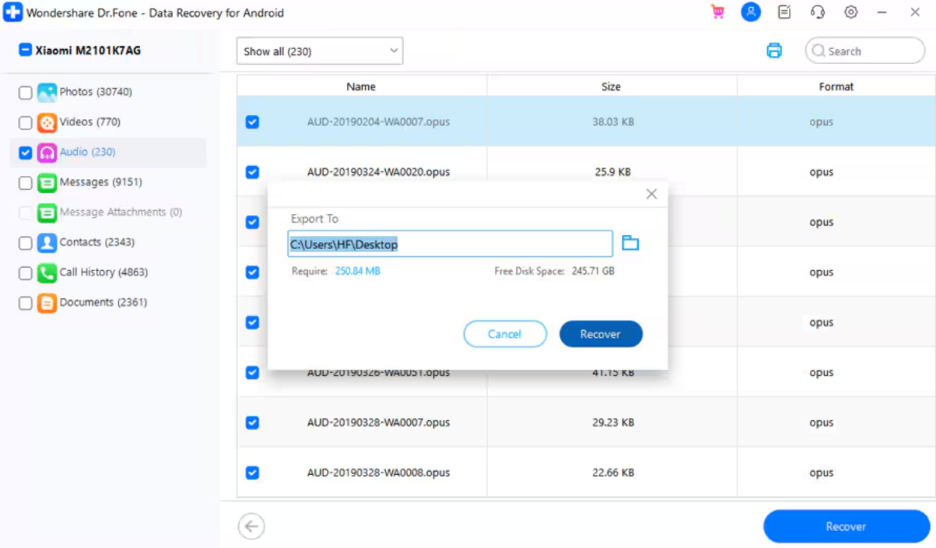
Step 3. Save Your Recovered Data
When Dr.Fone shows your data, select your desired content and click “Recover.” Next, choose your preferred export path and press “Recover” again.
Part 8. When to Combine Recovery with WhatsApp Business Transfer
After recovery, the business still needs to move everything onto a working new device. A WhatsApp Business transfer ensures recovered chats and files reach the right phone. Business owners use tools like Dr.Fone – WhatsApp Transfer for cross-platform migration. It lets users move their business data from Android to iPhone or vice versa.
The tool transfers up to 17 file types, including messages and multimedia. Using both recovery and transfer tools together helps reduce business downtime after any device failure. However, results depend on device condition, but this approach covers the most common business scenarios.
Part 9. Backup and Device Replacement Checklist
Use the checklist below to protect your business data and stay prepared always:
| Checklist Step | What to Do |
| Create Regular Backups | Enable automatic daily Google Drive backups. |
| Verify WhatsApp Data | Confirm chats and media are backed up. |
| Keep Old Devices | Retain the old phone until verification is complete. |
| Export Critical Chats | Save important conversations to email or a computer. |
| Document Handover Steps | Create a phone replacement procedure for staff. |
| Prepare for Breakage | Keep a spare device and recovery plan ready. |
Conclusion
In conclusion, business phones carry data that affects your sales and customer relationships. A deleted chat, broken screen, or failed update can disrupt your operations fast. Still, good Android data recovery software can help you scan and restore lost business files. Nonetheless, follow the right steps and verify data after every device upgrade or change.


