
How to Perform an Odin FRP Bypass (And What to Do If It Fails)
Odin is a Windows-based firmware flashing utility commonly used with Samsung devices. In some older FRP workflows, users combine Odin with compatible Samsung combination firmware or other device-specific firmware files to regain access to device settings after Google’s Factory Reset Protection (FRP) is triggered.
In a traditional Odin-based FRP method, a compatible “Combination ROM” or factory binary may be used on certain Samsung models. When available for the exact device and bootloader revision, this firmware can provide limited system access so the owner can remove a previously synced Google account and complete device setup.
However, this method is not universal. Compatibility depends on the Samsung model, bootloader revision, firmware build, Android version, and security patch level. Using incompatible firmware can lead to a failed flash, boot loops, recovery problems, or an unbootable device. Proceed only if you lawfully own or are authorized to access the device.
Before Trying an FRP Bypass
Before using Odin or any third-party FRP tool, check whether the account can be recovered through official methods first.
If you still know the Google account used on the device, try Google’s account recovery process or reset the account password. If the device was purchased second-hand, ask the previous owner to remove their Google account from the phone before proceeding.
These options are usually the safest and most straightforward ways to resolve FRP. Technical bypass methods should only be considered when legitimate account recovery is not available and you are authorized to access the device.
Crucial Prerequisites: Finding Files and Avoiding Flashing Problems
Before attempting an Odin FRP bypass, you need to understand the compatibility requirements. Odin does not automatically verify whether every file you load is appropriate for your device. If you attempt to flash Android system files that do not match your phone’s model, bootloader revision, or firmware build, Odin may fail with an error or leave the device unable to boot normally.
To prepare for an Odin-based method, verify that you have the following:
- The Exact Device Model Number: Do not just guess “Galaxy S21.” You need the exact regional model number (for example, SM-G998B), which may be available in Recovery Mode, Download Mode, or on the device’s original packaging.
- Compatible Combination Firmware or Required Firmware Files: On Samsung models where a combination-firmware method is still possible, the files must match the device model and bootloader revision. Availability is increasingly limited on newer devices, and files from untrusted download sites may also carry security risks.
- Samsung USB Drivers: These should be installed on your Windows PC so the computer can properly communicate with the phone.
- A Reliable USB Cable and Port: A connection failure during flashing can interrupt the process and create additional recovery problems.
If you cannot verify that the firmware matches your exact Samsung model and bootloader revision, do not proceed with Odin.
Step-by-Step: How a Traditional Odin FRP Method Works
The exact process varies by Samsung model and firmware generation, but a traditional Odin-based FRP workflow generally follows these steps:
- Prepare Your PC: Install Samsung USB drivers on your Windows computer and launch a compatible version of Odin.
- Verify the Device and Firmware: Confirm the exact Samsung model, bootloader revision, and firmware build before loading any files.
- Enter Download Mode: Power off the device and boot it into Download Mode (also known as Odin Mode). The button combination differs between older and newer Samsung models.
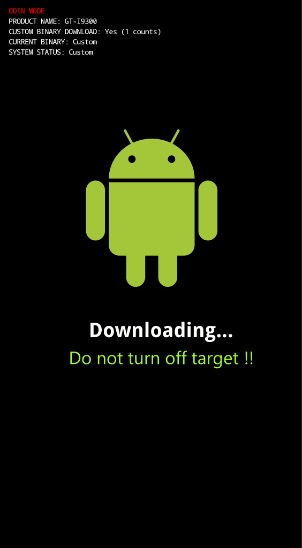
The Odin Mode
- Connect the Phone: Connect the device to the PC and confirm that Odin recognizes it. The ID:COM field should normally indicate an active connection.
- Load the Required Firmware Files: Depending on the specific method, load the compatible firmware files into the appropriate Odin slots. Do not use firmware intended for a different model or bootloader revision.
- Start the Flash: Begin the flashing process and keep the phone connected until Odin reports that the operation has completed.
If the flash succeeds, the next steps depend on the device and firmware used. On older supported devices, combination firmware may provide access to settings needed to resolve the FRP state. On newer Samsung devices, this traditional approach may not be available at all.
Why Did Odin Fail? Troubleshooting Common Flashing Errors
Odin is sensitive to device compatibility, firmware revisions, drivers, and connection stability. If you cannot login Google after factory reset and an Odin attempt fails, the error can often help identify the cause:
- Stuck on “Setup Connection”:
Odin may not be communicating correctly with the device. Reinstall the Samsung USB drivers, try another USB port, or use a different cable.
- Red “FAIL!” or “SW REV CHECK FAIL”:
This commonly indicates a bootloader revision mismatch. Samsung devices generally block attempts to flash firmware with an older bootloader binary than the one currently installed.
- Compatible Combination Firmware Cannot Be Found:
On many newer Samsung models and recent security patches, traditional combination-firmware FRP methods are far less practical because compatible files may not exist or may no longer work with the installed bootloader.
- Phone Does Not Boot Normally After Flashing:
Stop experimenting with additional files. Re-check the exact model and firmware revision, and restore compatible official firmware where appropriate before attempting further troubleshooting.
The important point is that Odin compatibility cannot be judged by the Android version alone. The device model, bootloader revision, firmware build, and security patch all matter.
A Guided Alternative: Bypassing Samsung FRP Without Manual Firmware Matching
For users who cannot locate compatible combination firmware or who do not want to manually manage bootloader revisions and firmware files, a guided FRP tool can provide a simpler workflow.
DroidKit FRP Bypass is designed for supported Android devices, including supported Samsung models. Instead of requiring users to manually search for combination firmware and determine which Odin files to load, DroidKit provides device-specific guidance through its FRP Bypass module.
Before using it, check whether your specific device model and Android version are supported. FRP removal success can still depend on the device, system version, and security configuration.
Here is a more practical comparison between the two approaches:
| Feature | Traditional Odin-Based Method | DroidKit FRP Bypass |
| Setup | Manual firmware and tool preparation | Guided software workflow |
| Compatibility Checking | User must verify model, firmware, and bootloader revision | Provides device-specific guidance for supported devices |
| Technical Knowledge | Higher | Lower |
| Firmware Sourcing | May require manual file searching | Reduces the need to manually locate combination firmware |
| Best For | Experienced users familiar with Samsung flashing | Users who prefer a guided FRP process |
How to Use DroidKit for Guided FRP Bypass
If you lawfully own or are authorized to access the locked Samsung device, DroidKit provides a guided FRP workflow for supported models.
Rather than manually working through Odin slots and searching for firmware files, you can follow the instructions provided inside the FRP Bypass module. The exact process may vary by device model and Android version.
A typical DroidKit FRP workflow looks like this:
- Open DroidKit: Download and launch DroidKit on your PC or Mac, then select the FRP Bypass module.
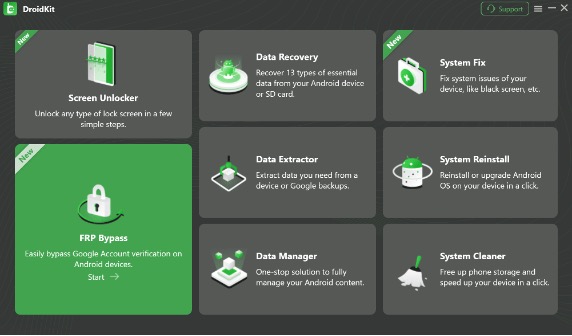
The FRP Bypass module
- Connect the Device: Connect the supported Samsung phone or tablet using a reliable USB cable.
- Identify the Device Information: Follow the prompts to confirm the device model and system information required for the supported FRP solution.
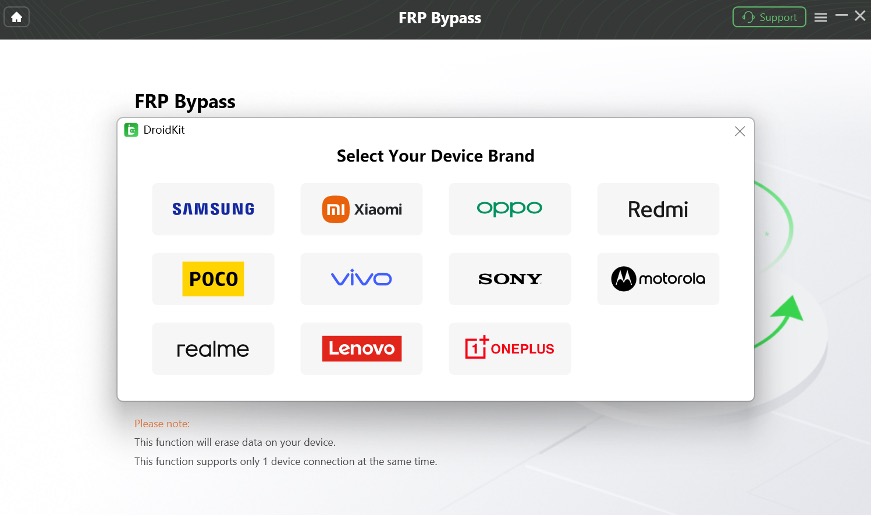
Select Correct Brand
- Follow the On-Screen Guidance: DroidKit will provide instructions for putting the device into the required mode and proceeding with the available FRP method.
- Complete the Process: Continue with the guided steps until the FRP removal process finishes, then restart and set up the device.
FRP Bypass Complete Screenshot
Because FRP methods change as Android and Samsung security updates evolve, always check current device compatibility before starting.
Odin FRP Bypass FAQs
Does Odin still work for FRP bypass on newer Samsung phones?
It depends on the exact device, bootloader revision, firmware build, and security patch. Traditional combination-firmware methods are much less widely available on newer Samsung devices, and compatible files may not exist for recently updated models.
Where can I download FRP bypass files for Odin?
Combination firmware and other Odin files are often distributed through third-party firmware repositories and forums. Verify the exact device model and bootloader revision before downloading anything, and avoid untrusted sources that may distribute modified or unsafe files.
What is a combination file for Odin FRP?
A combination file is special Samsung factory or engineering firmware intended for diagnostics and servicing. On some older Samsung devices, compatible combination firmware has also been used as part of FRP troubleshooting workflows.
What does “SW REV CHECK FAIL” mean in Odin?
It usually means the firmware you are trying to flash uses an older bootloader revision than the one already installed on the phone. Samsung’s bootloader generally blocks this downgrade.
Is there an easier way to handle Samsung FRP than manually using Odin?
If official Google account recovery is unavailable and you are authorized to access the device, a guided tool such as DroidKit may be easier for supported devices because it reduces the amount of manual firmware matching and provides step-by-step instructions.
Final Thoughts: Which Method Should You Choose?
Odin can still be useful for experienced Samsung users, but the traditional FRP approach depends heavily on whether compatible firmware is available for the exact device and bootloader revision. Newer Samsung security updates have made many older combination-firmware techniques less practical, so an Odin method that works on one phone may not work on another.
Start with official Google account recovery whenever possible. If that is not an option, experienced users who already have the correct firmware can consider an Odin-based approach. Users who would rather avoid manually matching firmware and bootloader files can check whether their device is supported by DroidKit and follow its guided FRP workflow.
Whichever method you use, verify device ownership, compatibility, and recovery options before making system-level changes.


