
FRP Bypass Android 15: How to Remove Google Lock on Android
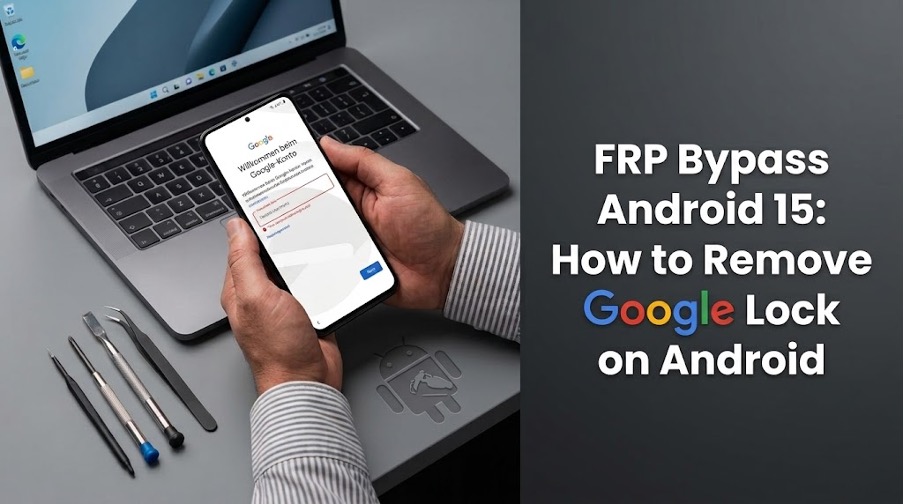
After a factory reset, your Android phone may show a Google Account verification screen asking for the account previously synced with the device. Without the correct account information, you may not be able to finish the setup.
For users looking for ways to bypass FRP on Android 15, the process can be more complicated than it was on older Android versions. Some methods that worked on Android 13 or Android 14 may no longer work because Android 15 has stronger security.
This guide explains what FRP is, why Android 15 can make FRP removal more difficult, and the legitimate options you can try if you own the device or have permission to unlock it.
What Is FRP and Why Is My Android Phone Asking for a Google Account?
Factory Reset Protection, commonly known as FRP, is an Android security mechanism associated with a Google Account.
When a Google Account is added to an Android device, device protection can become active. If the phone is subsequently reset, Android may require authentication with a Google Account that was previously added and synced to the device. This helps prevent someone from simply factory-resetting a lost or stolen phone and setting it up as a new device.
Why Is FRP Bypass Harder on Android 15?
Android security is constantly updated, and manufacturers may add extra protections.
Older FRP methods using setup shortcuts, browsers, APK files, or similar tricks may not work on newer devices. A method for Android 11–14 may also fail on Android 15.
Before resetting your phone, make sure you know the Google Account and password linked to it. If you recently changed the password, wait 24 hours before performing a factory reset.
FRP Bypass Android 15: What Methods Can You Try?
If you are looking for an FRP bypass solution for Android 15, there are several approaches worth considering.
Method 1: Recover Your Google Account Password
The safest solution is to recover the Google Account that was previously associated with the phone.
Google’s official guidance confirms that after a factory reset, you may need to provide the Google Account information previously used on the device.
Step 1: Find Your Google Account
Enter the Gmail address previously used on the phone.
Step 2: Recover Your Password
If you forgot the password, use Google Account Recovery to reset it.
Step 3: Sign In
Return to the Android setup screen and enter your Google Account details.
Important Note
If you recently changed your password, wait 24 hours before resetting the phone again.
Method 2: Contact the Previous Owner
If you purchased a used Android phone, the previous owner’s Google Account may still be linked to it.
Contact the seller or previous owner and ask them to remove the account or complete the verification.
Before buying a used phone, check that:
- The previous Google Account has been removed
- The phone completes the initial setup
- No Google verification screen appears
- The seller can provide proof of purchase if needed
Method 3: Use iToolab UnlockGo Android for FRP Bypass
If you own the device or have permission to unlock it and cannot recover the original Google Account, a dedicated Android FRP bypass tool can provide another option.
iToolab UnlockGo Android is designed to help remove Android screen locks and bypass FRP on supported devices. According to iToolab’s current compatibility information, UnlockGo Android supports FRP bypass on Android 5–17.
It supports multiple Android brands, including Samsung, Xiaomi, Redmi, vivo, OPPO, Motorola, Realme, OnePlus, Huawei, Lenovo, and Micromax, although the exact Android-version support differs by manufacturer.
Why Consider iToolab UnlockGo Android?
Key features include:
- FRP removal on supported Android devices
- Support for multiple Android brands
- Screen lock removal
- PIN, password, pattern, and fingerprint lock support
- Windows and macOS versions
- Step-by-step on-screen instructions
How to Use iToolab UnlockGo Android
Step 1: Install UnlockGo Android
Download and install iToolab UnlockGo Android on Windows or Mac.
Connect the Android phone to the computer with a USB cable.
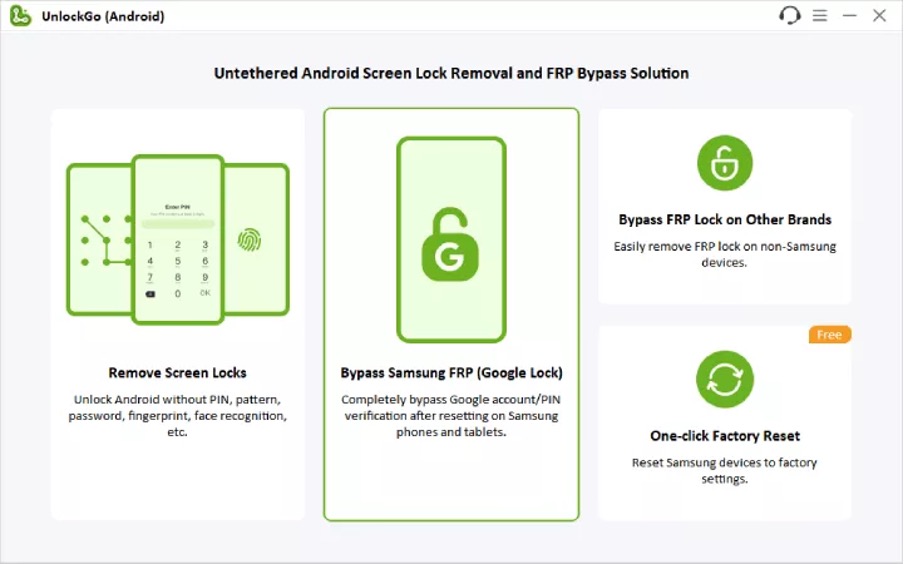
Step 2: Select the FRP Bypass Feature
Launch UnlockGo Android and select bypass Samsung FRP Google Lock or bypass FRP lock on Other brands.
Step 3: Select Your Device Information
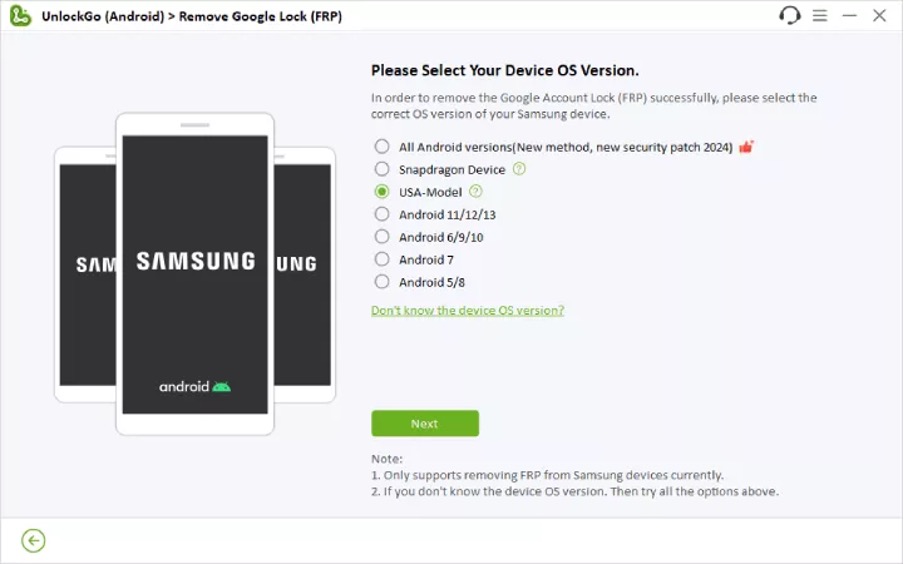
Choose the appropriate brand, model, and Android version when prompted.
Here use Samsung phone.for example
Step 4: Start bypassing FRP Google Lock
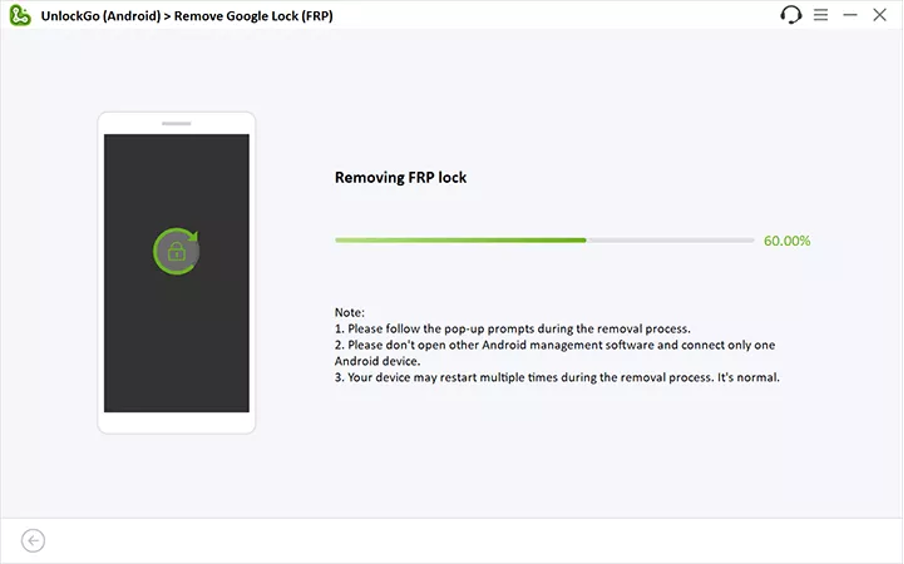
UnlockGo Android will display instructions for the selected device.
Follow each step carefully and keep the phone connected unless the software specifically tells you to disconnect it.
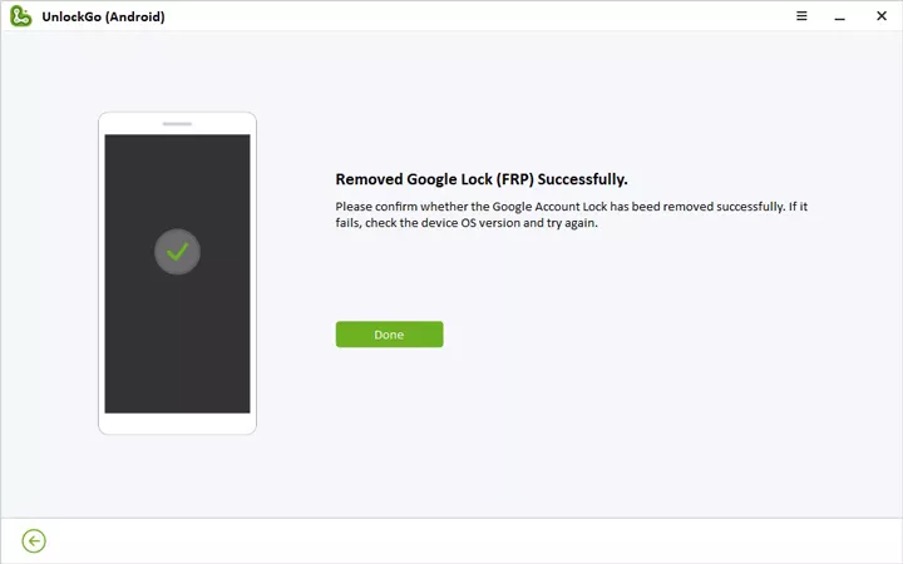
Step 5: Complete Android Setup
After the supported FRP removal process finishes, follow the on-screen setup instructions.
FAQ About FRP Bypass Android 15
1. Will FRP bypass erase my Android data?
It can erase your data. Back up important files before starting the FRP removal or reset process.
2. Can a mobile pattern unlock software remove Google FRP?
Screen-lock removal and FRP removal are different.
For a forgotten pattern, PIN, or password, use software that supports screen-lock removal. If the phone shows Google Account verification after a factory reset, use an FRP bypass tool like iToolab. UnlockGo
3. Why Don’t Older Android 13 or 14 FRP Methods Work on Android 15?
Android 15 may include updated security features and device-specific restrictions. As a result, older FRP methods may no longer work.
Conclusion
FRP is an Android security mechanism used to verify device ownership after a factory reset. However, if users forget the Google Account previously linked to the device, they may be unable to activate it normally. If you encounter an FRP lock, first try recovering the Google Account or contact the previous device owner to complete the verification process. If neither option is available, the device owner or an authorized user may consider using iToolab UnlockGo Android for an FRP bypass.

