
Why Do My Scanned Photos Look Blurry? How to Restore and Sharpen Old Family Prints Successfully
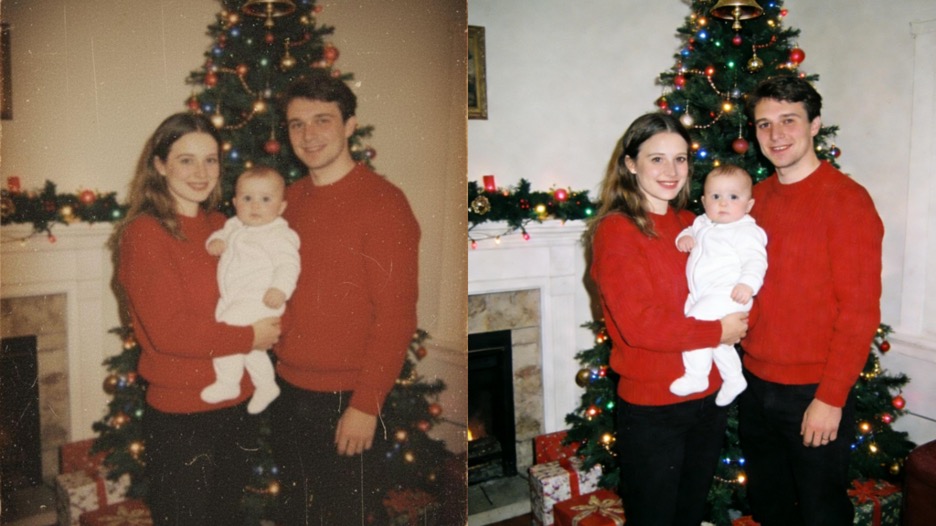
You just spent hours digging through old shoe boxes to find that perfect picture of your grandparents. You put it on the scanner, hit the button, and wait for the digital version to appear. When the file finally opens on your screen, it looks like a fuzzy mess. This is a common problem for anyone trying to digitize family history. You want those memories to look crisp and clear for future generations, but the results often fall short.
Many factors cause a scan to look worse than the original physical print. You might be dealing with low resolution settings or a dirty scanner glass. Sometimes the original photo was slightly out of focus to begin with, and the scanning process just makes that more obvious. If you want to fix these issues, using a high-quality photo enhancer can help rebuild the lost details in your digital files.
Scanned images often lose the sharpness they had on paper because of how light interacts with the scanner sensor. The digital sensor tries to interpret the tiny grains of the photo paper. If the settings are not right, the software guesses incorrectly and creates a soft, blurry look. You can avoid this by understanding how your hardware works and how to use modern tools to clean up the final image.
If your scans look pixelated or blocky when you try to zoom in, you likely need a better way to increase the size of the file. A reliable image upscaler can take a small, blurry scan and expand it while keeping the edges sharp. This is much better than just resizing the photo in a basic paint program. Using the right tools and techniques will ensure your family archives look professional and clear.
Why do my scanned photos look blurry compared to the original?
The most common reason for blurriness is a mismatch between the scanner resolution and the size of the original print. Most people leave their scanner on the default setting, which is usually 200 or 300 DPI. While this is fine for a standard document, it is not enough for a small 4×6 photo. When you view that scan on a large computer monitor, the software has to stretch the image to fill the screen. This stretching creates a soft, blurry appearance because there is not enough data to fill the space.
Another issue is the focus of the scanner itself. Flatbed scanners have a very shallow depth of field. If your old photo is curled or warped, it will not sit perfectly flat against the glass. Even a tiny gap between the paper and the glass can cause the sensor to lose focus. This results in some parts of the photo looking sharp while other parts look hazy. You should always use a heavy book or a weighted lid to keep the photo pressed firmly against the scanning surface.
Dust and oils on the scanner glass also play a big role in image quality. Even if the glass looks clean to the eye, tiny smudges can scatter the light from the scanner bulb. This light scattering creates a glow or a haze around the subjects in your photo. You should clean your scanner glass with a microfiber cloth and a small amount of glass cleaner before every session. This simple step can significantly improve the clarity of your digital files.
What is the best DPI setting for scanning old family prints?
DPI stands for Dots Per Inch, and it is the most important setting on your scanner software. If you set the DPI too low, the image will look blurry and pixelated. If you set it too high, the file size will be massive and your computer might struggle to open it. For most old family prints, 600 DPI is the sweet spot. This provides enough detail to print the photo at its original size or slightly larger without losing quality.
If you plan to enlarge a very small photo, such as a wallet sized print or a tiny locket picture, you should go higher. In these cases, 1200 DPI is a better choice. This allows you to blow up the image on your screen or print it as an 8×10 without it looking like a blurry mess. You should avoid using the interpolated or software enhanced DPI settings that some scanners offer. These settings do not actually capture more detail. Instead, they use a basic algorithm to guess what the extra pixels should look like.
The table below shows the best DPI settings for different types of original media.
| Original Media Type | Recommended DPI | Intended Use |
| Small Locket Photos | 1200 DPI | Enlarging and Printing |
| Standard 4×6 Prints | 600 DPI | Archiving and Sharing |
| Large 8×10 Prints | 300 DPI | Digital Viewing |
| 35mm Film Slides | 2400 DPI | High Quality Prints |
| Black and White Text | 300 DPI | Document Storage |
How can I fix motion blur or camera shake in old photos?
Old cameras often had slow shutter speeds, which means any movement by the photographer or the subject caused blur. You cannot fix this by simply changing your scanner settings. This type of blur is baked into the original print. However, modern technology has made it possible to recover some of these lost details. You can use specialized software that analyzes the direction of the blur and attempts to reverse it.
Digital restoration tools use complex math to identify where a point of light should have been. By looking at the pixels around a blurry edge, the software can reconstruct a sharper line. This works best for slight camera shake. If the photo is extremely blurry, you might not get a perfect result, but it will still look much better than the original scan. You should always work on a copy of your scan so you do not lose the original file if you do not like the changes.
Another trick is to adjust the contrast and clarity of the image. Sometimes a photo looks blurry because the colors are faded and the edges are soft. By increasing the contrast, you make the dark areas darker and the light areas lighter. This creates the illusion of sharpness. You can also use a high pass filter in a photo editor to highlight the edges of the subjects. This does not add new detail, but it makes the existing detail much easier for the eye to see.
Can I sharpen a blurry photo after it has been scanned?
Yes, you can sharpen a photo after scanning, but you must be careful not to overdo it. Most photo editing software includes a tool called Unsharp Mask. This name is confusing, but it is actually a sharpening tool. It works by finding the edges in your photo and increasing the contrast along those edges. This makes the image look crisper. If you turn the settings up too high, you will see weird halos or white lines around your subjects.
A better approach is to use AI-based sharpening tools. Traditional sharpening tools just manipulate the pixels that are already there. AI tools have been trained on millions of sharp images. They can actually recognize a human eye or a strand of hair and rebuild those features. This results in a much more natural look compared to old-fashioned sharpening filters. You should look for tools that offer a specific mode for old photo restoration.
You should also check the file format you are using. If you scan your photos as JPEGs, the computer compresses the file to save space. This compression adds its own type of blur called artifacts. To get the sharpest results, you should scan your photos as TIFF files. TIFF files are uncompressed and keep every bit of data the scanner captures. Once you have finished sharpening and editing the TIFF file, you can save a copy as a JPEG to share with your family.
Why does my scanner make photos look pixelated?
Pixelation happens when the digital blocks that make up an image become visible to the human eye. This usually occurs because the scan resolution was too low for the size you are trying to view. If you take a 300 DPI scan of a tiny photo and zoom in to 400 percent, you will see those square pixels. This is often mistaken for blur, but it is actually a lack of data. To fix this, you need to rescan the photo at a higher DPI.
Another cause of pixelation is heavy file compression. Many scanners have a default setting that saves files with high compression to keep them small. This is great for emailing a document, but it is terrible for family photos. The compression algorithm groups similar pixels together to save space, which destroys the fine details in faces and backgrounds. You should check your scanner settings and move the quality slider to the highest possible setting.
If you cannot rescan the photo because you no longer have the original, you can use software to smooth out the pixels. Some programs use a process called de-noising to blend the pixel blocks together. While this can make the photo look smoother, it can also make it look like a painting if you use too much. The goal is to find a balance where the pixels are gone but the texture of the skin and clothing remains.
Is it better to use a phone app or a flatbed scanner?
Phone apps have become very popular for digitizing photos because they are fast and easy to use. These apps use your phone camera to take a picture of the old print. Some apps even help you remove glare by taking multiple shots from different angles. However, a phone camera is rarely as good as a dedicated flatbed scanner. The lens on a phone is tiny, and it can introduce distortion at the edges of the photo.
Flatbed scanners provide a controlled environment. The light source is consistent, and the photo is held perfectly flat against the glass. This results in much better color accuracy and detail. If you are scanning photos for a high quality family book or a large print, the flatbed scanner is the winner. If you just want to quickly share a few memories on social media, a phone app is usually good enough.
The choice depends on your final goal. If you have thousands of photos, you might use a phone app to sort through them and find the best ones. Then, you can use a flatbed scanner for the most important images. This saves you time while still ensuring your favorite memories are preserved in the highest possible quality.
Summary Takeaway
Restoring old family photos is a rewarding project that preserves your history for the next generation. Blurry scans are usually the result of low DPI settings, dirty scanner glass, or the physical condition of the original print. By cleaning your hardware and choosing a resolution of at least 600 DPI, you can capture much more detail.
When hardware settings are not enough, modern software tools can step in to help. You can use digital enhancers to rebuild lost details and upscalers to increase the size of small prints. Always remember to scan in a lossless format like TIFF to keep the most data possible. With a little patience and the right tools, you can turn those fuzzy old prints into sharp, beautiful digital memories.


