
How to Factory Reset iPad Without Apple ID Password (2026 Guide)
If you need to factory reset an iPad but cannot remember the Apple Account password, the right method depends on what access you still have. The most important distinction is whether you still know the iPad screen passcode and whether Find My iPad is enabled.
In some situations, you can erase the iPad without entering the Apple Account password first. However, erasing the device does not automatically remove Activation Lock. If Find My remains linked to the device, the associated Apple Account credentials may still be required during setup after the reset.
This guide explains the available options, including the Settings app, Apple Recovery Mode, and a guided software alternative such as AnyUnlock.
Stop Before You Erase: Device Erasure vs. Activation Lock
Before using a USB cable or downloading any software, it is important to separate two different parts of the reset process.
A factory reset affects local device data, while Activation Lock is tied to Find My and device ownership.
- Device Erasure: Wipes local data and removes the screen passcode.
- Activation Lock: Remains tied to the Apple Account associated with Find My until the device is properly removed from that account.
Erasing the local data does not automatically remove the device from the associated Apple Account. If Find My iPad was enabled, the iPad may still require the linked Apple Account credentials when you activate it again after the reset.
If you are preparing the iPad for resale or trade-in, make sure the device is removed from your Apple Account before handing it to another person. Reaching the setup screen alone does not confirm that Activation Lock has been removed.
Your Troubleshooting Decision Tree
Use this decision tree to choose the method that matches your situation.
- Situation A: I know my iPad screen passcode, but I forgot my Apple Account password.
Action: Start with Section 1 (Settings App Method). You may be able to reset your Apple Account password using the trusted device passcode before erasing the iPad.
- Situation B: I forgot both my screen passcode and Apple Account password, or the screen says “iPad Unavailable.”
Action: Start with Section 2 (Recovery Mode) for the official Apple-supported reset method. If you prefer a guided software interface, see Section 3 (AnyUnlock).
- Situation C: I bought a used iPad and it is asking for the previous owner’s Apple Account.
Action: A factory reset does not remove the previous owner’s Activation Lock. Contact the original owner and ask them to remove the device from their account, or contact Apple Support if you have valid proof of purchase.
Section 1: Erase iPad If You Know the Screen Passcode
The Apple Account password and the iPad screen passcode are not the same credential. If you still know the device passcode, do not start with Recovery Mode.
On a trusted iPad, you may be able to use the device passcode to reset the Apple Account password and then erase the iPad normally through Settings.
Step-by-Step Procedure:
- Open the Settings app and connect the iPad to Wi-Fi.
- Tap your name at the top of the screen.
- Select Sign-In & Security, then choose Change Password.
- Enter the current iPad screen passcode when prompted.
- Follow the instructions to create a new Apple Account password.
After resetting the password, go to: Settings > General > Transfer or Reset iPad > Erase All Content and Settings
Follow the prompts to sign out of Find My and erase the device. This is the preferred method when you still control the iPad and know its screen passcode because it allows you to properly remove the device from your account before the reset.
Section 2: Factory Reset a Locked iPad Using Recovery Mode
If you forgot the iPad screen passcode, Recovery Mode is the official Apple-supported method for erasing and restoring the device with a computer.
Important: Recovery Mode removes local data and the screen passcode, but it does not remove Activation Lock. If Find My was enabled, the associated Apple Account credentials may still be required when you set up the iPad again.
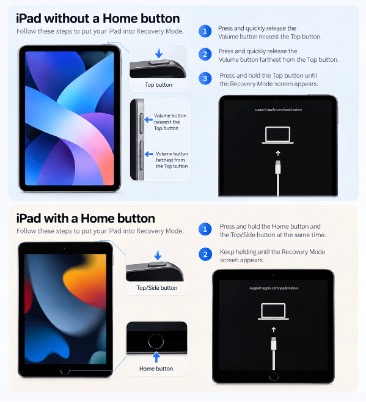
how to put an iPad into Recovery Mode
For an iPad without a Home button
- Press and quickly release the Volume button nearest to the Top button.
- Press and quickly release the Volume button farthest from the Top button.
- Press and hold the Top button.
- Keep holding it until the Recovery Mode screen appears.
For an iPad with a Home button
- Press and hold both the Home button and the Top or Side button at the same time.
- Keep holding them until the Recovery Mode screen appears.
Once the iPad is in Recovery Mode, connect it to your computer
- On a Mac, open Finder.
- On Windows, open the Apple Devices app or iTunes, depending on your system.
When the computer detects the iPad in Recovery Mode, choose Restore rather than Update.
The computer will download the required software and erase the iPad. If the download takes long enough for the device to leave Recovery Mode, repeat the button sequence and try again.
Recovery Mode is free and does not require third-party software. Its main limitation is that users must manually enter the correct recovery sequence and complete the restore process through Apple’s desktop tools.
Section 3: Factory Reset via AnyUnlock Software
If you prefer a guided interface instead of manually working through Recovery Mode, AnyUnlock provides another way to erase a locked iPad and remove the local screen passcode on supported devices.
Its Unlock Screen Passcode feature is designed for situations such as an “iPad Unavailable” screen or a forgotten device passcode.
AnyUnlock does not replace the Apple Account credentials required by Activation Lock. If Find My was enabled before the reset, the associated Apple Account may still be required during device activation afterward.
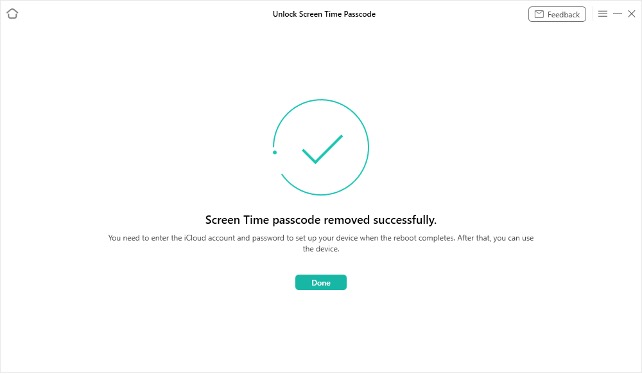
Unlock Screen Passcode Successful
Step-by-Step Procedure:
- Download and Launch: Install AnyUnlock on your PC or Mac and select the Unlock Screen Passcode mode.
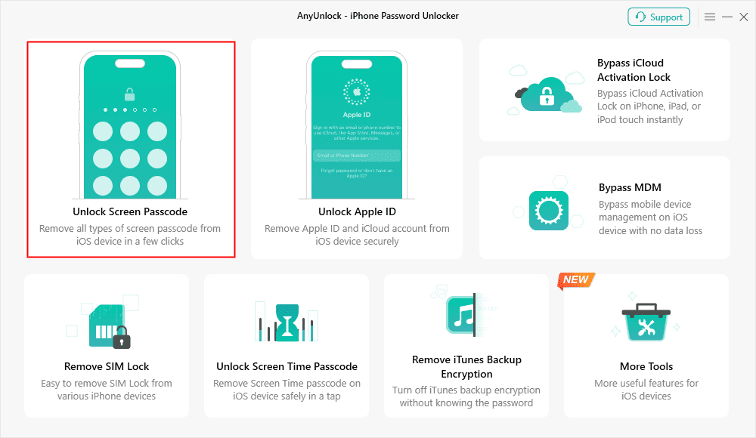
Unlock Screen Passcode Mode
- Connect the Device: Connect the locked iPad to the computer with a reliable USB cable.
- Follow the Recovery Guidance: Use the on-screen instructions to place the iPad into the required recovery state.
- Download the Required Firmware: Confirm the detected device information and download the firmware package required for the restore process.
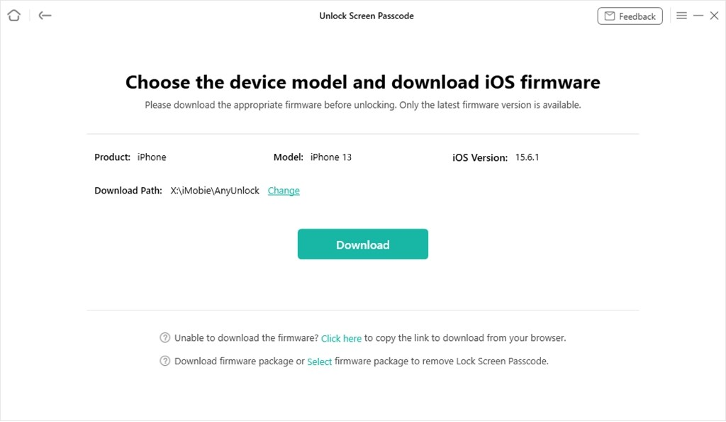
Download the Required Firmware
- Start the Reset: Follow the software prompts to restore the iPad and remove the local screen passcode.
The exact workflow may vary by device model and system version, so check current compatibility before starting.
Evaluating Your Options: Settings vs. Recovery Mode vs. AnyUnlock
The best method depends on whether you know the screen passcode and how much guidance you want during the reset process.
| Feature / Method | Settings App | Recovery Mode | AnyUnlock |
| Requires Screen Passcode? | Yes | No | No |
| Requires Computer? | No | Yes | Yes |
| Erases Local Data? | Yes | Yes | Yes |
| Can Remove Screen Passcode? | Yes, during normal erase | Yes, by restoring the device | Yes, by restoring the device |
| Removes Activation Lock? | Only if Find My is properly disabled before erase | No | No |
| Guided Interface? | Built into iPadOS | Limited to Apple recovery prompts | Yes |
| Cost | Free | Free | Commercial software |
If you still know the screen passcode, the Settings method is usually the most direct option. If you are locked out, Recovery Mode remains the free Apple-supported solution. AnyUnlock is mainly useful for users who want a more guided recovery workflow.
Verification Checklist Before Resale
If you are resetting the iPad before selling or trading it in, complete these checks before handing it over:
- Backup: Confirm that important data is backed up to iCloud or a computer.
- Sign Out: Make sure the iPad is removed from your Apple Account and Find My is disabled.
- Cellular / eSIM: If the iPad supports cellular service, remove or erase the eSIM when appropriate.
- Erase: Use Erase All Content and Settings or complete the restore process.
- Verify: Restart the iPad and confirm that setup does not display an iPad Locked to Owner message.
Conclusion
You can factory reset an iPad without entering the Apple Account password first in some situations, but the correct method depends on what access you still have.
If you know the iPad screen passcode, reset the Apple Account password through Settings and erase the device normally. If you are locked out, Recovery Mode is the free Apple-supported reset option. For users who prefer more step-by-step guidance, AnyUnlock provides a guided alternative for restoring a locked iPad and removing the local screen passcode on supported devices.
Whichever method you choose, remember that erasing an iPad and removing Activation Lock are separate tasks. If Find My remains linked to the device, the associated Apple Account credentials may still be required during setup after the reset.


