
How to Make a Truly Custom Ringtone in 2026 (and Set It on iPhone or Android)
In 1902, Spanish guitarist Francisco Tárrega composed a solo guitar piece called “Gran Vals.” Decades later, Nokia chose a short phrase from that waltz as the default tone for its phones. It became one of the most recognizable sounds in mobile history because it was short, punchy, and instantly familiar.
Most tutorials for custom ringtones tell you to trim a song you already own. That advice often fails. If a song file is protected, your iPhone won’t let you use it, and on Samsung phones, songs from Spotify and other streaming services cannot be set as ringtones. Even when it works, cutting up an existing radio track leaves you with a sound someone else made.
This guide shows you how to make a ringtone that is genuinely yours, designed to sound clear on a small phone speaker, and how to put it on an iPhone or Android phone in minutes.
What makes a ringtone work on a phone speaker
A phone speaker is tiny. If you grab an album track with heavy bass or a quiet acoustic intro, your phone will turn it into a buzzing mess. A good ringtone follows a few straightforward design rules.
First, keep it under 30 seconds. Apple enforces a 30-second limit on iPhone ringtones, so staying under it means the same file works on iPhone and Android. Second, the sound must hit on the very first beat. People usually answer their phones within a few rings; if your file starts with a slow build-up, you might pick up the call before the main melody even plays.
Third, stick to bright mid-range and high sounds like marimbas, bells, plucked synths, or whistled hooks. These frequencies cut through room noise, while deep bass notes turn to mud on a small handset grille. Fourth, aim for a melody recognizable in two or three notes—the Nokia Tune is the gold standard here because it ticks every one of these boxes. Finally, the phrase should loop without a jarring jump, ending with a short fade-out where the volume drops gradually to silence.
Step 1: Get a sound that’s actually yours
To get an original ringtone that nobody else has, you have three honest options.
The first path is to record a sound yourself. You can open Voice Memos on an iPhone or a voice recorder app on Android and capture something in your room, like a whistle or a distinctive acoustic riff. The second path is to build a track in GarageBand, where you can create your own song directly on your phone.
The third path is to generate a custom track using an AI music generator. With this method, you describe what you want in plain words, and the system produces a short audio track. If you take this route, spell out the speaker rules directly in your prompt.
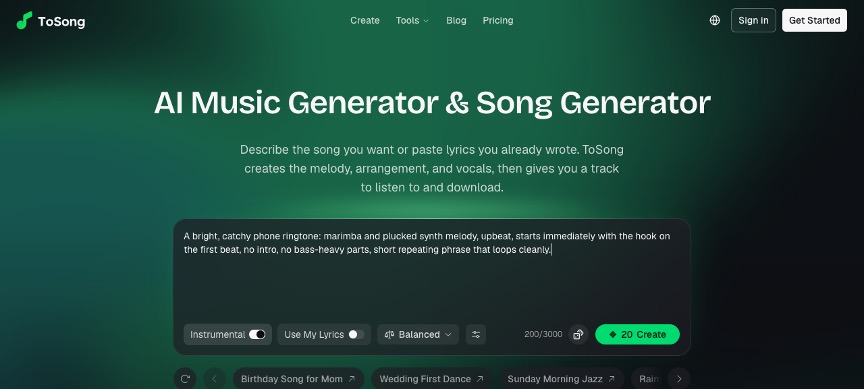
We tested this method directly. We entered this exact prompt into the tool:
“A bright, catchy phone ringtone: marimba and plucked synth melody, upbeat, starts immediately with the hook on the first beat, no intro, no bass-heavy parts, short repeating phrase that loops cleanly.”
The ringtone description shown in ToSong’s instrumental form.
The generation finished in 34 seconds and returned two versions. The first track ran for 41 seconds, and the second ran for 55 seconds. Crucially, neither track had a silent lead-in; the sound started at zero seconds in both files.
Because both files ran longer than 30 seconds, we trimmed the 41-second version to 28 seconds and added a 2-second fade-out. You will usually need to trim generated audio, so use any standard audio editor to keep the strongest 20 to 28 seconds and add a brief fade at the finish so the audio does not cut off abruptly. Keep in mind that if you plan to share your creation beyond your own phone, you should check the tool’s terms of service.
Step 2 (optional): A ringtone that sings your words
Trimming a pop song can never give you a ringtone that calls out your own name or quotes an inside joke with friends.
A lyrics to song tool works this way: you enter the exact lines you want sung and pick a musical style to match. We ran a test using custom lyrics to build a ringtone around the name “Sam.” We wrote a four-line chorus:
“Hey Sam, it’s ringing, pick up the phone
Hey Sam, somebody’s calling you home
Hey Sam, it’s ringing, don’t let it go
Hey Sam, pick up, say hello”
For the musical style, we entered: “upbeat pop, bright female vocal, handclaps, marimba.”
The generation finished in 35 seconds and delivered two finished versions. Both tracks were about 16 seconds long, and the vocals sang our lines word for word. Because 16 seconds is well under the 30-second ceiling, neither file required any trimming.
If you write your own ringtone lyrics, keep three practical tips in mind:
- Place the name or key hook at the start of the first line so you hear it right away.
- Stick to four short lines. In our test, four lines yielded a tidy 16-second clip.
- Skip verses, bridges, or long intros. A ringtone only needs the chorus.
Listening back on a computer, we found both the 28-second marimba track and the 16-second “Hey Sam” track usable, and the name and words came through clearly.
How to set it on an iPhone
Once your audio file is ready as an MP3 or M4A, you can put it on your iPhone.
On iOS 26 and later
Starting in iOS 26, you can set a tone directly from the Files app.
- Save your audio file to the Files app on your iPhone. If you created it on a computer, send it over using AirDrop.
- Open the Files app and find your file.
- Long-press the file (or tap to open it) and tap Share.
- Select Use as Ringtone from the share sheet.
We checked this workflow on an iPhone running iOS 27.2. Both our 28-second marimba track and our 16-second vocal track were accepted without issues. When we tested our untrimmed 55-second file, the phone refused it and prompted us to choose a file no longer than 30 seconds.
On older iOS versions
If you are running an older iOS release, use GarageBand:
- In GarageBand, import your audio from Files or Music.
- Trim it to 30 seconds or less.
- Go to My Songs, tap Share, then Ringtone.
- Name the file, tap Export, and select “Use sound as” > Standard Ringtone.
To switch your tone later, open Settings > Sounds & Haptics > Ringtone. Protected song files can’t be used as ringtones.
How to set it on Android
Android allows you to set ringtones directly from local audio files. You must have the audio file downloaded directly to your phone, as streaming services cannot be used.
On Samsung Galaxy phones
Samsung includes a file picker right in the ringtone settings:
- Open Settings and tap Sounds and vibration.
- Tap Ringtone.
- Tap the + (Add) icon. Tap Allow if prompted.
- Select your audio file from the list.
- If the Play selected highlights only switch is off, the file will play from the beginning.
- Tap Done.
On Google Pixel and stock Android phones
On phones running stock Android, the setup is straightforward:
- Open Settings and tap Sound & vibration.
- Tap Phone ringtone.
- Tap My Sounds.
- Add your file (look for a + or Add option) and select it.
Menu names vary across different Android builds and phone brands, but the general path remains the same.
Wrapping up
A functional ringtone needs four things: keep it under 30 seconds, start the sound on the first beat, stick to bright frequencies, and pick a melody you recognize instantly. Make two or three options, test them across the room, and keep the one that cuts through household noise. Decades after a few notes of Tárrega’s waltz became the sound of a Nokia phone, you do not have to settle for standard factory chimes or another cut-down pop track.
Meta description: Learn how to make an original ringtone that fits a phone speaker, whether instrumental or singing your words, and set it on your iPhone or Android.


