
How to Transfer Data from Android to iPhone 18 Pro: A Simple Guide
Introduction:
Switching from Android to iPhone 18 Pro doesn’t mean leaving your important data behind. You can move contacts, photos, videos, messages, calendars, and other files to your new iPhone with the right method.
In this guide, we’ll show you how to transfer data from Android to iPhone 18 Pro using simple, reliable options. Whether you’re setting up your iPhone 18 Pro or moving files later, you have several easy options. Follow these steps to transfer your data without starting over.
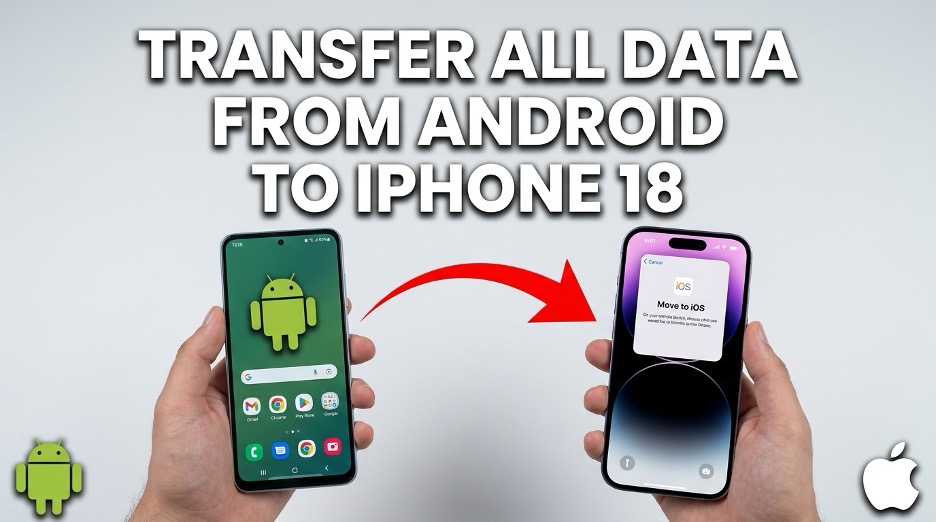
What Data Can You Transfer from Android to iPhone 18 Pro?
When moving from Android to iPhone, you can bring most of your important data with you. Depending on the transfer method, you may be able to transfer data from Android to iPhone, including:
- Contacts: Names, phone numbers, and email addresses
- Photos: Camera photos, screenshots, and saved pictures
- Videos: Recorded and downloaded videos
- Messages: SMS and text message history
- Calendars: Events, appointments, and reminders
- Mail accounts: Google and other supported email accounts
- WhatsApp: Chats, photos, videos, and other supported media
- Files: Documents and other supported files
- Browser data: Bookmarks and selected browsing information
- Apps: Some free apps that are available on both Android and iPhone can be downloaded again
How to Transfer Data from Android to iPhone 18 Pro with iTransGo
Moving to an iPhone 18 Pro is exciting, but taking all your important data with you can feel like a lot of work. Tenorshare iTransGo makes this switch easier by giving you a simple way to move the data that matters without starting over.
iTransGo lets you selectively transfer the data you need and merge it with existing content on your iPhone without overwriting your files. It also works even after your iPhone 18 Pro has been set up, so you don’t need to factory reset the device. With support for iOS 27, Android 17, and 8,000+ Android devices, it offers a practical solution for moving your data.
Key Features of iTransGo
- No factory reset: Transfer data even after setting up your iPhone 18 Pro.
- Selective transfer: Choose specific data types instead of moving everything.
- Supports multiple data types: Transfer photos, videos, contacts, messages, calendars, and music.
- No data overwrite: Add transferred data without replacing your existing iPhone content.
- Android to iPhone support: Move data from Android devices to your new iPhone.
- Supports 8,000+ Android devices: Compatible with a wide range of Android phones.
Steps of how to transfer data from android to iPhone 18 Pro
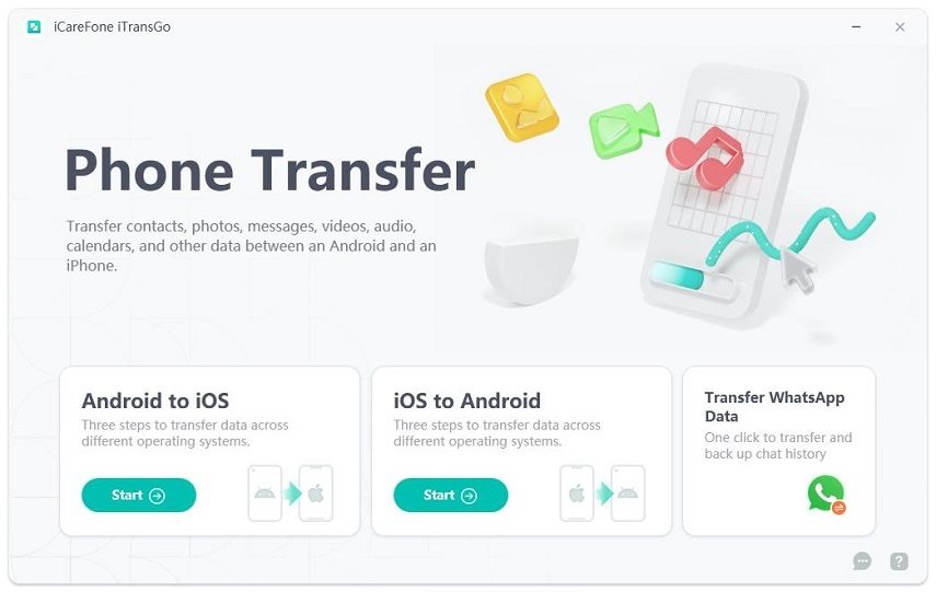
- Download and install iTransGo on your Windows or Mac computer. Open the program and select Android to iOS, then click Start.
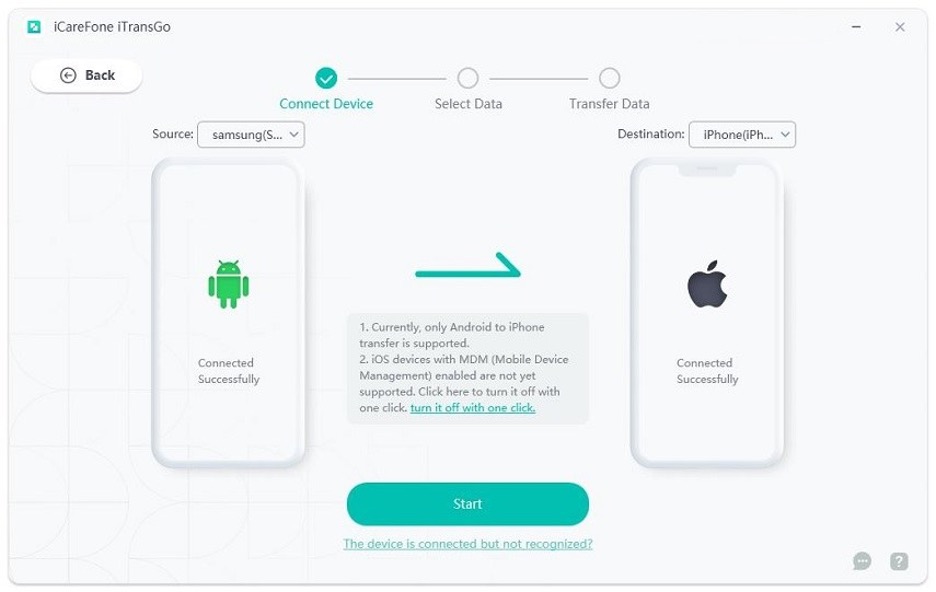
- Connect your Android phone and iPhone 18 Pro to the computer using USB cables. Enable USB Debugging on Android and tap Trust on the iPhone if prompted. Once both devices are detected, click Start.
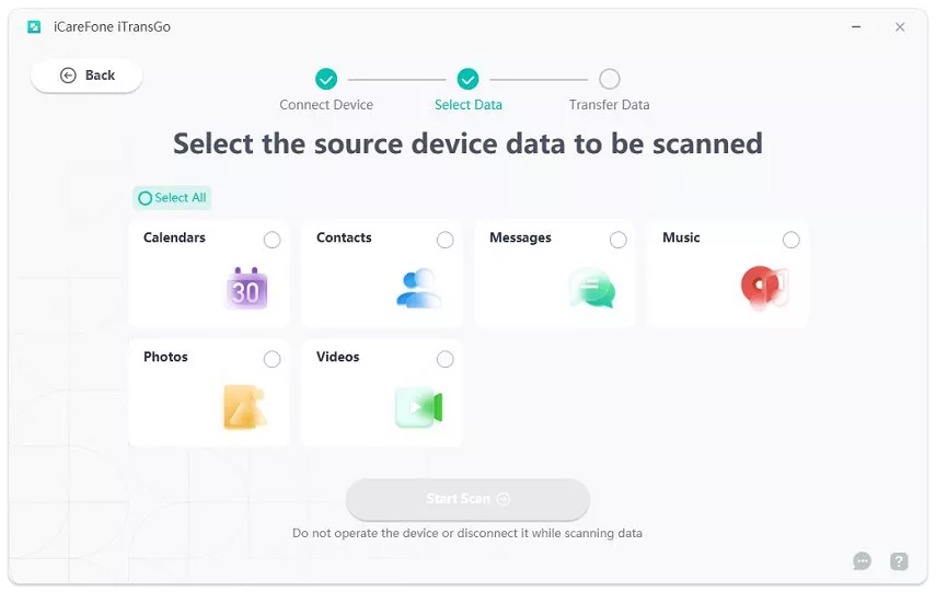
- Choose the data types you want to move, such as photos, videos, contacts, messages, calendars, or music. You can select only the items you need instead of transferring everything.
- After iTransGo scans the Android device, click Transfer Data. Keep both phones connected and wait for the process to finish.
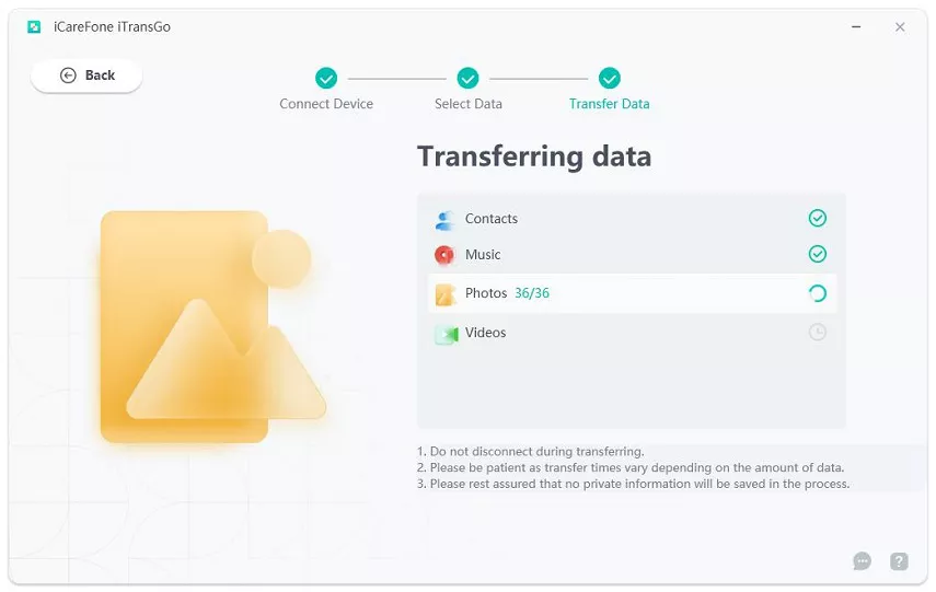
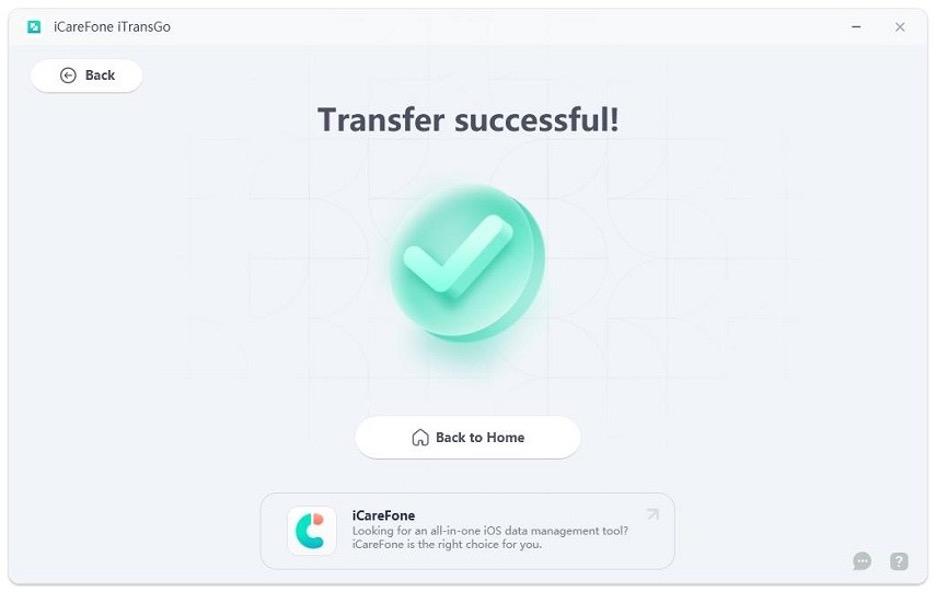
- Once the transfer is complete, check the selected data on your iPhone 18 Pro. Your existing iPhone data is not overwritten during the transfer.
How to Transfer Data from Android to iPhone 18 Pro with Move to iOS
Apple’s Move to iOS is the official way to android migrate to iPhone during the initial setup. It can move contacts, messages, photos, videos, calendars, call history, files, WhatsApp content, and other supported data.
The main limitation is that Move to iOS is designed for a new or factory-reset iPhone. If you have already completed the iPhone 18 Pro setup, you need to erase the device and start the setup again to use Move to iOS. Otherwise, you’ll need to move your content manually or use another transfer method.
Steps of how to transfer data from android to iphone:
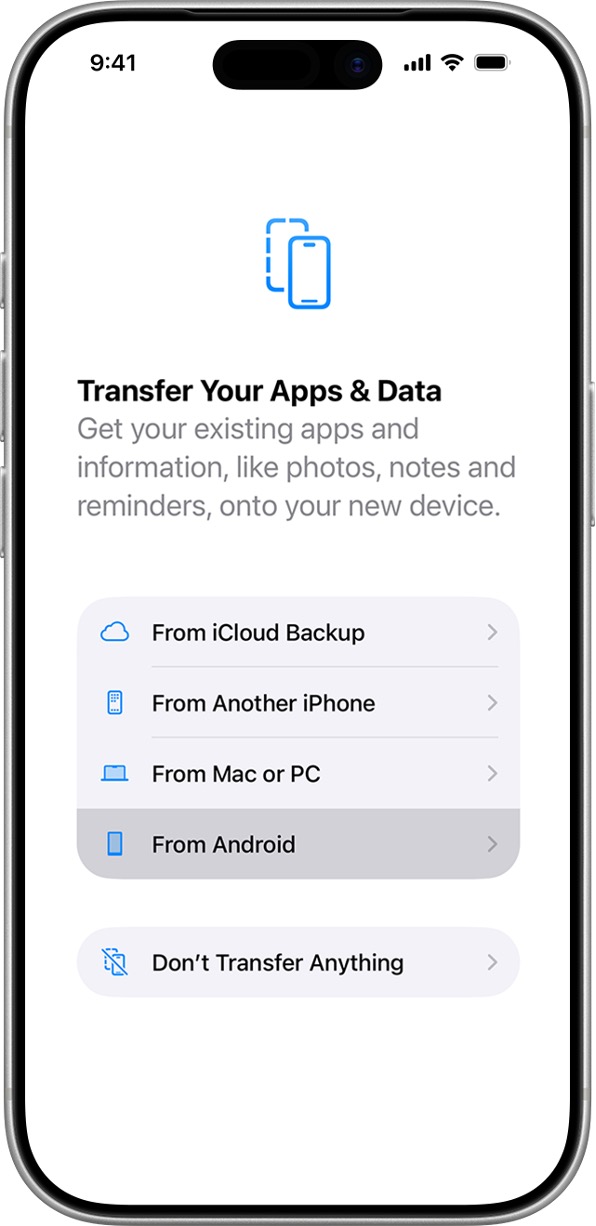
- Turn on your iPhone and follow the setup instructions until you reach the Transfer Your Apps & Data screen. Tap From Android.
- Download and open the Move to iOS app on your Android phone. Tap Continue, agree to the terms, and follow the on-screen instructions.
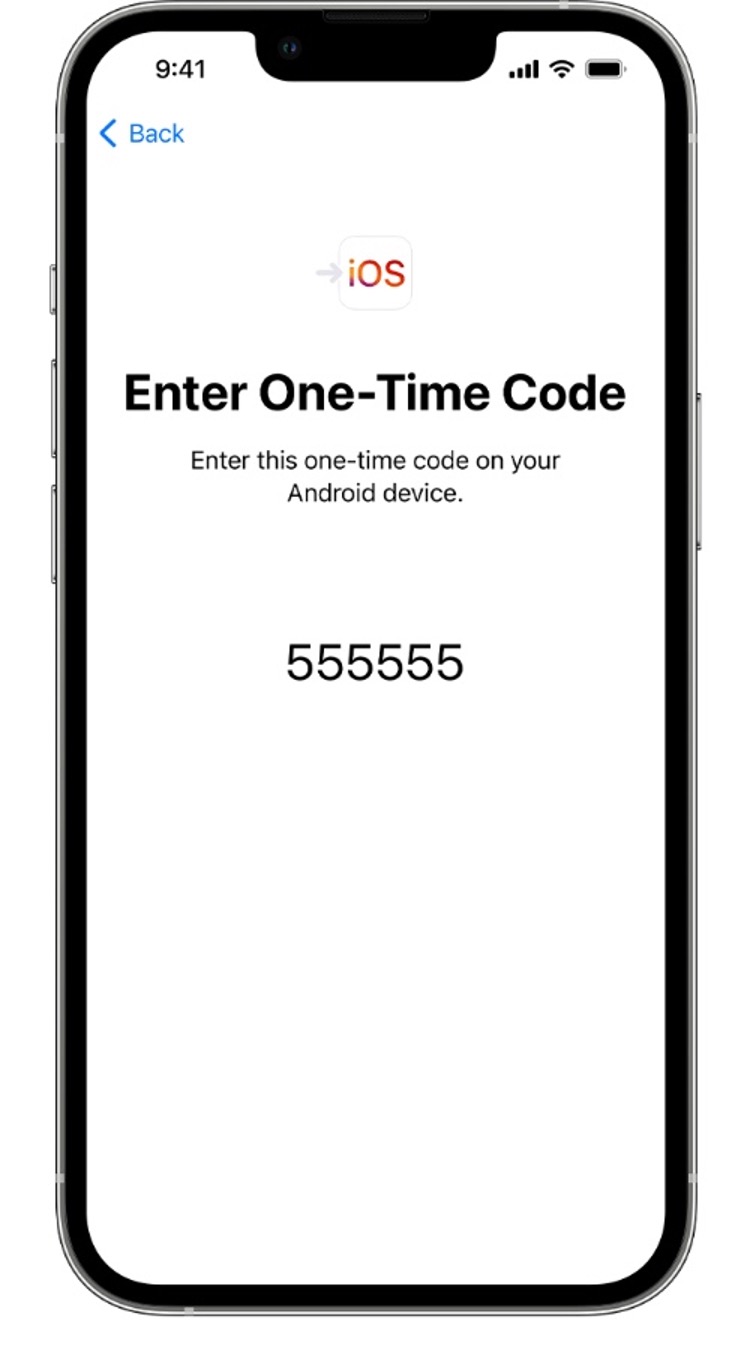
- On your iPhone 18 Pro, tap Continue on the Move from Android screen. A six- or ten-digit code will appear. Enter this code on your Android phone to connect both devices.
- Select the data you want to move, such as contacts, messages, photos, videos, calendars, call history, files, and WhatsApp content. Tap Continue to begin.
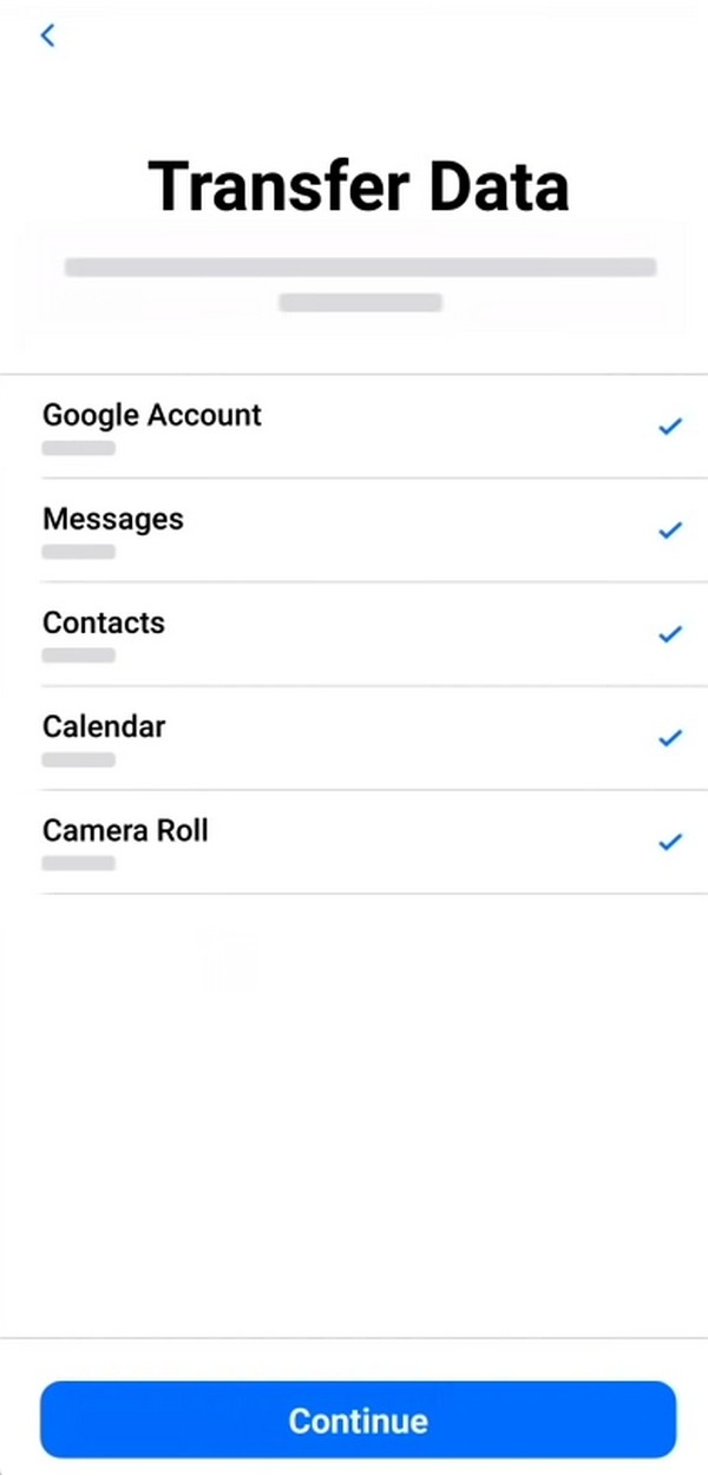
- Keep both phones nearby and connected to power. Leave them alone until the loading bar on your iPhone 18 Pro is complete, even if your Android phone says the transfer has finished.
- Tap Done on Android, then continue following the setup instructions on your iPhone 18 Pro. Some content, such as music, books, and PDFs, may need to be moved manually.
How to Transfer Data from Android to iPhone 18 Pro After Setup
Already finished setting up your iPhone 18 Pro? You can still android migrate to iPhone without starting the setup process again. Apple’s Move to iOS is mainly intended for a new or factory-reset iPhone, so using it after setup requires erasing the device first.
For users who don’t want to lose their existing iPhone data, a dedicated transfer tool such as Tenorshare iTransGo offers another option. It lets you selectively move supported data from Android to iPhone, including contacts, photos, videos, messages, calendars, and music, while keeping the existing content on the iPhone. This makes moving from Android to iPhone more convenient when the iPhone 18 Pro is already ready to use.
Android Migrate to iPhone: Which Method Should You Choose?
Both options can help when moving from Android to iPhone, but the right choice depends mainly on whether your iPhone 18 Pro is already set up.
| Feature | iTransGo | Move to iOS |
| iPhone status | Works with an already set-up iPhone | New or factory-reset iPhone |
| iPhone reset required | No | Yes, if setup is complete |
| Transfer type | Selectively transfers supported data | Transfers supported data during setup |
| Supported data | Photos, videos, contacts, messages, calendars, and music | Contacts, messages, photos, videos, calendars, WhatsApp, and more |
| Existing iPhone data | Can be merged without overwriting existing data | Erased when the device is reset |
| Best for | Android migrate to iPhone after setup | Starting fresh with a new iPhone |
Use Move to iOS if your iPhone 18 Pro is new or you don’t mind resetting it. Choose iTransGo if you have already set up your iPhone and want to keep its existing data.
FAQ About How to Transfer Data from Android to iPhone 18 Pro
1. How to transfer data from Android to iPhone?
You can use Apple’s Move to iOS app during iPhone setup to transfer supported data such as contacts, messages, photos, videos, calendars, and WhatsApp content.
2. Can I transfer data from Android to iPhone 18 Pro after setup?
Yes. If you don’t want to erase your iPhone 18 Pro, you can use iTransGo to transfer supported data after setup. Move to iOS, on the other hand, is designed mainly for the initial setup process.
3. How do I transfer photos and contacts from Android to iPhone?
You can use Move to iOS during setup or iTransGo after setup. Both methods support transferring photos and contacts, so choose based on whether your iPhone is already configured.
4. Can I transfer data without resetting my iPhone?
Yes. iTransGo allows you to transfer supported data without factory resetting your iPhone, while keeping your existing iPhone data.
Conclusion
Moving from Android to iPhone 18 Pro is easier when you choose the method that fits your situation. Move to iOS works well when your iPhone is new or factory-reset, while Tenorshare iTransGo is useful if you have already set up your device and don’t want to erase your existing data. Choose the option that matches your setup, the data you want to move, and whether you want to reset your iPhone. Now you know how to transfer data from Android to iPhone 18 Pro with both options.
Publisher Notes (Do Not Publish)
| Image No | Descriptive Text | Alt Text |
| Image 1 | Android and iPhone 18 Pro showing data transfer | How to transfer data from Android to iPhone 18 Pro |
| Image 2 | Select Android to iOS | how to transfer data from Android to iPhone with iTransGo |
| Image 3 | Android phone and iPhone 18 Pro connected to a computer | moving from Android to iPhone with iTransGo |
| Image 4 | iTransGo different data types available for transfer | android migrate to iPhone and select data types |
| Image 5 | iTransGo transfer screen showing the selected data being transferred | transfer data from Android to iPhone with iTransGo |
| Image 6 | iTransGo completion screen | transferred data from Android to iPhone 18 Pro |
| Image 7 | iPhone 18 Pro setup screen Transfer Your Apps & Data option | how to transfer data from Android to iPhone 18 Pro with Move to iOS |
| Image 8 | Move to iOS app enter the transfer code | moving from Android to iPhone using Move to iOS |
| Image 9 | iPhone 18 Pro select data to transfer to android | Android migrate to iPhone with Move to iOS code |
Related Posts
-
 Why a Trials of Osiris Carry is the Fastest Way to Achieve Flawless Victory
-
 Recover Lost Android Data Easily with Stellar Data Recovery for Android
-
Stop Buying New Gear: How AI Video Upscaling Can Breathe New Life into Your Old Content Library
-
 Before You Build the Art: How Visual Prototyping Can Protect an Indie Game From the Wrong Direction