
How I Experience True System Freedom with IObit Uninstaller
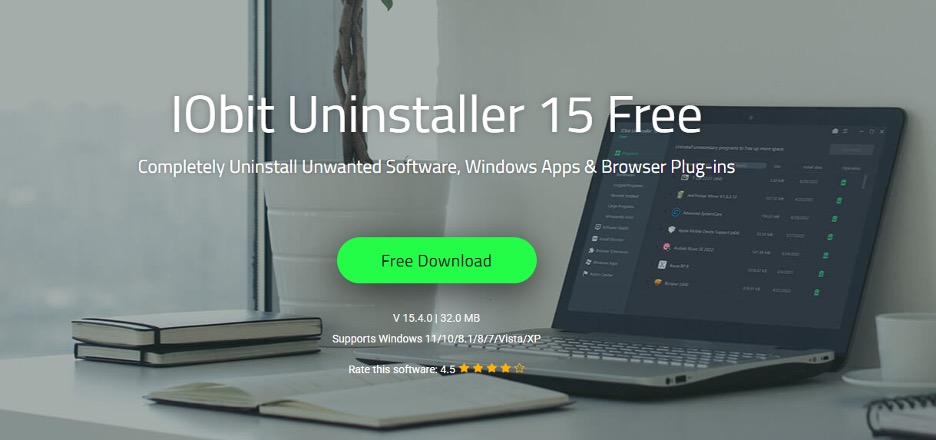
There was a time when I believed uninstalling a program from my computer was as simple as clicking the “Uninstall” button in Windows. I assumed that once the process finished, everything related to that software disappeared too. Unfortunately, I was wrong.
After months of installing different applications for work, testing software, and removing programs I no longer needed, my PC started feeling cluttered. Some applications refused to uninstall properly, leftover folders filled my storage, and I even noticed strange startup entries from programs I thought were long gone. My system wasn’t broken, but it certainly wasn’t as clean or responsive as it used to be.
That was when I decided to try IObit Uninstaller. Instead of simply removing programs, it helped me clean out everything those programs left behind.
Why I Started Looking Beyond Windows Uninstall
Initially, all I did was use Windows’ built-in uninstall feature. This worked fine for simple software, but over time I realized multiple issues.
At times, uninstallers would only partially complete. At other times, software would only disappear from the installed apps list to be replaced by folders, registry entries, scheduled tasks and unnecessary files.
Slowly, these leftovers began to accumulate on top of each other. During this process, I also install a ton of programs as part of my research: software for articles, utilities to test out, and new productivity tools to try. A lot of these programmes linger on my computer for a few days before I determine they are not compatible with my lifestyle.
My system got messier the more I added, installed, and removed applications. That was the point when I understood that uninstallation of software is equally important as installation.
My Favorite Features
As I continued exploring the software, several tools quickly became part of my regular maintenance routine.
Some of the features I use most include:
- Complete software removal
- Leftover file and registry cleanup
- Batch uninstall for multiple programs
- Browser extension management
- Software Health Monitoring
- Forced Uninstall for stubborn applications
- Easy access to recently installed programs
Each feature serves a practical purpose instead of simply adding unnecessary complexity.
The Installation Took Only a Few Minutes
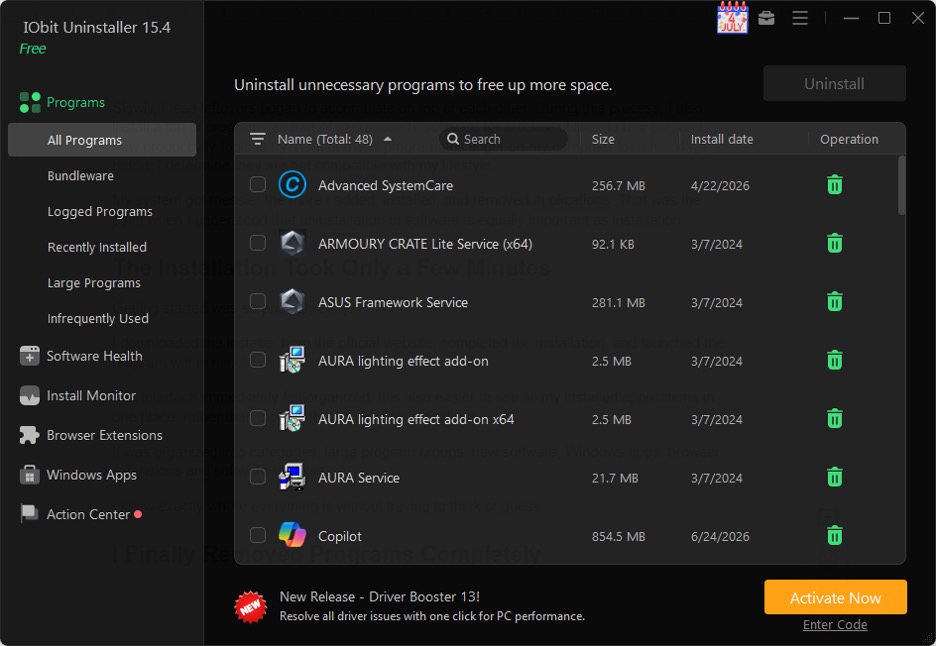
Getting started was surprisingly easy.
I downloaded the installer from the official website, completed the installation, and launched the program within minutes.
The interface immediately felt organized. It is also easier to see all my installed applications in one place, rather than digging through Windows Settings.
It was organized into categories, large program groups, new software, Windows apps, browser extensions and software updates.
I know exactly where everything is without having to think or guess.
Batch Uninstall Saved Me a Lot of Time
One day, I decided to clean up dozens of applications I had accumulated over several months.
Normally, this would require uninstalling each program individually, clicking through multiple uninstall wizards, and restarting several times.
Instead, I selected multiple applications at once and let the software handle everything.
The batch uninstall feature significantly reduced the amount of manual work.
Rather than repeating the same process over and over, I could start the cleanup and let it continue while I worked on something else.
For anyone who regularly installs software for testing, this feature alone is a major time saver.
I Removed Programs Completely
The first feature that I wanted to check was the uninstall functionality.
I found a handful of programs that I had no use for and began uninstalling.
The software launched its own uninstaller for each application. When that was done, it automatically looked for orphan files, empty folders, registry entries and other remnants that typically get left behind. It carried on cleaning until everything related to the application had been removed, instead of stopping halfway through like Windows generally does.
However, that little bit of cleaning made a big impact. At least I was much more confident knowing that legacy software wasn’t leaving any hidden mess behind.
Forced Uninstall Solved Programs That Wouldn’t Leave
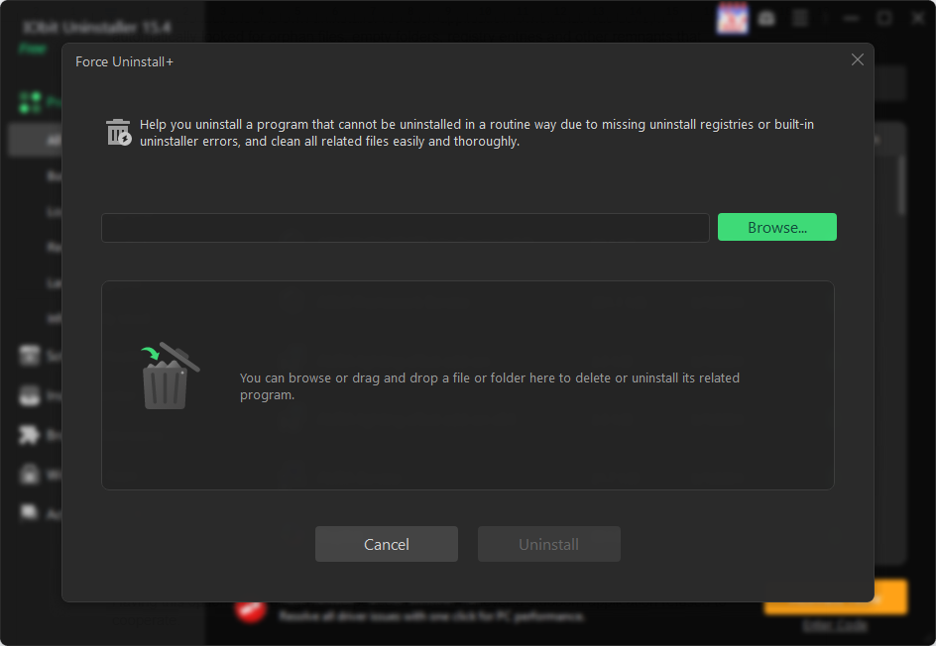
Every Windows user eventually encounters software that refuses to uninstall.
I’ve experienced programs that claimed they had already been removed, installers that reported missing files, and applications that simply generated errors every time I tried to delete them.
Instead of searching forums for manual registry edits or deleting folders myself, I tried the Forced Uninstall feature.
It scanned the selected program, located its remaining files, and removed them far more effectively than I expected.
Having this option available gave me peace of mind whenever a stubborn application refused to cooperate.
I Also Cleaned My Browser Extensions
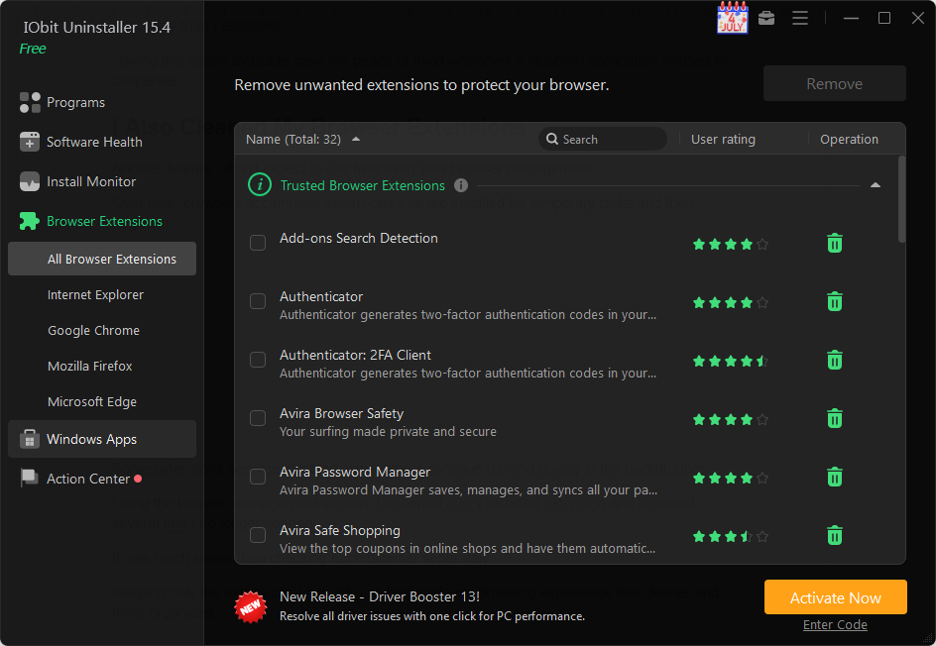
Another feature I didn’t expect to use frequently was browser management. Over time, browsers accumulate extensions that are installed for temporary tasks and then forgotten. Some extensions become disabled, while others continue running quietly in the background.
Using the browser management section, I reviewed every installed extension and removed several that I no longer needed. It was much easier than checking each browser separately.
Keeping only the extensions I actually use has made my browsing experience feel cleaner and more organized.
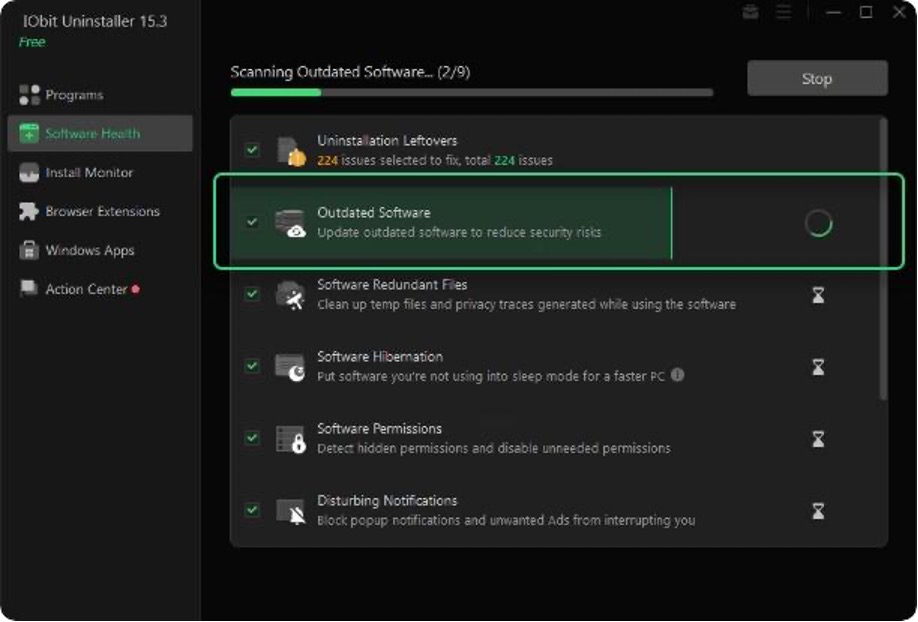
Software Health Helped Me Stay Organized
But I must mention Software Health was especially striking. Not only would this app allow me to remove applications, but it would also flag extra junk left behind, such as old packages, shortcut entries, orphaned installation data and more that needed my attention.
In short, it made my PC a lot more transparent for me to see.
And while I did know the problems that arise as a system fills up, I can’t tell you just how happy I am that I can catch them before my PC gets slow, and that this little guy has me thinking cleaner from now on.
Here’s How I Use It Regularly
Keeping my PC organized has become much easier because I’ve developed a simple routine.
Here’s what I usually do:
- Install new software whenever I need it.
- Test whether it actually fits my workflow.
- Remove anything I no longer use.
- Scan for leftover files after uninstalling.
- Review browser extensions every few weeks.
- Check recently installed programs for anything unnecessary.
Following this routine has helped prevent software clutter from building up again.
The Biggest Difference I Noticed
I didn’t expect uninstalling software more thoroughly to change how I felt about using my computer. My desktop became easier to manage. My installed programs list stayed organized. Old applications stopped leaving unnecessary traces behind.
Most importantly, I felt confident knowing I was actually removing software instead of just hiding it from view. Rather than constantly wondering whether old files were piling up somewhere on my drive, I knew they had been cleaned away. That peace of mind has become one of the biggest benefits.
Final Thoughts
Honestly, I didn’t even realize how much junk can collect on a computer after years of use. I used to think that uninstalling a program meant it was truly gone – how silly I was! Since finding IObit Uninstaller, a powerful uninstaller for Windows, it has become part of my computer maintenance routine. I use it every time I uninstall something, install a new app and need to test it out, or whenever I perform a routine system cleanup.
With IObit Uninstaller’s powerful features such as thorough cleanup, Forced Uninstall, comprehensive browser extension management, batch uninstallation and Software Health function, managing my system is now much more effortless. I no longer have a growing sense of dread when I think about my digital clutter building up on my hard drive. Now, it’s easy for me to take back control of my computer!


