Why Your AI Images Look Fake (And How Image to Image AI Fixes It)
Creators now use AI tools to make YouTube thumbnails, Instagram posts, blog visuals, ads, and marketing graphics faster than ever.
However, there is one issue that many people still have to deal with: AI-generated images still look fake. You’ve seen people’s photos with weird looks, plastic skin, unreal lighting, or backgrounds that are out of proportion. This is because, even if the image appears “perfect”, it’s still artificial.
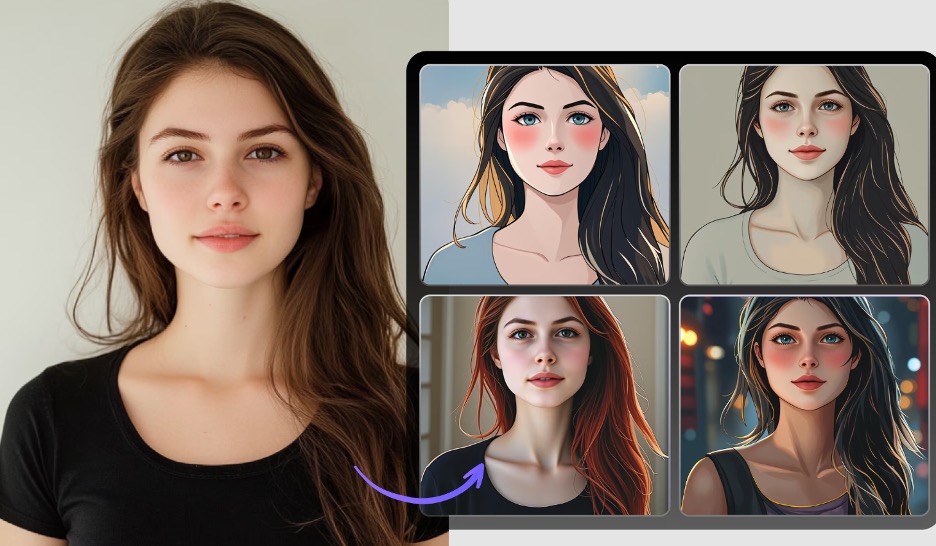
Image-to-image AI tools can help because they use an existing image as a reference. Instead of generating everything from scratch, the randomly generated ones would likely look different. For users looking for an image-to-image AI generator free to try, Media.io’s browser-based workflow can be a convenient starting point.
Why So Many AI Images Look Fake
Many AI-generated pictures are not realistic because traditional AI image generators produce photos that solely utilize text prompts to generate images. This may seem like a lot of power, but it usually means that there’s a problem with the anatomy, with the lighting, with the shadows, or with the background. Facial details can seem too shiny; expressions can seem like robots; sometimes, the skin texture looks plastic rather than like human skin.
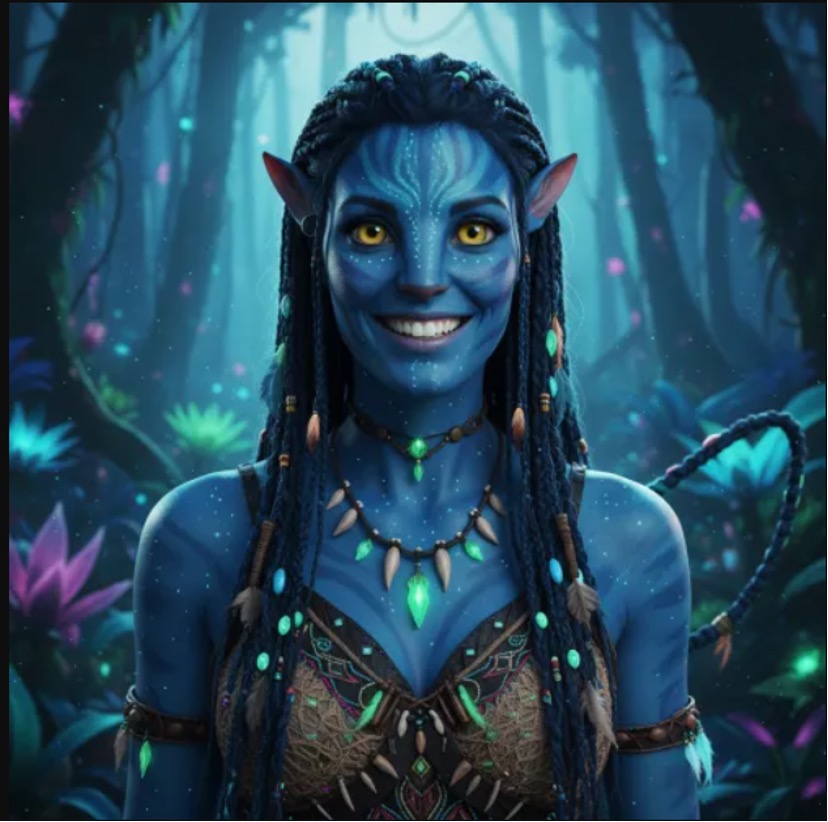
Over-editing is another significant problem. Many creators overuse the cinematic filters or sharpness and/or dramatic color in an attempt to make their content look viral. It’s interesting how the more “perfect” the image is, the more “made” it sounds. An imperfection, texture, and balance are something that are naturally recognized by the human eye. If it seems like it is too perfect, they will be able to see the fake AI look.
The Biggest Mistakes People Make with AI Image Generators
You have heard this a lot of times that giving a simple prompt is enough to create an AI image. In fact, when creating image to image ai generator for free, you need to ensure the following:
Using Low-Quality Reference Images
One of the biggest mistakes is to upload a blurry or poorly lit image for reference. The quality of the initial photo is crucial for the purposes of AI tools. When the input image is not detailed, the output image often ends up with a weak or distorted appearance. Quality pictures with good lighting and subjects of the pictures are always better.
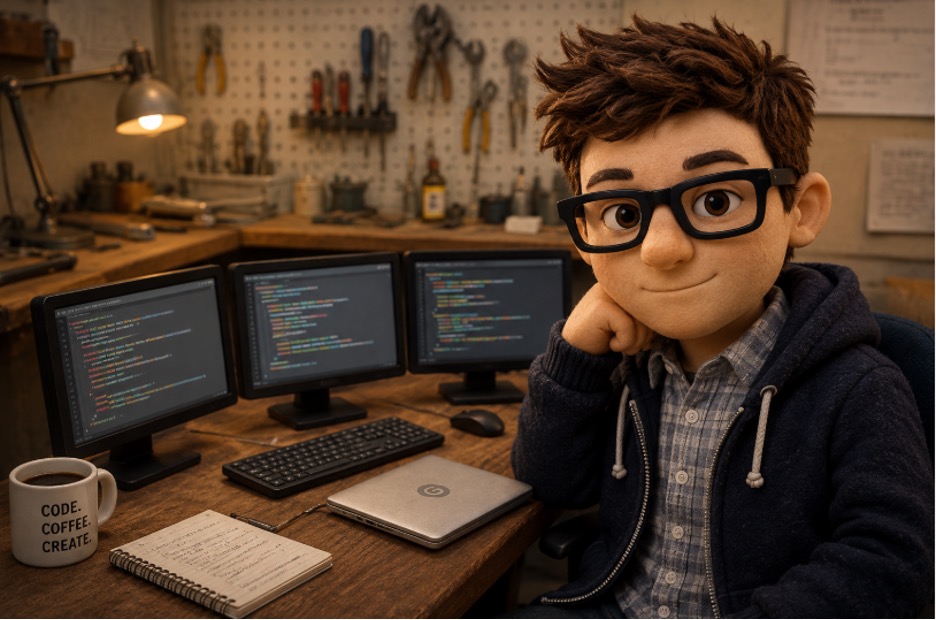
Using too many effects on images
There are too many effects to create realism. AI-generated images frequently appear unnatural, thanks to excessive sharpness, unrealistic colors, overly bright lighting, and dramatic effects. Many creators attempt to make images “look viral”, but that typically doesn’t do more to enhance authenticity.
Ignoring Lighting and Composition
AI works best with images that are well-lit and composed. A consistent subject, natural shadows, and simple backgrounds facilitate the AI’s consistency. The AI gets confused when there’s a lot of visual clutter, which causes distortion.
Using only text-to-image prompts
The AI makes it all up, which can lead to random inconsistencies in text-to-image tools. This is why many creators have turned to an AI image generator from image workflow these days. The image-to-image AI allows the user to have better control as well as better realistic results.
How Image to Image AI Makes AI Visuals Look More Realistic
An image to image ai generator improves visuals by preserving important details from the original image. Here’s how you can achieve the best results from AI.
Maintains True Facial Expressions
- Preserves natural proportions of the face rather than creating artificial faces
- Prevents the appearance of odd eyes, lack of symmetry, and unrealistic skin tones
- Applies the original image structure to achieve more realistic results
- Preserves more natural human facial expressions
- Avoids typical AI pitfalls such as malfunctioning hands and facial features.
Creates Better Lighting and Depth
- Naturally adds light and does not overprocess the image.
- Gives the film a polished look without losing the realism of the images
- Refines shadows and highlights, enhances depth to create a more professional look
- Produces clear and balanced portraits and product photographs
- Compromises minimal filters and dramatic effects for images to stand out
Improves Background Consistency
- Produces a more visually balanced and uncluttered design
- Reduces unwanted visual artifacts and background clutter.
- Consistently applies textures, lighting, and perspective to the image
- Maintains a polished and professionally sculpted appearance to visuals
- Avoids clutter or chaos in AI-generated scenery
Makes Social Media Content Look More Professional
- Enhances the appearance of YouTube thumbnails
- Produces a polished Instagram visual that appears more believable
- Improves marketing creatives for ads, blogs, and branding campaigns
- Generates more reliable ecommerce images that appear cleaner and more reliable
- Saves the creator’s hours of manual editing and retouching work.
- Ensures visual consistency of the brand across various platforms
How to Use Media.io Image to Image AI for Better Results
Using Media.io Image to Image AI is simple, even for beginners. Here are the three steps you need to follow:
Step 1:
Start by uploading a high-quality image with good lighting. Click on the (+) sign to upload the image.
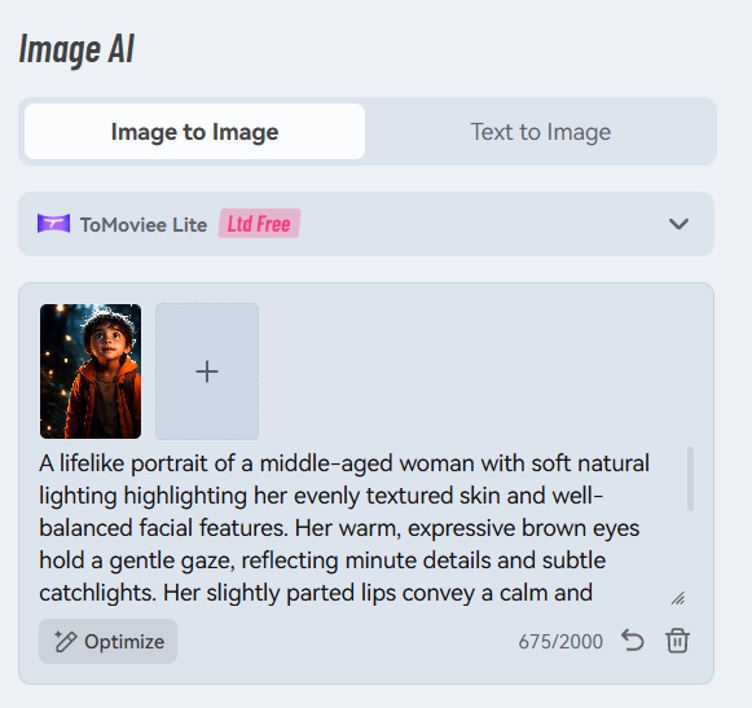
Then enter a prompt including style and enhancement based on the look you want.
Tip: if you’re not good at prompting, use the optimize button.
Step 2:
Try different variations instead of over-editing one image. Subtle enhancements usually create the best results.
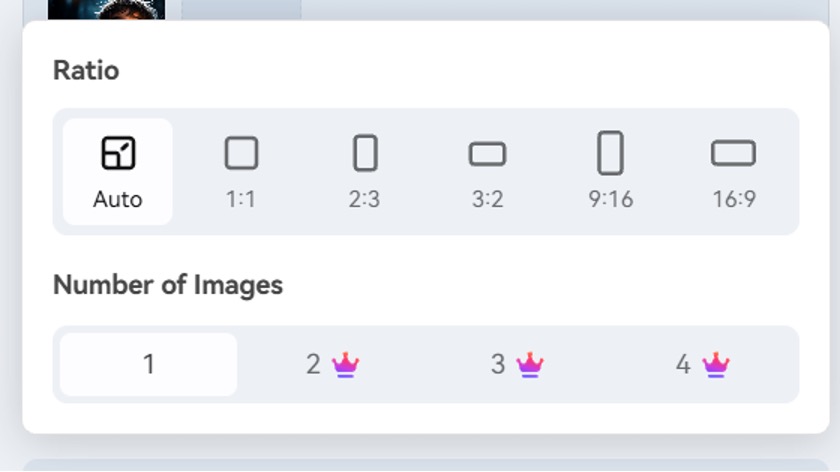
Note: keep backgrounds clean, avoid excessive filters, and focus on improving realism instead of adding dramatic effects.
Step 3: Preview and Download Image
Ready to create? Click on the generate button. It will take a few minutes to make the image realistic as per your command. If you’re satisfied with the results, then download the image and use in wherever you want.
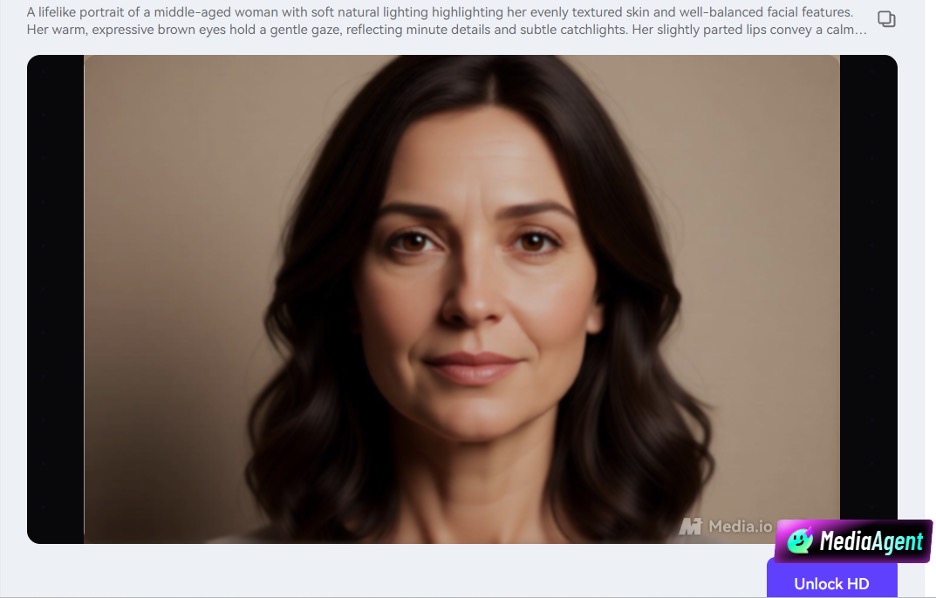
Media.io works best when creators use AI for enhancement rather than extreme transformation. Small improvements in lighting, texture, and detail often create the most natural-looking visuals.
Conclusion
It’s no longer necessary to have fake-looking images created by AI. Poor quality images, too much editing, or poor workflow will lead to the most unrealistic results. AI image to image tool enables creators to generate more natural, realistic images and clean up visuals.
Media.io is an online tool that allows anyone to easily make professional media content in no time. From creating social media graphics to YouTube thumbnails to marketing visuals, image-to-image AI can help your content appear more professional without the need for complex editing techniques.
FAQs
Why do AI-generated images look fake?
AI-generated images often look fake because of distorted facial features, unrealistic lighting, overprocessed skin, and inconsistent backgrounds.
What is image to image AI?
Image to image AI is a tool that transforms and enhances existing images while preserving natural details and structure.
How can I make AI images look more realistic?
Use high-quality photos, natural lighting, subtle enhancements, and avoid excessive effects or filters.
Is image to image AI better for creators?
Yes. It gives creators more control, better realism, and faster editing for social media and marketing visuals.
Can beginners use Media.io Image to Image AI easily?
Yes. Media.io offers a beginner-friendly interface that makes it easy to upload images, choose styles, and generate realistic AI visuals quickly.


