
Pokémon GO Spoofer iOS: How to Change Location on iPhone 18
What Is a Pokémon GO Spoofer for iOS?
Pokémon GO has announced PokéXciting! Singapore, running November 7–8, 2026, at Changi Airport and Jewel. The announcement lists special activities, GO Stamp Rallies, and the debut of PokéXciting! Pikachu (Blue). Events like this make players want to explore new places, but most people can’t fly to Singapore on short notice. Others simply want to join an event or catch regional Pokémon from home.
Pokémon GO is played using a GPS system. The game uses the information from your phone to determine where you are and place Pokémon, PokéStops, and gyms around you. That’s why some players are looking for a Pokémon GO Spoofer iOS. It’s a device designed to mimic a GPS location on an iPhone, and therefore, it reads an area that one is not in.
Before making any selection, test compatibility of the devices and systems when using an iPhone 18 on iOS 27. There are many ways to do spoofing and they have various requirements and risks; therefore, it is advisable to compare these before deciding on a type of spoofing.
How to Choose a Pokémon GO Spoofer for iOS
Common Ways to Spoof Pokémon GO on iPhone
Most iOS options fall into three groups. Each suits a different kind of player, and none is free of trade-offs.
- Desktop GPS tools: These use a computer to manage or change the iPhone’s location. Some need a USB connection or extra configuration, and requirements vary by product.
- Modified game apps: These add features through a modified Pokémon GO client. Unofficial clients bring security and account risks.
- iOS location-changing apps: These change location through an iPhone-based workflow where supported. Features and setup differ by product, so check that the app works with your iPhone model and iOS version.
| Method | Main Characteristics | Considerations |
| Desktop GPS tools | Location management through a computer | Computer and connection requirements |
| Modified game apps | Additional features through a modified client | Unofficial-client and account risks |
| iOS location-changing apps | iPhone-based location-changing workflows where supported | Device compatibility and setup requirements |
Before you pick one, weigh computer requirements, jailbreak requirements, compatibility with iPhone 18 and iOS 27, available features, and possible account risks. Products in the same category don’t all work the same way, so read the details for each.
Why Consider MocPOGO as a Pokémon GO Spoofer for iOS?
MocPOGO for iOS is built for supported iPhones and offers 2 modes, each with its own features and workflow.
iPhone-based operation. The app changes your location from the iPhone itself. Setup requirements still apply, but the supported Native Mode workflow doesn’t need a computer or Wi-Fi connection, which helps when you don’t have one nearby or don’t want to deal with cables and extra software.
General Mode. This mode suits people who want broader GPS location-changing features. Teleport, joystick movement, and custom routes are the functions tied to it, though you should confirm they’re available in the current iOS app version. General Mode has its own configuration requirements, and this article doesn’t cover them.
Native Mode. Native Mode is designed to change the location used by the original Pokémon GO app, so you don’t need a modified game client. Teleport is its currently supported feature, and the supported workflow in MocPOGO iOS App doesn’t require a computer.
Compatibility. MocPOGO’s official compatibility information lists support for iPhone 18 and iOS 27. Check the latest compatibility notes and setup instructions before you start, since not every device configuration or future system update will behave the same way.
The next section shows how Native Mode works on a compatible iPhone.
How to Use MocPOGO Native Mode to Spoof Pokémon GO on iPhone 18
This walkthrough covers Native Mode only, with iPhone 18 and iOS 27 in mind. Screens can change between app versions, so compare each step with MocPOGO’s current Native Mode guide before you follow it.
Install the app. Download MocPOGO iOS App on your iPhone from the official page and open it. Make sure your device and iOS version appear in the compatibility list first.
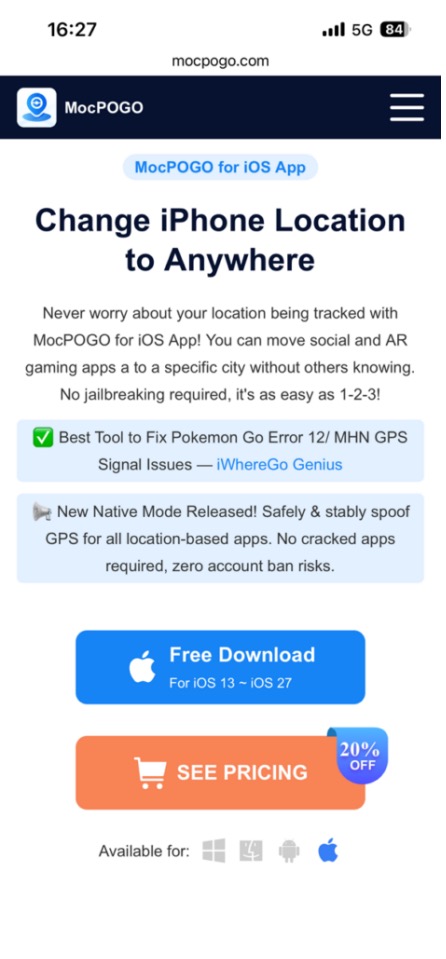
1. Choose Native Mode. On the main screen, tap Native Mode rather than General Mode. This is the option that works with the original Pokémon GO app.
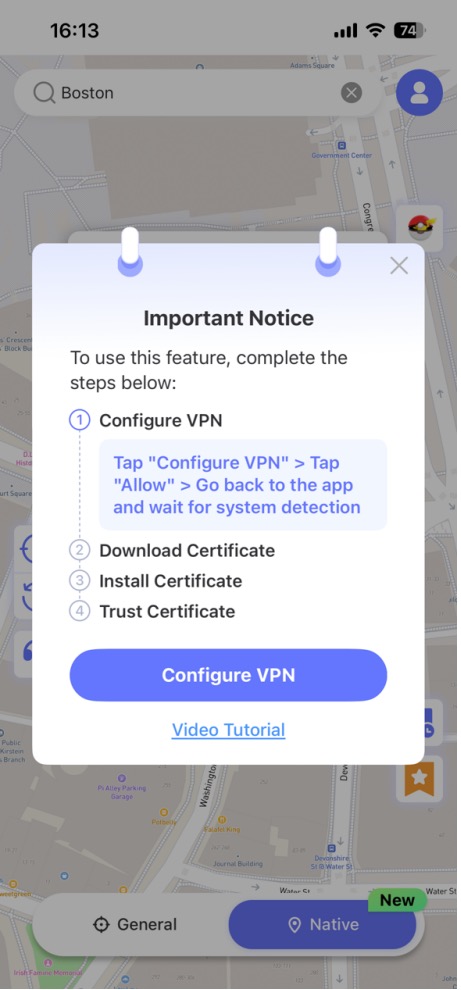
2. Finish the setup. Follow the on-screen instructions and allow the permissions the app asks for. Setup may include trust settings in iOS, so read each prompt before you tap through it. This is the step where most problems start, so go slowly and don’t skip anything.
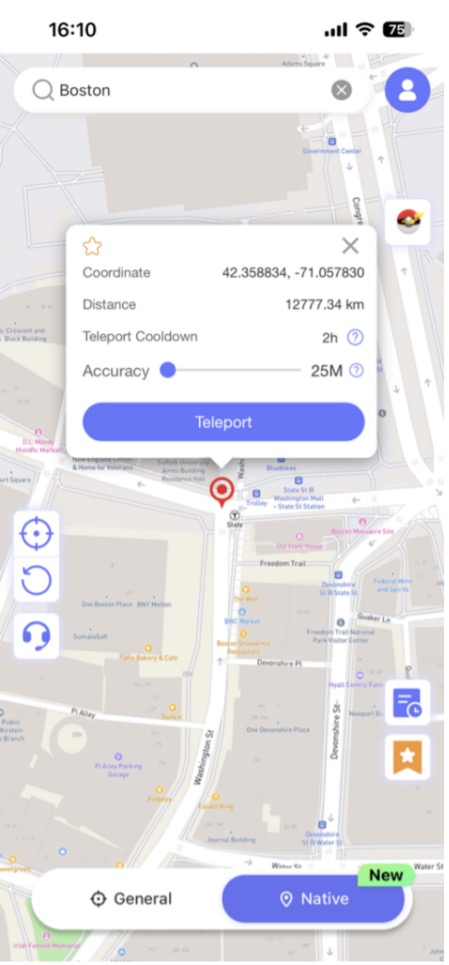
3. Pick a destination. Search for a place or select it on the map. For the Singapore event, that could be Changi Airport or Jewel. Double-check the pin before you confirm, because a wrong spot means starting over.
4. Use Teleport. Confirm the spot with Teleport, the only function Native Mode supports right now. The app should apply the new location to your iPhone.
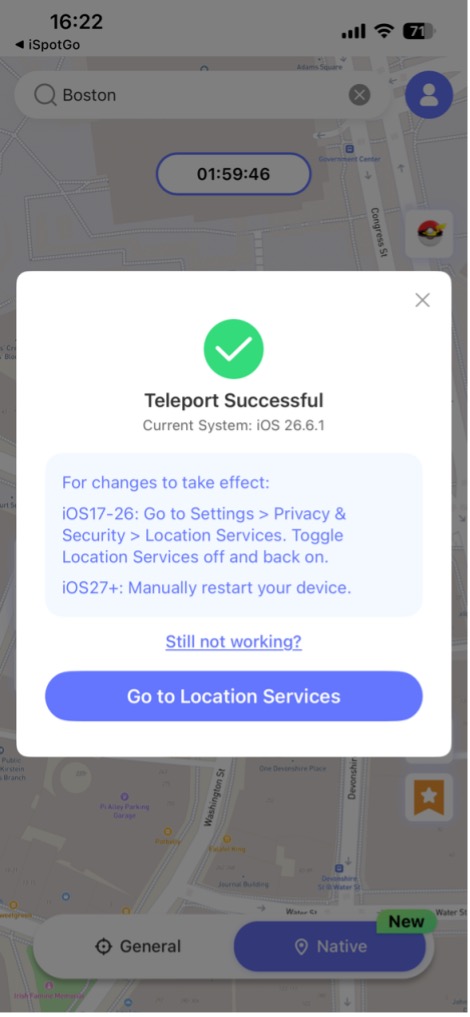
5. Open Pokémon GO. Launch the original game and check that your trainer shows up at the new place. If it still shows your real location, close the game completely and open it again. Once it matches, look around for nearby PokéStops, gyms, or event features to confirm the game is reading the new location.
A few limits are worth repeating. Native Mode supports Teleport only. Joystick movement, custom routes, and other General Mode functions don’t belong to it. Also, no guide can promise that spoofing will keep your account free of penalties, so treat any claim like that with caution. Jumping between far-apart places in quick succession also looks unusual to the game, so give yourself time between moves.
Is Pokémon GO Spoofing on iOS Safe?
Risks and Tips for Using an iOS Pokémon GO Spoofer
Account risks. GPS spoofing may violate Pokémon GO’s terms and can lead to account penalties. Any tool or mode is not risk free, proceed only if you agree to that. A restriction or ban may eliminate months of work.
Official vs. modified game clients. The original version of the Pokémon GO app is the one released by the app developer. Modified clients are clients that have been altered and have features added. The original is better as it prevents all the security issues associated with unofficial clients, but it does not eliminate all security risks from spoofer activity as there can be unwanted activity in the game.
Basic troubleshooting. If your location doesn’t update, check the configuration, permissions, certificate trust settings, and compatibility with your iPhone and iOS version. Adhere to the official troubleshooting procedures – do not alter the settings endlessly, without directions. Random changes may result in a system that becomes more difficult to resolve than the one that was initially encountered.
Conclusion
For iOS, the decision is based on a variety of factors such as computer and jailbreak requirements, compatibility with the iPhone 18 and iOS version, features offered, and the risk to your account. There are two modes in MocPOGO: General Mode for general features like Teleport, joystick movement and even custom routes (if supported) and Native Mode for Teleport in the original app without a computer. For current compatibility and download instructions, please go to the official MocPOGO iOS App page.

