
How to Delete Similar Photos on iPhone Automatically (2026 Guide)
Taking a few extra shots helps you get a photo you like. The problem comes later, when all the slightly different versions are still in your library: five selfies, several attempts at a group photo, or a dozen pictures of the same view. Choosing what to keep is easy enough for one set, but sorting through months of photos takes time.
You can delete similar photos on iPhone with an app that finds matching groups and selects the extra shots for you to remove. Below, we’ll walk through the automatic cleanup process and explain what to check before making the deletion permanent.
Can Your iPhone Automatically Find Similar Photos?
The Photos app identifies duplicates and groups them in its Duplicates collection, where you can merge them. But that does not mean it will gather every similar shot from the same photo session.
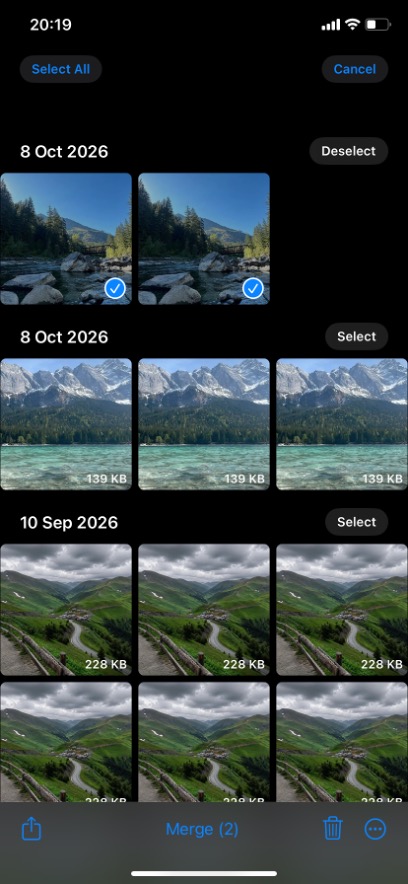
Duplicate photos in Apple’s Photos app with the option to merge them.
The distinction matters: two copies of one photo are duplicates, while two separately taken pictures can differ in focus, expression, or camera angle. They may look almost interchangeable to you, yet still be separate shots worth keeping. A user in this thread described the same frustration: plenty of look-alike pictures remained after using Apple’s duplicate merging feature.
Cleanup apps help you find similar photos on iPhone by comparing images visually and grouping related shots. This makes finding similar photos across a large library easier, with suggested selections you can review before confirming the removal.
Remove Similar Photos with an Automatic Cleanup App
For this walkthrough, we’ll use Clever Cleaner, a similar photo finder app with a straightforward interface. Its Similars feature automatically groups look-alike shots, recommends the best photo in each group, and selects the extras for removal. Photos are processed locally on your iPhone. The free version includes a daily cleanup allowance that resets each day, while an optional Premium subscription unlocks unlimited cleanup.
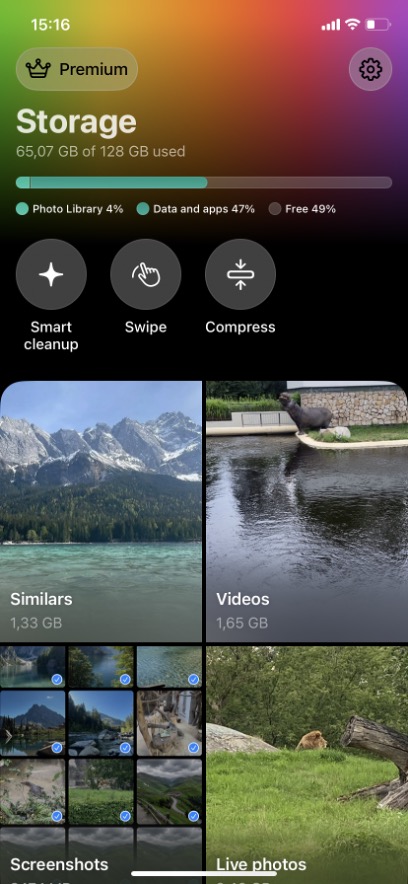
Clever Cleaner’s main screen with photo cleanup tools.
Here’s how to use it:
- Open Clever Cleaner and allow full access to your photos. Wait for the initial scan to finish so the app can identify similar images across your library.
- Open Similars. You’ll see the duplicate and similar photos arranged in groups. To clean up all detected groups in one session, tap Select All.
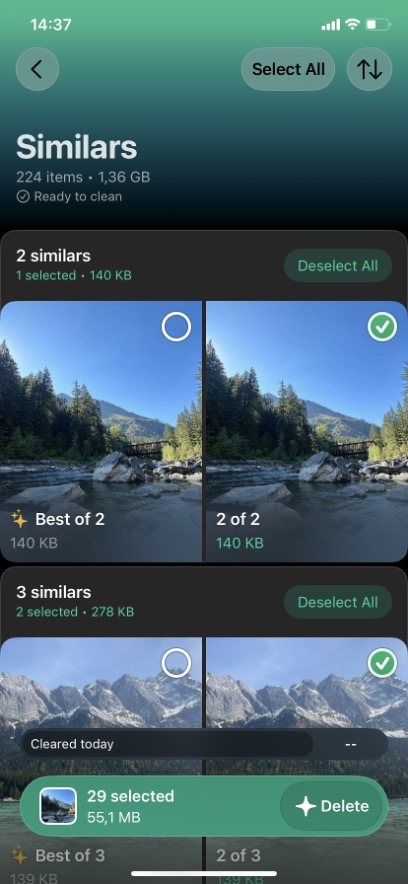
Similar photos automatically grouped in Similars.
- Check the suggested photos to keep. Open a group to see the image marked Best and the shots selected for removal. You can leave the app’s selection as it is or adjust it if you prefer another photo or want to keep several.
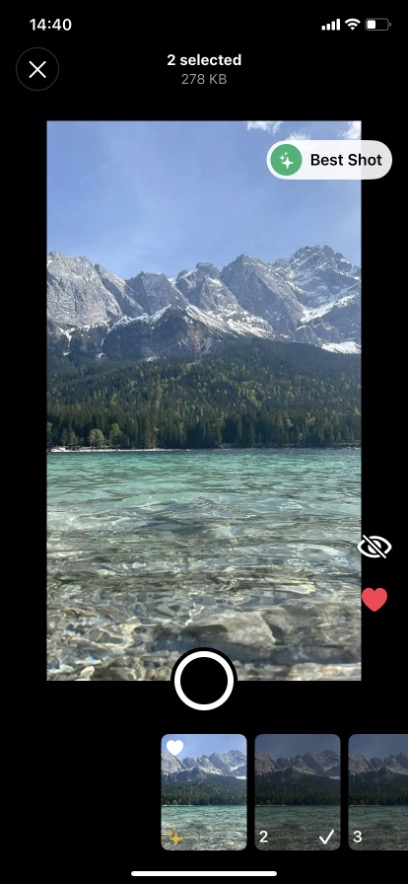
Reviewing the recommended best photo and the selected extras.
- Tap Delete in Similars to open the Review and delete screen. Check the selected photos, use Restore for any you want to keep, then tap Delete and confirm when prompted.
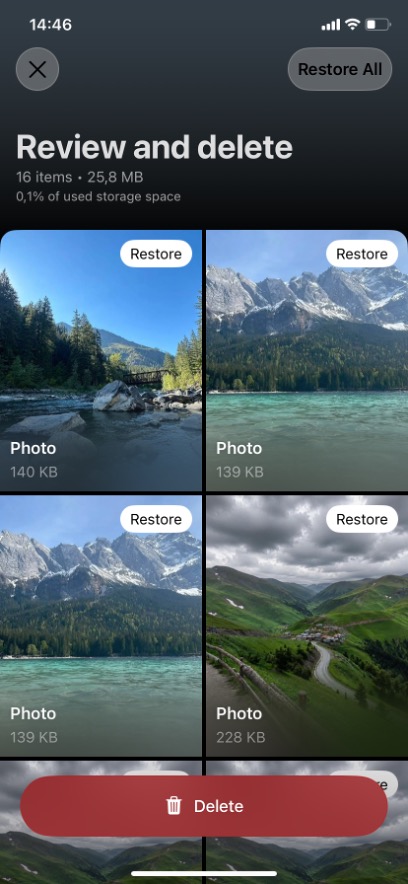
Deleting selected similar photos.
- Check the cleanup summary and tap OK, Great! The app shows the size of the removed photos and reminds you to empty Recently Deleted to finish freeing up space.
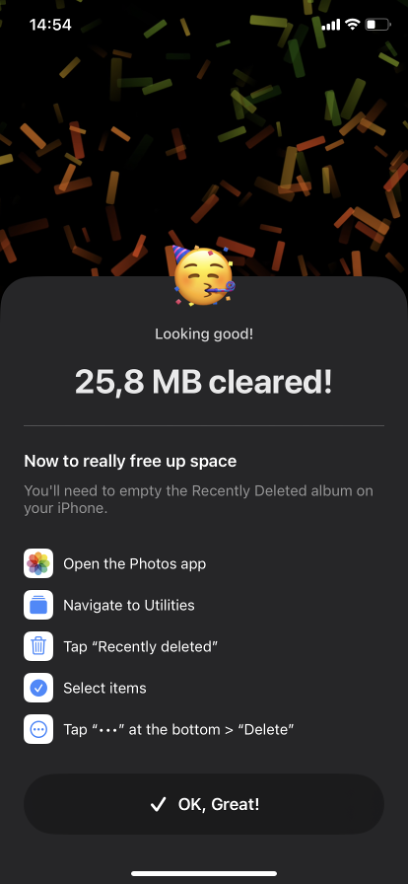
Cleanup results with a reminder to empty Recently Deleted.
The next section explains how to finish the cleanup there.
Finish the Cleanup in Recently Deleted
As Clever Cleaner’s cleanup summary points out, you need to empty Recently Deleted to finish freeing up space. You can permanently remove similar photos from iPhone by following the steps below, or leave them there for Photos to delete automatically after 30 days.
- Open Photos > Collections > Utilities > Recently Deleted.
- Unlock it with Face ID, Touch ID, or your passcode.
- Tap Select and choose the photos you want to delete permanently.
- Tap More (…) > Delete and confirm. Choose Delete All only if you want to remove everything in Recently Deleted, including photos from earlier cleanups.
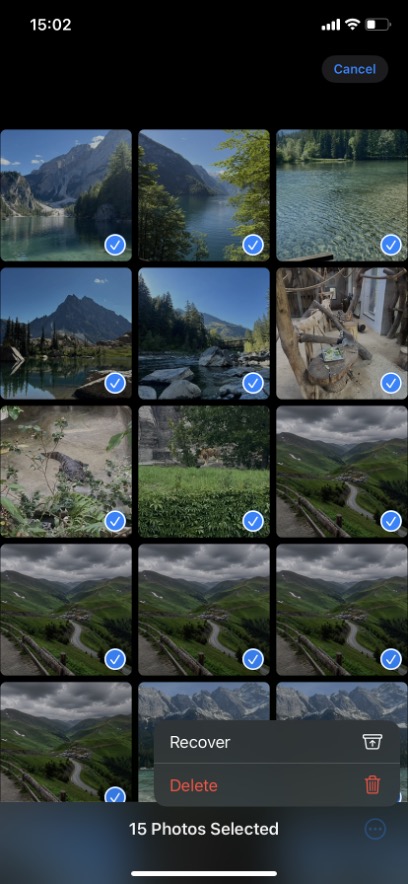
Permanently deleting photos from Recently Deleted.
You cannot restore these photos from Recently Deleted afterward. With iCloud Photos enabled, deletion also applies to iCloud and your other synced devices.
Conclusion
Automatic cleanup is most useful when choosing a few photos to keep would otherwise mean sorting through hundreds of extras. Clever Cleaner makes that manageable by finding similar shots and handling the bulk selection for you, with the option to review individual groups when the choice matters. Running a cleanup after a trip or a busy day of shooting can also keep the next session short.
FAQ
Should I keep only one photo from each group?
Not necessarily. Two similar shots may both be worth keeping if they capture different expressions or details. In Similars, deselect any additional photos you want to keep before confirming the deletion.
Will deleting an album remove the similar photos inside it?
No. Deleting a regular album leaves its photos in your library. Albums help organize pictures; removing one does not delete the images it contains. To clear unwanted shots, delete the photos themselves.
How much iPhone storage can I free up by removing similar photos?
It depends on the number of unwanted shots and how much space their local copies occupy. With Optimize iPhone Storage enabled, your iPhone may hold smaller versions while the full-resolution originals stay in iCloud. In that case, deleting those pictures may free less space on the phone than their original file sizes suggest.


