
Phone photo to talking video: prepare the portrait first
A phone photo to talking video workflow begins with a clear portrait, an approved script and permission to animate the person pictured. Prepare those inputs on your phone, then use the chosen web tool to generate and inspect a short speaking clip.
This promotional guest article introduces Leadde for readers who want to make a phone portrait speak. Its public talking-photo page describes uploading an image and adding speech; the advice here treats a phone as the camera and file source, without assuming there is a native mobile app.
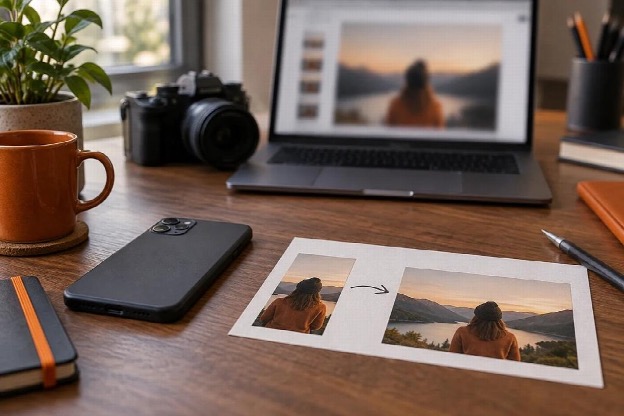
AI-generated illustration for phone photo to talking video; no real project is depicted.
What makes a phone photo to talking video source usable?
Pick a photograph in which the face is easy to distinguish from the background. A clear, unobstructed face gives the animation process a simpler source than a group shot, a strong side angle or a hand covering the mouth.
Keep some space around the face while preparing the source. Crop a copy for the intended frame and retain the uncropped original, so a later change from landscape to portrait does not depend on enlarging a small saved crop.
Compare candidate photographs at their original size. Messaging apps and social feeds may show a clean preview while saving a smaller copy. Transfer the original file where possible, and avoid repeatedly downloading and recompressing the same image.
| Detail to inspect | Useful question | Preparation action |
| Face | Are the eyes and mouth unobstructed? | Choose another image if necessary |
| Framing | Is there room around the head? | Leave space before cropping |
| Light | Can facial features be seen clearly? | Prefer readable lighting |
| Background | Does it distract from the speaker? | Select a simpler original |
| File | Is this the original image? | Transfer the source file |
A photo of someone else also needs a clear agreement about use. Permission to post a still portrait does not automatically answer whether the person agrees to appear to speak a new script.
Write a message that belongs in a speaking portrait
A talking portrait suits a compact welcome, introduction or announcement. Give it a single job. If the message must show how an application works, prepare a real demonstration separately and let the portrait introduce it.
For an illustrative club welcome, begin with the reason for the message: “Welcome to the photography group. The event page has the meeting details and the theme for this month’s photo walk.” That is easier to follow than a long greeting followed by several unrelated updates.
Read the script aloud before generating anything. Replace sentences that require a second breath or contain several conditions. Keep the full event details on a maintained page when they are likely to change.
Check names, abbreviations and web addresses separately. Keep the intended spelling in the script and a pronunciation note beside it. Generate the difficult phrase first, then listen for each syllable. Use any pronunciation controls the chosen tool provides; if a spoken address remains awkward, put a clickable link in the accompanying post.
AI-generated portrait session for a phone photo to talking video project.
Prepare the files for the browser tool
Put the selected photo and final script in one working folder before opening the generator. Use descriptive filenames so that a revised script cannot easily be paired with an older portrait.
If you prepared the materials on a phone, transfer them through a method appropriate for your own files and account. Check that the receiving device has the original image dimensions and current text. A desktop browser can make detailed review easier, particularly when comparing versions side by side.
On the Leadde page, follow the current upload and speech controls available to your account. Start with a small sample containing the most difficult name or phrase. Use that sample to decide whether the tool handles your portrait and wording well enough for the full clip.
Choose the voice separately from the portrait. The image contains no recording of the person’s voice, so use an approved synthetic voice or an available voice workflow that you have permission to use.
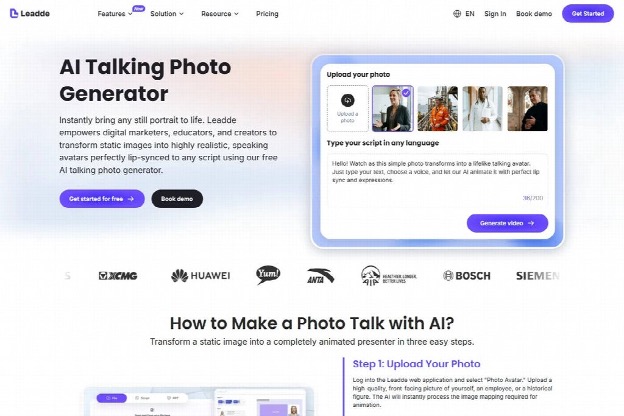
Public Leadde page for phone photo to talking video, captured on September 9, 2026; not a hands-on test.
Before the full export, prepare the caption text from the final spoken version. W3C’s captioning guidance covers speech and meaningful audio information. For the club welcome, keep the group name and event-page instruction readable when audio is muted. Check the final frame with the surrounding post: the portrait, caption and link should all point to the same message.
Inspect sound and movement in separate passes
Listen with the image out of view first. Check the wording, name pronunciation and ending of the final sentence. With the face hidden, you can give the audio your full attention.
Next, watch with the sound muted. Look for odd movement around the mouth, edges of the face, hair or glasses. A distracting visual error may be easier to spot when the narration is not drawing attention.
Then play the full clip at the size and crop you plan to publish. Subtle problems on a large desktop preview can become more noticeable when a social platform crops tightly around the face.
Note the problem you want the next attempt to fix before generating another version.
| Observation | First thing to change |
| A name is unclear | Script or available pronunciation control |
| The greeting drags | Opening sentence |
| Facial movement distracts | Source portrait or generation attempt |
| Text is too small after cropping | Layout and final format |
| Details are already outdated | Maintained destination and script |
Change one input at a time where possible, and save a short note about the result. If changing the portrait fixes distracting movement, retain that portrait with the approved script for the next export.
AI-generated listening check for a phone photo to talking video clip.
Publish with enough context for the viewer
Give the clip a caption that identifies the message and its destination. If viewers need to act, use a working link in the surrounding post instead of asking them to memorise a spoken address.
Check the rules of the platform where the video will appear. YouTube, for example, has disclosure requirements for meaningfully altered or synthetic content in specified realistic scenarios. Apply the relevant rule to the actual clip.
Keep the approved portrait, script and final export together. If the person later asks to change the message or stop using the animation, that archive makes it easier to identify the affected posts.
Questions about turning a phone portrait into a clip
Does a newer phone guarantee a better result?
No. Clarity, framing and suitability matter, and the generated output still needs inspection. A recent device can also produce a poor source photograph.
Can a group picture work?
A separate portrait is usually a clearer starting point when only one person should speak. Do not assume the tool will identify the intended speaker correctly.
What should be saved after publishing?
Retain the original image, approved script, voice choice and final export. Add the publication link so that future corrections reach the public version.
Have the person pictured review the complete clip before it is published. Save their approved version as the reference when you prepare another crop or repost.
