
Top 5 Audio Ducking Tools for Perfect Voice & Music Balance
Having a balance of dialogue and music in a video is essential to ensure high-quality content. The audio ducking technology can be used if a video lacks this balance. This utility detects speech in a video and automatically lowers the background music. Besides making the dialogues audible, audio ducking also ensures studio-quality outcomes.
Choosing the right AI tool helps a user enhance the audio without any advanced experience. This article narrows down the top 5 audio ducking tools for a studio-level finesse.
Part 1. What to Look for in the Best Audio Ducking Tools
Before choosing an audio ducking tool, it is important to have a quality check. The following checklist will elaborate on the attributes of the best audio ducking tool:
- Automatic Voice Detection: A good automatic ducking tool has the ability to identify the speech in a video and lower the music automatically.
- Customizable Ducking Controls: Advanced AI tools give the user the liberty to set custom ducking intensity and transition controls.
- Fast and Beginner-Friendly Workflow: It is important for a high-quality audio tool to have an intuitive interface that encourages beginners.
- High-Quality Audio Output: Top audio ducking software maintains clear dialogue and balanced background sound without causing distortion or abrupt audio changes.
Part 2. 5 Best AI Tools for Automatic Audio Ducking in 2026
The above-mentioned qualities of an ideal audio ducking tool set the bar high. The following section breaks down the top 5 ducking tools that ensure high fidelity exports:
1. Wondershare Filmora
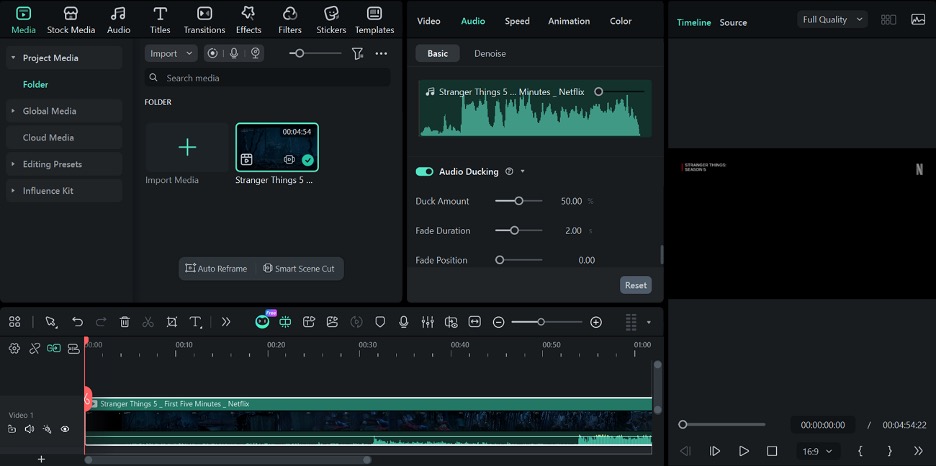
The first tool on our list is a user-friendly video editor with elaborate audio adjustment tools. Filmora audio ducking automatically identifies the dialogue in a video and lowers the background music for better audibility. Its one-click enable button makes the tool user-friendly and easy to use. Besides being as simple as a one-click application, the audio ducking feature lets the user have some control over the process.
Users can set the ducking intensity to help the tool decide the amount of background music reduction. The fade-in and fade-out selection lets an editor create a smooth audio transition for a smooth listening experience.
Pros
- Users can integrate AI noise reduction with audio ducking for clearer audio.
- Filmora lets users import multiple videos and apply audio ducking to batch files.
- The Fade Position feature lets the user decide when the audio ducking effect starts.
Con
- The user has to buy a paid plan at the end of the trial period.
Pricing Plan
| Plan | Pricing |
| Basic | $9.99/month |
| Advanced | $24.99/month |
| Perpetual | $49.99/month |
2. CapCut Desktop Video Editor
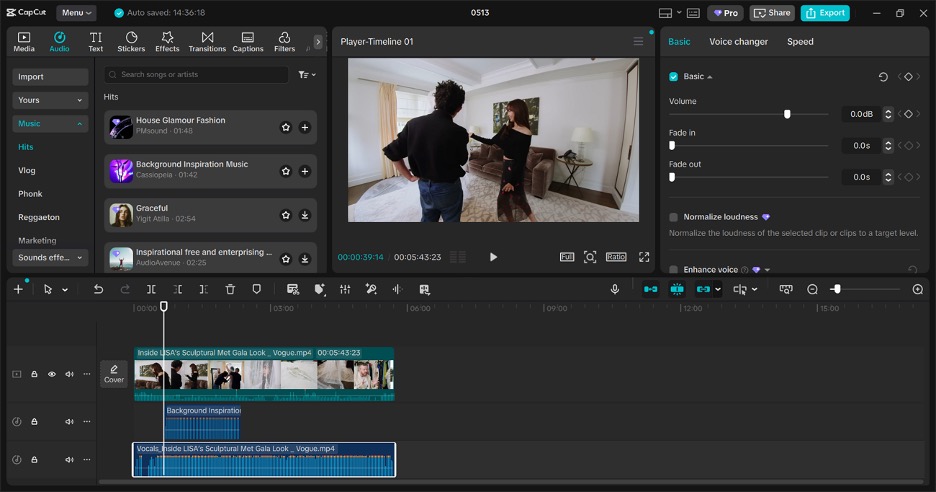
CapCut Desktop provides a manual audio balance option that lets a user separate the music and speech audio tracks. This volume keyframe method helps balance voice and music but requires extra editing effort. However, users can combine other audio enhancement effects to create a smooth sound.
Pros
- This tool gives control over when and how much the music volume is decreased.
- CapCut Desktop allows custom, creative sound mixing for different scenes.
Cons
- The audio ducking process is indirect and requires prior experience.
- CapCut Desktop has no automatic speech detection features to identify dialogue.
Pricing Plan
| Plan | Pricing |
| Monthly | From $9.99/month |
| Yearly | From $89.99/year |
3. DaVinci Resolve
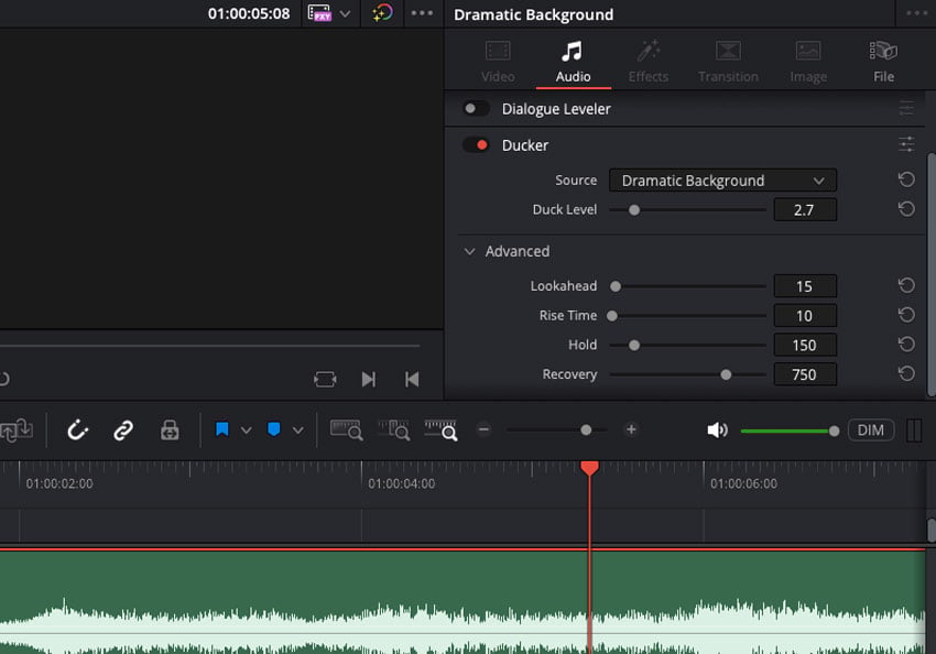
This advanced video editor offers audio ducking utility through its Fairlight audio panel. It uses sidechain compression to decrease the music volume when the speech is detected. Such features allow precise audio balancing and deliver studio-level sound mixing.
Pros
- This advanced tool is suitable for professional film and broadcast work.
- Users can generate clean and high-quality audio output.
Cons
- It takes time to master the Fairlight audio tools for audio ducking.
- DaVinci Resolve requires a powerful system to run smoothly on a PC.
Pricing Plan
$295 (One Time)
4. Adobe Premiere Pro
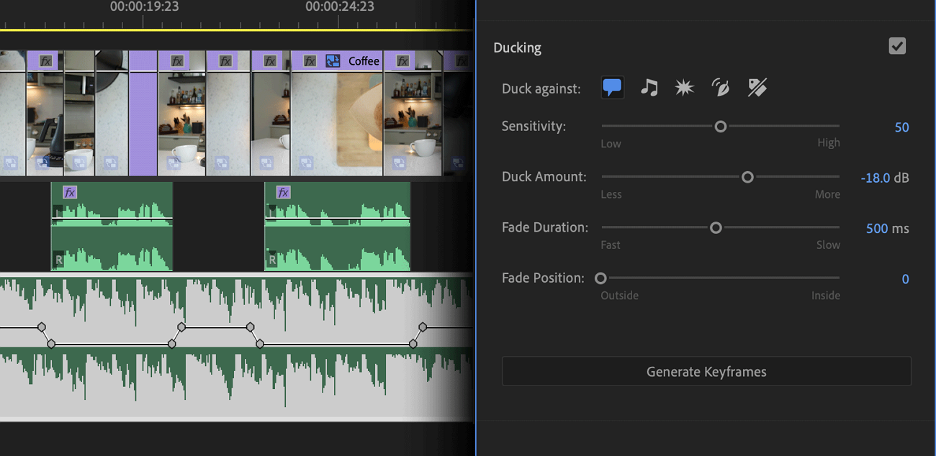
Users can make use of the Essential Sound panel and keyframe controls for automatic ducking of audio in Adobe Premiere Pro. It automatically reduces background music when dialogue is present, helping maintain clear voice focus in videos. Editors can fine-tune intensity, timing, and balance for polished results.
Pros
- The keyframes and audio gain tools give precise control over the process.
- Users can benefit from the Adobe Creative Cloud ecosystem integration for better outcomes.
Cons
- Adobe Premiere Pro’s interface can feel complex and overwhelming.
- Users need to put in manual efforts for precise results.
Pricing Plan
$22.99/month
5. Audacity
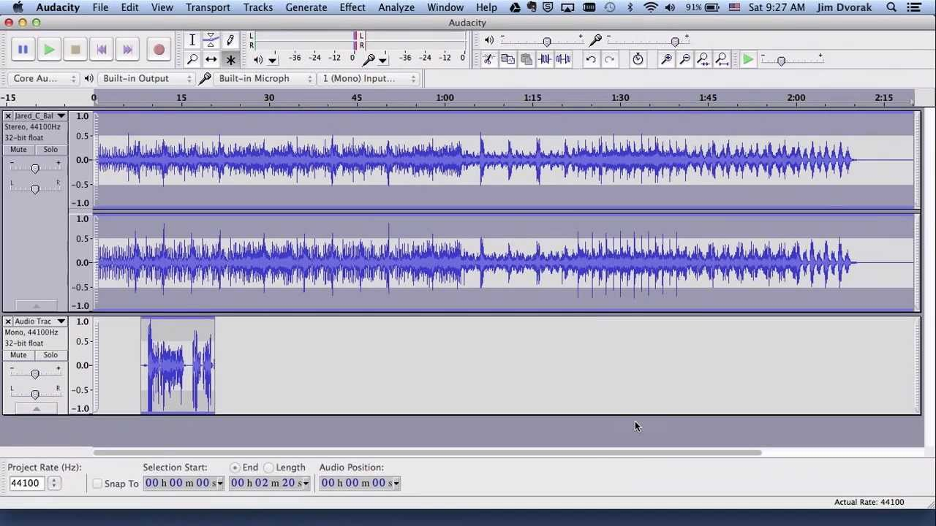
Audacity does not offer any direct audio ducking tools or automatic speech detection. However, it does provide manual audio ducking using effects like compression and envelope tools. Users can manually identify speech in audio and lower the music by editing waveforms directly or applying sidechain-like compression through plugins
Pros
- Audacity is a free and open-source software.
- This platform supports plugins for advanced audio effects.
Cons
- It has limited application as an audio-only tool.
- Audacity has no built-in automatic audio ducking feature.
Pricing Plan
Free
After a detailed discussion on the audio ducking capabilities of the tools above, let’s take a look at the following comparison table:
| Feature | Wondershare Filmora | CapCut Desktop Video Editor | DaVinci Resolve | Adobe Premiere Pro | Audacity |
| Audio Ducking Type | One-click automatic ducking, beginner-friendly | Simple auto ducking with presets for short-form edits | Advanced sidechain-based ducking in Fairlight audio | Precise keyframe + Essential Sound panel automation | Manual or plugin-based (no native video ducking) |
| Ease of Use | Very easy, drag-and-drop workflow | Extremely easy, optimized for speed | Moderate to difficult learning curve | Professional, complex interface | Easy for audio-only tasks |
| Control and Customization | Basic control over intensity | Limited customization options | High-level control (timing, thresholds, mixing) | Very high precision and fine tuning | Full manual control via editing |
| Best for | YouTube, vlogs, beginners | TikTok, Reels, quick social edits | Professional video + audio production | Film, TV, advanced content creators | Podcast/audio editing only |
Part 3. Why Use Audio Ducking in Wondershare Filmora?
The table above highlights the strong features of all major audio ducking tools. Upon a close look, it can be seen that Wondershare Filmora audio ducking offers the fastest workflow. The following points will explain what makes it a workable tool:
- One-Click Application: The one-click enable and disable toggle for audio ducking makes Filmora a user-friendly tool for beginners.
- Automatic Speech Detection: Filmora offers AI-powered speech detection features that prevent manual input by users.
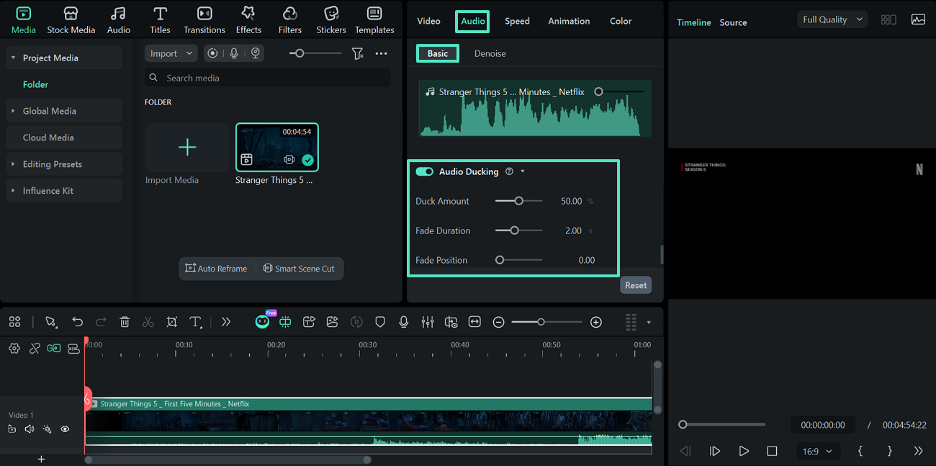
- Customizable Advanced Controls: Users can adjust the duck amount, fade-in and out parameters, and fade positions for precise results.
- Additional Audio Enhancements: Using the elaborate AI and basic audio editing panel, editors can refine their audio quality.
A Guide to Using Wondershare Filmora’s Audio Ducking Feature
The automatic ducking workflow on Filmora is simple and needs just a few clicks. The following guide explains how this feature can be used:
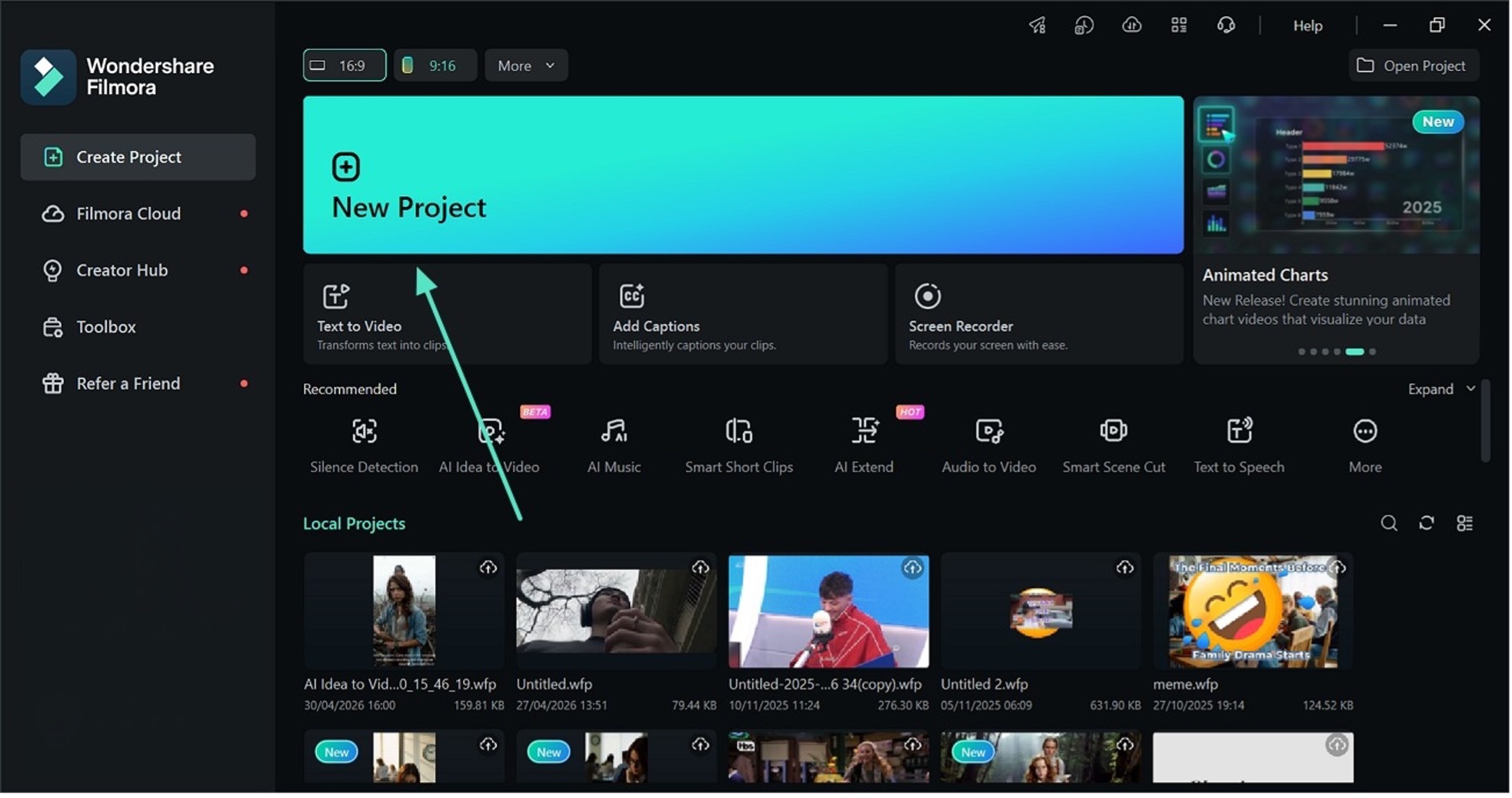
Step 1. Start a New Project and Import a Video
To begin with, click the “New Project” button and import a video from the device.
Step 2. Access and Enable the Audio Ducking Feature
Access the “Basic” panel across the “Audio” tab and enable “Audio Ducking.” Manage the sliders including “Duck Amount,” “Fade Duration,” and “Fade Position” for better results.
Step 3. Export the Video File to the Device
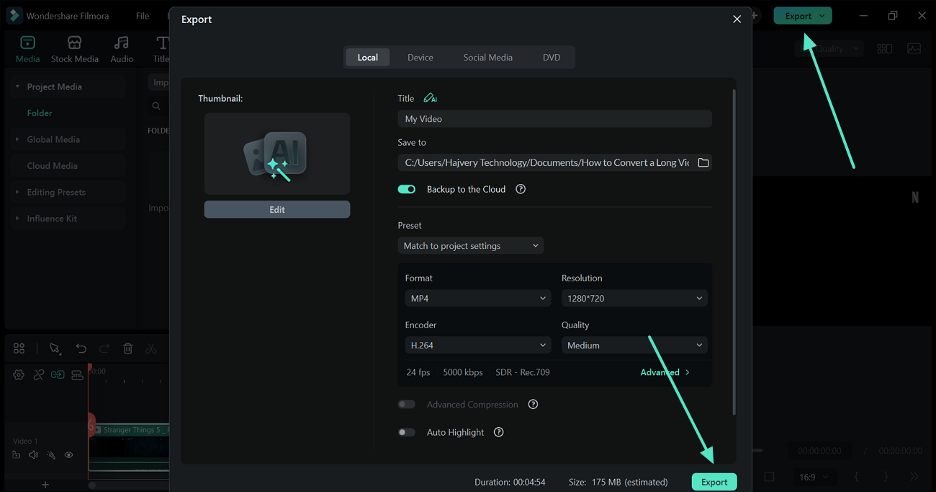
Once the video is ready, press the “Export” button in the top right to save the video to the device.
Conclusion
Audio ducking helps maintain the video’s professionalism by lowering the music when speech is detected. This article explored the top 5 audio duckers that are widely used. After a detailed comparison of these tools, it was concluded that Wondershare Filmora had the most practical functionality. Its AI-driven audio ducking saves time and encourages beginners towards video editing.
Note to the Reader: This section is an independent editorial review based on publicly available product information and comparative analysis. It is intended for informational purposes only and does not represent the official views or endorsements of any publisher, software company, or media organization.


