Best Software for Remote Access [Free]
Which software for remote access is best?
With remote work becoming the new normal, choosing the right software for remote access has never been more important. Whether you’re an IT administrator managing multiple devices, a business supporting a hybrid workforce, a gamer wanting to access your PC on the go, or simply someone who needs files from a home computer, software for remote access to another computer makes everything easier. These tools allow you to remotely control computer from another computer, share screens, collaborate, and troubleshoot issues from anywhere in the world.
So, which software for remote access to PC is truly the best? AnyViewer stands out as a top choice thanks to its powerful features, smooth performance, and beginner-friendly design.
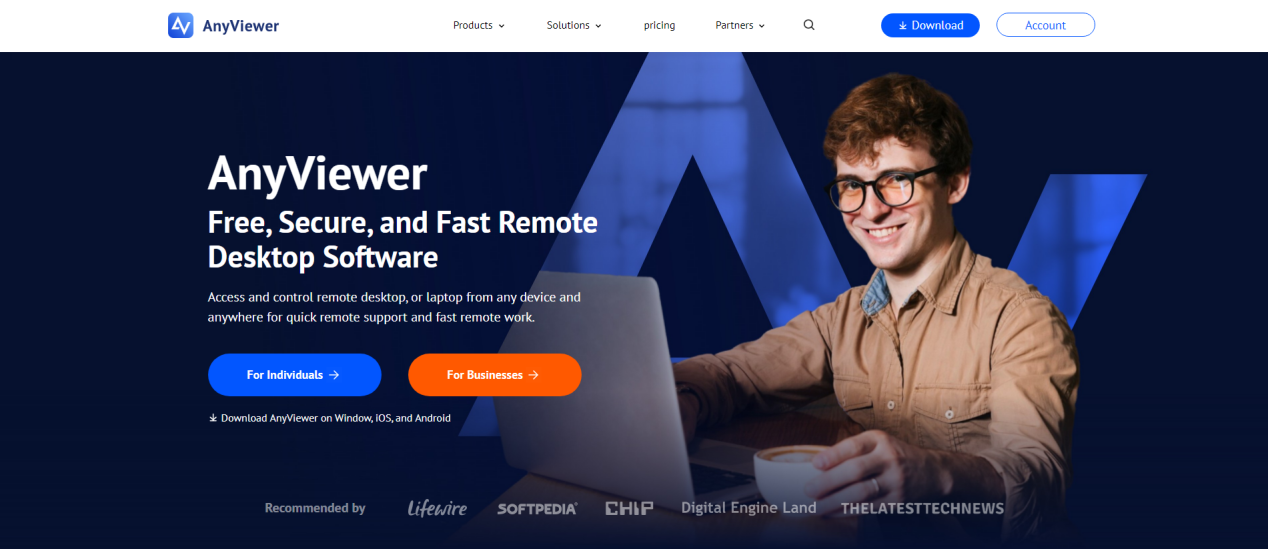
Why AnyViewer stands out
AnyViewer consistently ranks among the best software for remote access thanks to its blend of speed, security, and professional-grade features. Here’s what makes it exceptional:
- Ultra-HD Remote Control: Get crisp, detailed visuals with ultra-smooth performance, perfect for graphic design, video editing, monitoring tasks, or daily work.
- Fast, Stable Connections: Even on lower-bandwidth networks, AnyViewer maintains responsive, low-latency sessions, ensuring uninterrupted productivity.
- Easy Setup for Beginners: Installation, login, and connection take seconds. Anyone can use it, no technical skills required.
- Ideal for IT Support, Businesses, and Individuals: Whether you’re providing clients with remote IT support services, managing company devices, or accessing your home PC, AnyViewer works seamlessly in all scenarios.
- Secure and Private Connections: Protect your data with end-to-end encryption, multi-factor authentication, and robust security protocols that ensure safe remote sessions in both personal and professional environments.
Key features to look for in AnyViewer
Here are the essential capabilities that set AnyViewer apart when selecting a powerful and dependable software for remote access solution:
- Secure Unattended Access: Connect to remote devices without requiring anyone present on the other end, ideal for office computers, servers, and long-term IT maintenance.
- Unlimited Concurrent Sessions: Control as many remote computers as you need at the same time from a single device.
- Multi-Device Screen Walls: Monitor several remote screens live in one unified interface, making it perfect for IT operations, support centers, training environments, and command rooms.
- High-Speed File Transfer: Move documents, images, and work files between devices quickly and efficiently.
- Game Mouse Support: Enables smooth 3D camera rotation for first-person games during remote gameplay.
- Cross-Platform Compatibility: Works seamlessly across Windows, iOS, Android, and other systems to keep workflows flexible and accessible.
- Privacy Mode: Black out the remote device’s physical screen and lock its keyboard to protect sensitive information during sessions.
- Team & Enterprise Management: Add members, assign permissions, organize devices, and manage large teams or business environments with ease.
- Mass Deployment (MSI): Deploy AnyViewer across multiple domain-joined computers efficiently using Group Policy and MSI packages for large-scale rollouts.
Step-by-step guide to use AnyViewer
Getting started with AnyViewer is quick and straightforward. Follow the steps below to set up your devices and begin using one of the top software for remote access to PC options in minutes.
Step 1. Download AnyViewer on both the local and remote devices, then complete the quick installation process.
Step 2. Log in with your free account to unlock features such as device list, unattended access, and better stability.
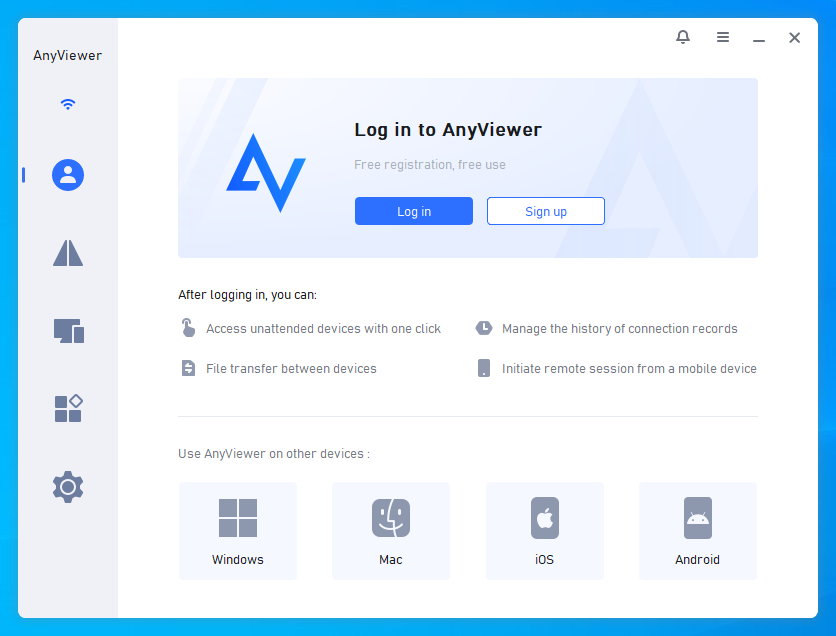
Step 3. After signing in, each device instantly syncs to your account. Ensure you’re logged in with the same account on every device you plan to control.
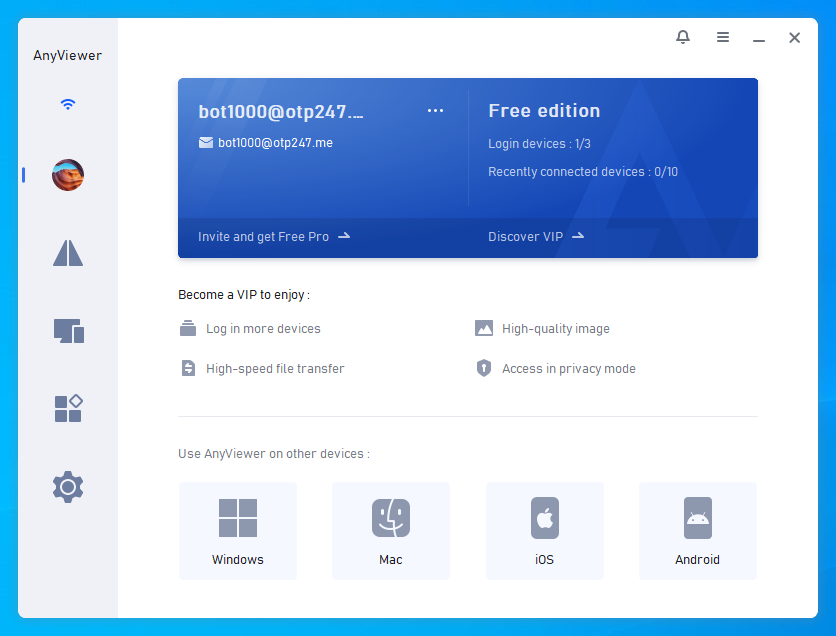
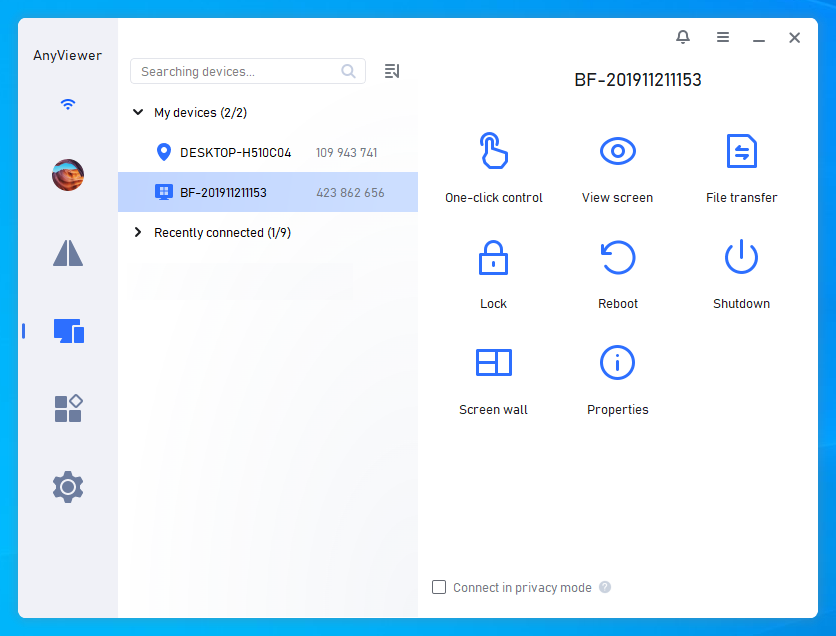
Step 4. Select the device you want to access and choose One-click control for instant remote connection.
Step 5. Once connected, you can:
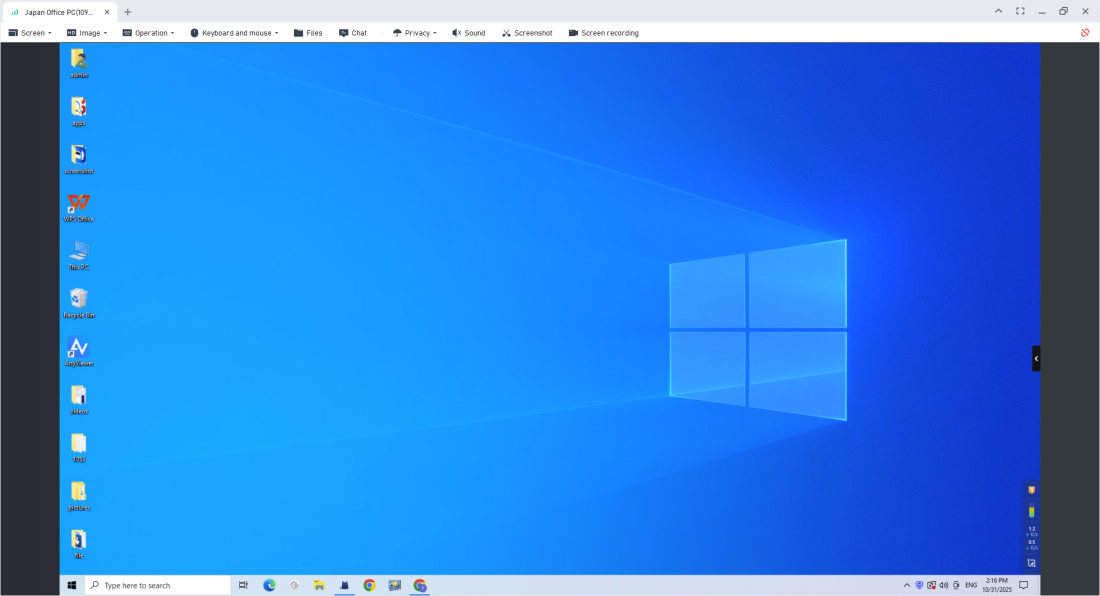
- control the desktop
- transfer files
- adjust monitor settings
- use multi-window mode
- switch between devices
Conclusion
Choosing the best software for remote access depends on your needs, but AnyViewer offers a powerful, well-rounded solution for beginners, professionals, IT teams, and businesses alike. Its ultra-HD remote control, stable performance, easy setup, and advanced features make it one of the most reliable tools available today. Whether you need remote work support, IT maintenance, or simple personal access, AnyViewer delivers a smooth, secure, and efficient experience every time.


