
Step-by-Step Guide: Accessing Global Streaming Libraries via VPN on PC & Mobile
Introduction
I’m sure everyone has encountered this problem while traveling for business or relaxing: when we visit a new country and try to open Netflix, Disney+, or Hulu, we find our watchlist missing a lot of content. This is actually due to the copyright restrictions these streaming platforms impose in different countries. The content available to users varies by their location.
This is where a VPN comes in. A VPN fixes this by making the streaming app think you are somewhere else. I use iTop VPN, and here’s how I use it—based on my month of experience on both desktop and mobile devices.
How Geo-Restrictions Work
A very common scenario is when we’re in another country (such as somewhere in Asia) and are still using our old Netflix account, yet the content available to watch is completely different. And you will find that other streaming platforms work the same way.
A VPN routes your internet connection through a server located in another country, so that streaming platforms see that server’s IP address instead of your real IP address. This way, the platform will show you the content from that region.
You might be wondering how the platform detects VPNs.
Streaming platforms now have many techniques available to detect and block VPN traffic:
- IP Blacklisting: Streaming platforms can track the IP addresses of some VPN providers’ servers.
- DNS Leak Check: Streaming services can detect your real IP address if your device sends DNS queries outside the VPN tunnel.
- WebRTC & Location Services: Web browsers and mobile operating systems can leak real location data through WebRTC or device GPS.
Choosing the Right VPN Tool for Streaming
When you want to bypass geographic restrictions and choose a VPN, please consider the following factors:
- Server Network & Dedicated Nodes: Choose servers specifically configured to handle high bandwidth and bypass detection; these are typically only available from providers that offer streaming-optimized servers.
- Protocol Performance: Choosing a protocol with proprietary optimizations, such as WireGuard, can effectively ensure low-latency, high-bitrate video playback.
- Security Measures: Choose a service with an automatic Kill Switch or built-in leak protection (DNS/IPv6) to prevent your real IP address from being exposed during intermittent disconnects.
Step-by-Step Guide: Setting Up and Unlocking Libraries on PC & Mobile
Downloading and setting up a VPN on your computer or phone is easy. Below, we’ll use iTop VPN as an example.
Step 1: Download and Install iTop VPN
First, go to the iTop VPN official website. Here, I chose the Windows version, but you can also select other devices such as Mac, iOS, and Android. The download is fast, and the installation goes very smoothly.
Step 2: Connect to a Free VPN Server
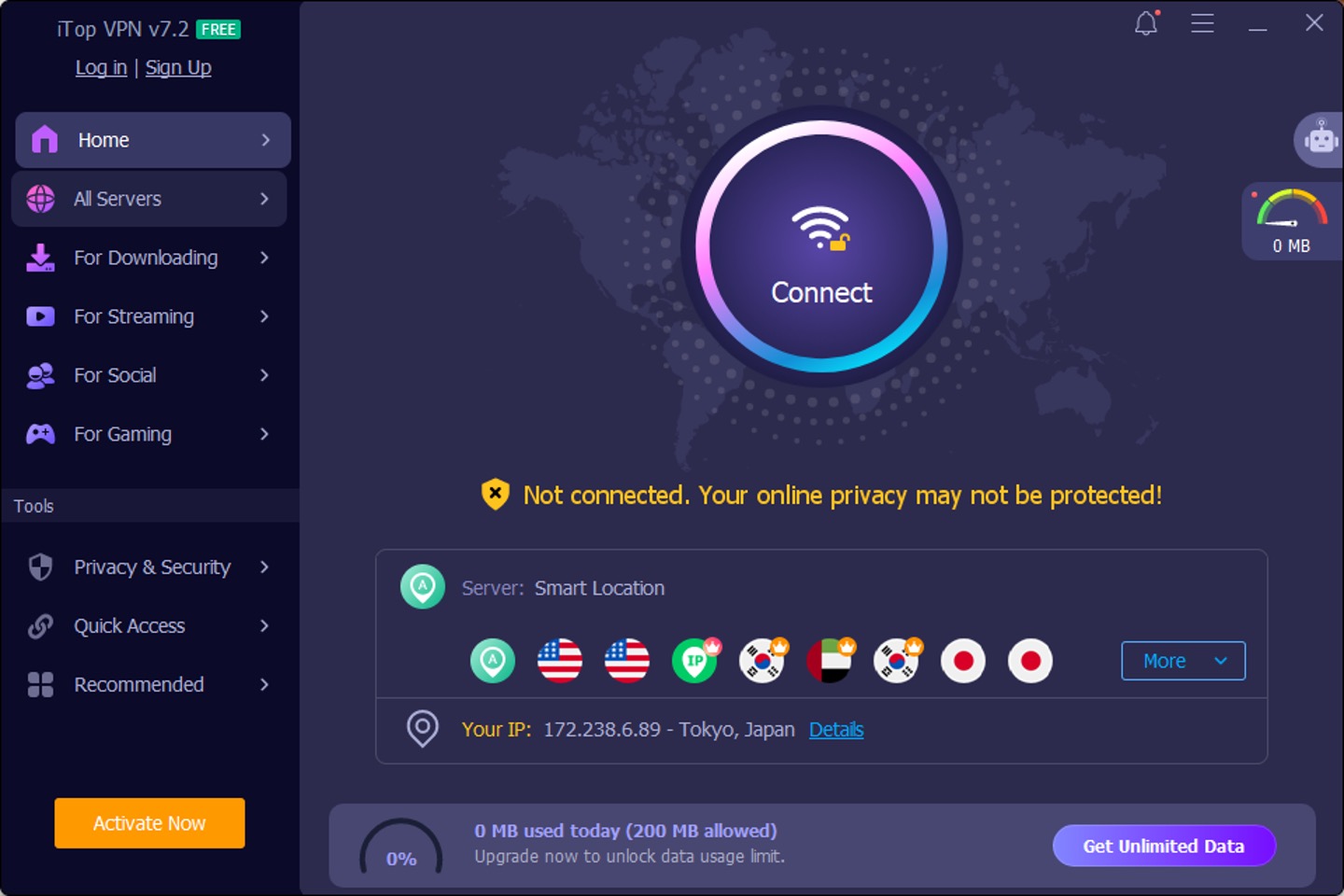
Hitting a big Connect button should, by default, automatically connect you to the nearest server; no need to log in. You can connect 8 devices simultaneously with just one iTop VPN premium account, by the way.
Step 3: Pick a Streaming Server
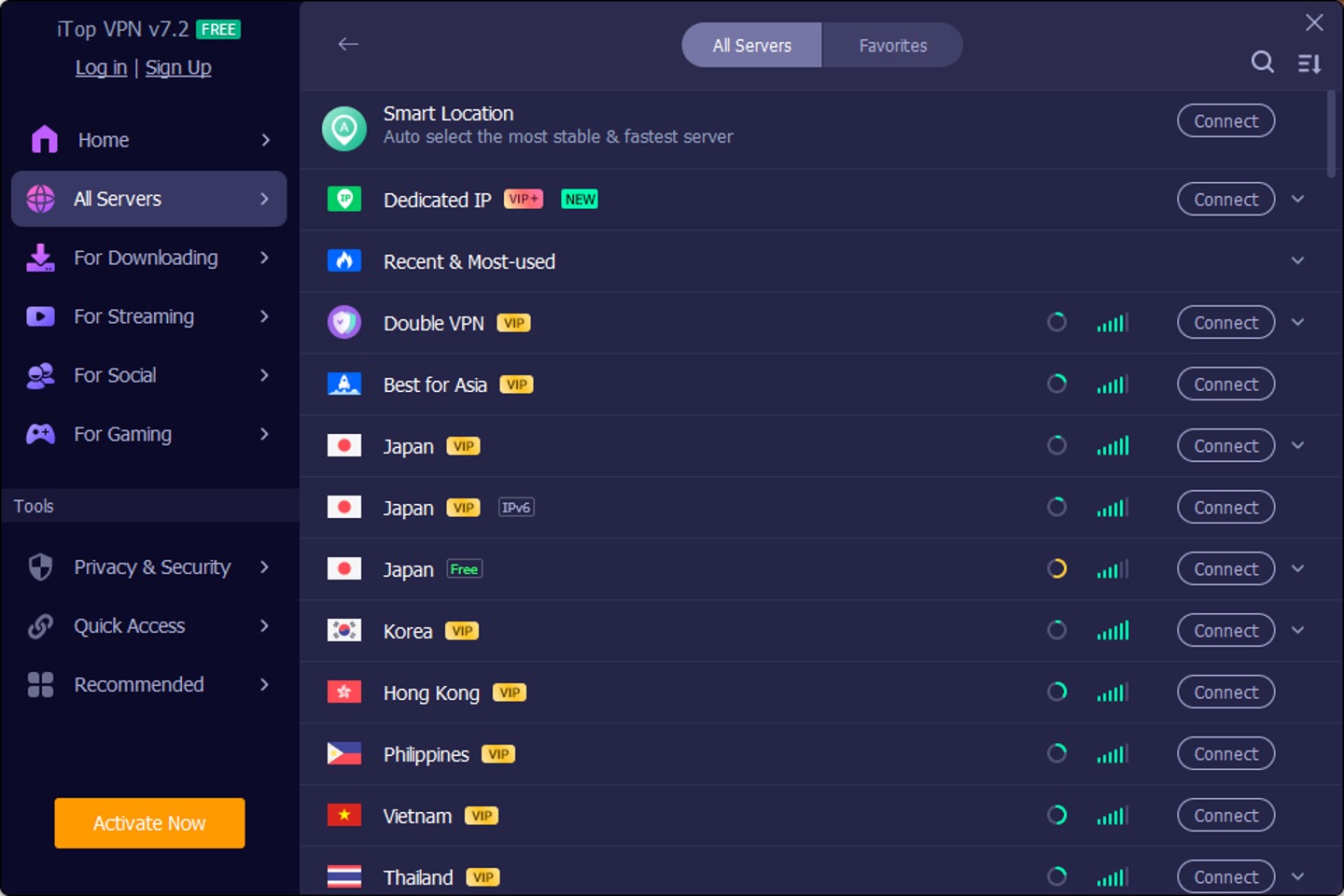
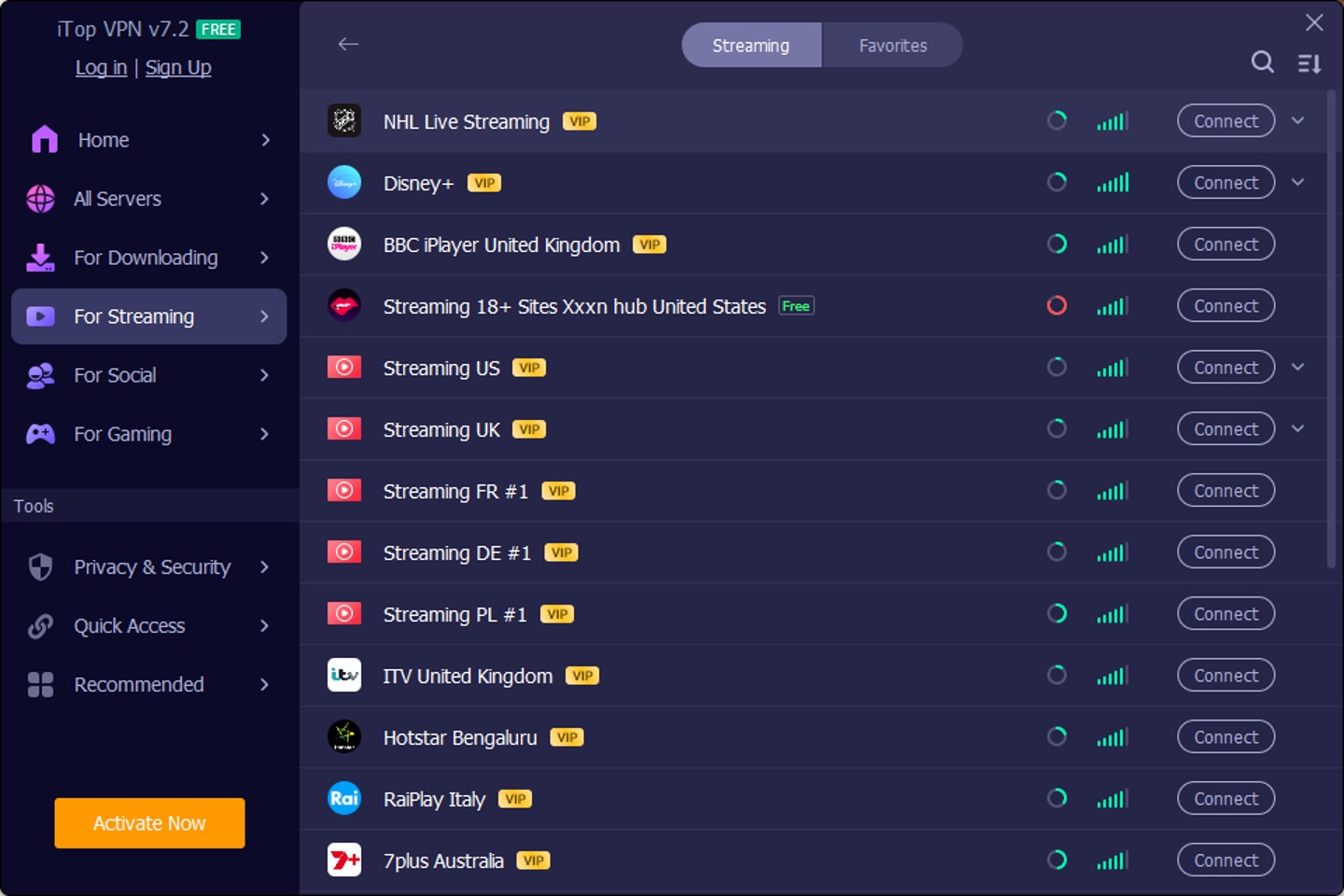
iTop VPN has specialist server locations that can unblock many platforms, making it easier to use than many of its competitors’ products. I tried BBC iPlayer, which is usually hard to unblock, but iTop VPN let me access it right away. I also tested Disney Plus as well. iTop VPN has dedicated servers in both the United States and Japan, and I was able to use both of them without any issues.
Step 4: Configure Key Security Settings
To be on the safe side, enable two key settings in the “Privacy & Security” section before you start streaming:
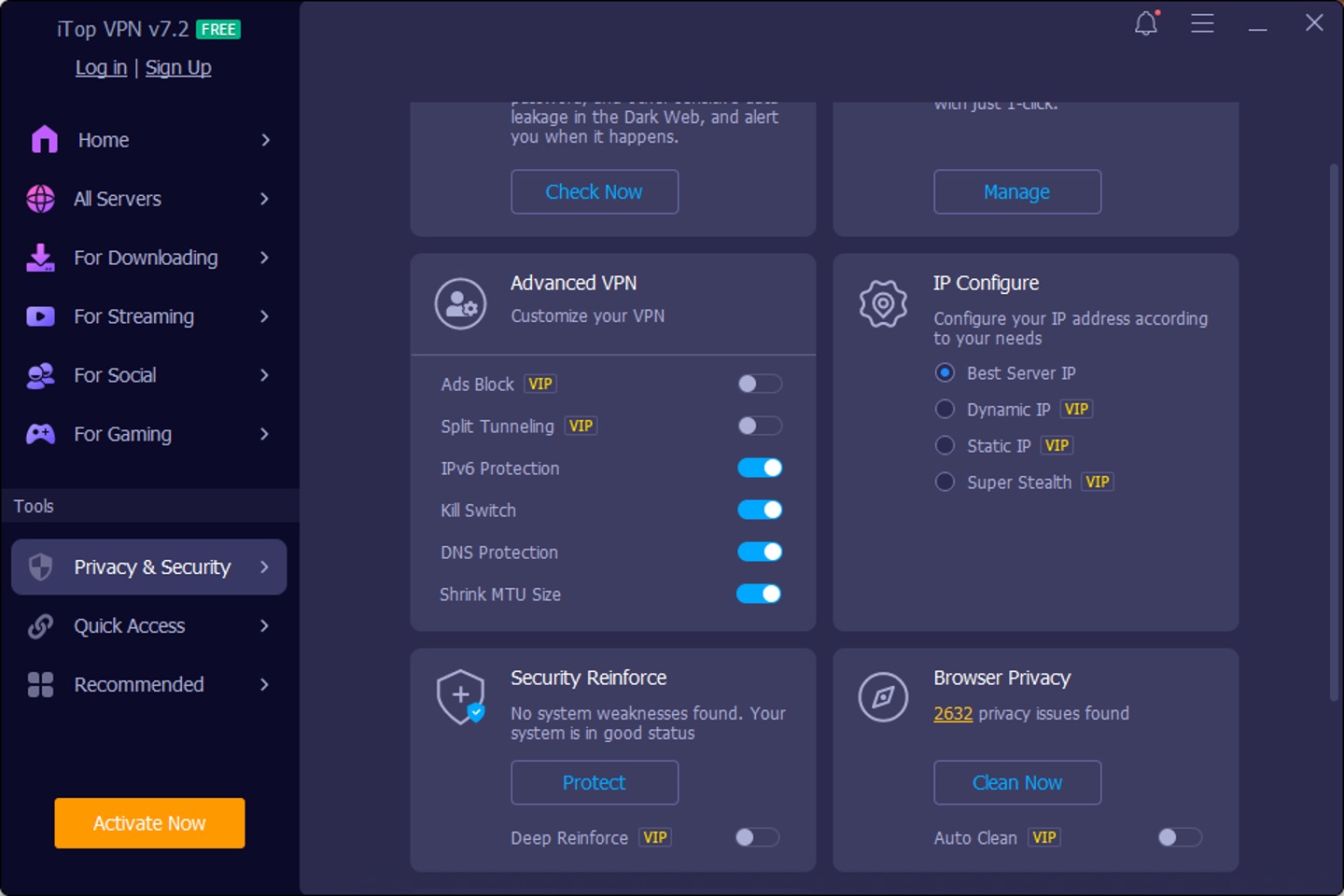
- Enable Kill Switch: Stop all Internet traffic when the VPN drops unexpectedly. This prevents your real IP address from being revealed to Netflix or Disney+.
- Enable Split Tunneling: Manage your VPN connection on a per-app basis, allowing other local apps to run at native local speeds.
Step 5: Mobile App Experience (iOS & Android)
If you want to stream on a mobile app (iOS/Android), it’s best to disable location permissions for the streaming app. This is because, unlike Windows, which checks the IP address, mobile devices also check the device’s location services (GPS). Additionally, the mobile interface is more streamlined than the Windows version.
How To Fix Streaming VPN Errors
If you are facing streaming proxy errors (e.g., Netflix Error Code M7037-1111 or ‘You seem to be using an unblocker or proxy’), please follow these steps:
- Clear your browser’s cache and cookies, or open Incognito mode.
- Turn on your VPN, disconnect from your current server, and reconnect to a different one.
- Try flushing your DNS cache.
- Turn on Airplane Mode (Mobile App) for about ten seconds, then turn it off again; this will reset your network interfaces.
Why iTop VPN’s Server Network Makes Unblocking Easier
After using this across a few different trips, here is what stood out to me:
- The server list is huge: iTop VPN provides over 3200 reliable and high-quality VPN servers in 100 +locations for streaming.
- Impressive (limited) free plan: Paying 12 months upfront cuts the cost to $3.99 a month.
- Extra privacy protection features:iTop VPN provides browser privacy—it scans for and removes privacy risks, protecting your personal information from being tracked.
- Connection stability: It has not dropped connection mid-episode, even on slower hotel Wi-Fi.
Where iTop VPN Falls Short for Streaming
To keep this honest, here are the downsides I ran into:
- Server blocks: Like all VPNs on the market, iTop VPN also carries the risk that some of its servers may be blocked by streaming platforms, and you may need to switch servers while watching.
- Speed overhead: If you connect to a server that is farther away, the loading speed will slow down significantly.
Conclusion & Best Practices
If you travel frequently for business or leisure and want to stream seamlessly in different countries, choosing the right VPN is essential. iTop VPN’s free plan may be worth considering for simple, non-privacy-sensitive tasks. To access iTop VPN’s many powerful additional features, you’ll need to upgrade your account.
Just keep in mind that individual IPs get blocked periodically, so switching servers is part of the process.


